
Introduction
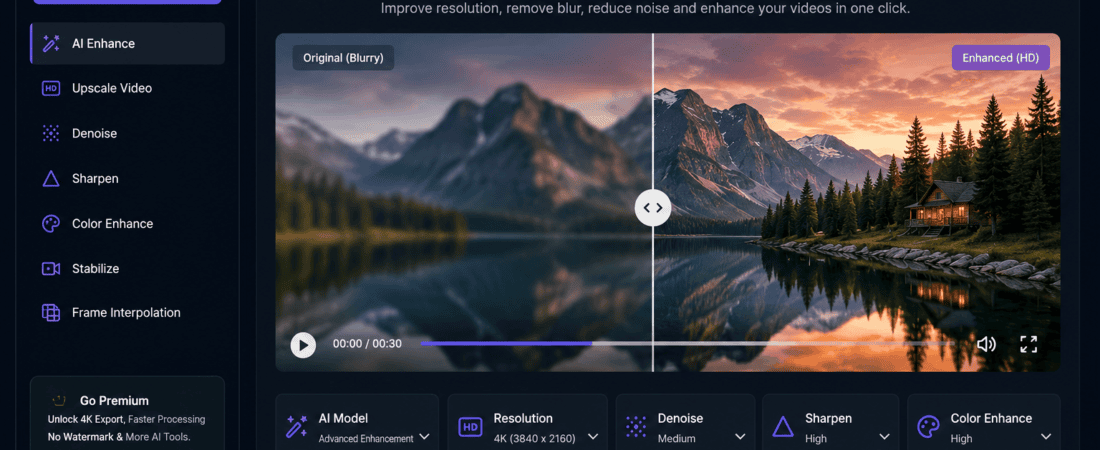
Have you ever recorded an important video only to discover that it looks blurry, pixelated, or low quality? Whether it’s a YouTube video, Instagram Reel, TikTok clip, family memory, online course, or business advertisement, poor video quality can ruin the viewer’s experience.
Fortunately, you no longer need expensive desktop software or professional editing skills to improve video quality. Thanks to artificial intelligence (AI), you can now enhance blurry videos online within minutes. AI-powered video enhancers automatically sharpen details, remove noise, increase resolution, restore faces, improve colors, and even upscale videos to HD or 4K.
The best part? Many of these AI video enhancement tools offer generous free plans, allowing creators, marketers, students, and businesses to restore old or blurry videos without spending money.
In this comprehensive guide, we’ll explore the best free AI tools to fix blurry video quality online, compare their features, discuss their advantages and disadvantages, and help you choose the right tool for your needs.
Why Videos Become Blurry
Understanding why videos lose quality helps you choose the best AI enhancement method.
Common reasons include:
- Low camera quality
- Digital zoom
- Poor lighting
- Compression after uploading
- WhatsApp or Messenger sharing
- Old recordings
- Camera shake
- Low internet streaming quality
- Screen recording artifacts
- Incorrect export settings
Modern AI models can intelligently reconstruct lost details instead of simply sharpening pixels.
How AI Video Enhancement Works
Unlike traditional sharpening filters, AI analyzes every frame using deep learning algorithms trained on millions of videos.
AI can automatically:
- Increase video resolution
- Restore facial details
- Reduce video noise
- Remove blur
- Sharpen edges
- Improve color accuracy
- Restore damaged footage
- Stabilize shaky clips
- Increase frame quality
- Upscale SD videos into HD or 4K
The entire process usually takes only a few minutes.
Benefits of AI Video Enhancement
Using AI offers many advantages over manual editing.
Saves Time
Manual sharpening and restoration can take hours. AI finishes most tasks automatically.
Beginner Friendly
No editing experience is required.
Better Results
AI recognizes faces, objects, backgrounds, and textures to produce natural-looking improvements.
Cloud-Based
Many tools work directly inside your browser.
Affordable
Most platforms provide free plans suitable for casual users.
Who Should Use AI Video Enhancers?
These tools are ideal for:
- YouTubers
- TikTok creators
- Instagram influencers
- Digital marketers
- Online teachers
- Freelancers
- Small businesses
- Wedding videographers
- Content creators
- Students
- Podcast creators
- Real estate agencies
- Social media managers
Features to Look for in AI Video Enhancement Tools
Before selecting an AI tool, check whether it offers:
- AI Upscaling
- Blur Removal
- Face Restoration
- Noise Reduction
- Color Enhancement
- Frame Interpolation
- Video Stabilization
- Batch Processing
- Browser-Based Editing
- Watermark-Free Export
- HD or 4K Support
1. CapCut AI Video Enhancer
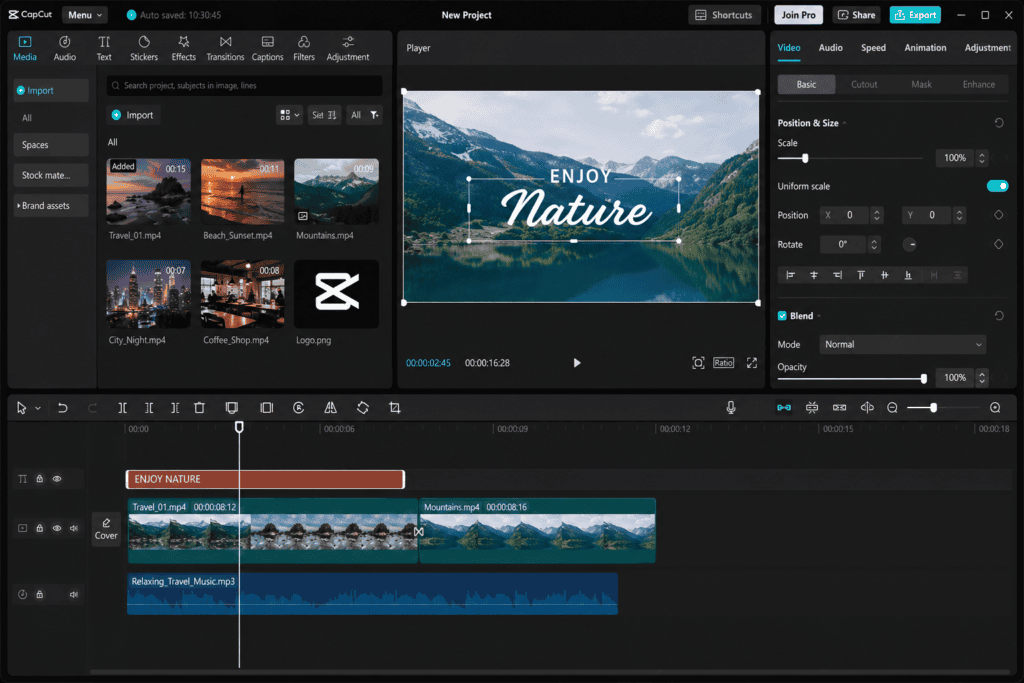
CapCut has become one of the most popular free AI video editors.
Its AI enhancement automatically improves video sharpness, removes blur, enhances colors, and boosts overall quality.
Best Features
- AI Enhance
- AI Upscaling
- Noise Reduction
- Portrait Enhancement
- Face Restoration
- Easy Interface
Pros
- Free version available
- Fast processing
- Beginner friendly
- Great for social media videos
Cons
- Export limitations on free plan
- Some premium AI features require subscription
Best for:
- TikTok
- Instagram Reels
- Shorts
- Content creators
2. Canva AI Video Enhancer
Canva now includes AI-powered video editing tools inside its online editor.
Users can improve video quality while adding graphics, subtitles, animations, and branding.
Features
- Video enhancement
- Brightness correction
- AI editing
- Background removal
- Noise reduction
Pros
- Browser based
- Easy drag-and-drop editor
- Perfect for beginners
Cons
- Limited advanced restoration
Ideal for:
- Social media marketers
- Business presentations
- Promotional videos
3. Vmake AI
Vmake AI specializes in AI image and video enhancement.
It can sharpen blurry footage while increasing overall clarity.
Features
- AI sharpening
- Video enhancement
- HD upscaling
- Face enhancement
Pros
- Simple interface
- Excellent portrait enhancement
- Online processing
Cons
- Free credits are limited
4. Media.io AI Video Enhancer
Media.io offers multiple AI tools under one platform.
Its AI Video Enhancer improves:
- Sharpness
- Resolution
- Color
- Brightness
- Noise reduction
Advantages
- Supports many formats
- Browser based
- No software installation
Drawbacks
- Processing speed depends on file size.
5. TensorPix AI
TensorPix is one of the fastest online AI enhancement platforms.
It specializes in:
- AI upscaling
- Blur removal
- Motion smoothing
- Noise reduction
Best Features
- HD enhancement
- 4K upscaling
- Face enhancement
- Color correction
Ideal for:
- Old videos
- VHS recordings
- Low-quality mobile footage
6. Cutout.Pro AI Video Enhancer
Cutout.Pro uses advanced AI models to restore blurry footage.
Features include:
- AI denoise
- AI sharpening
- Color enhancement
- Facial restoration
Pros:
- Excellent quality
- Fast cloud rendering
Cons:
- Limited free exports
7. FlexClip AI Video Enhancer
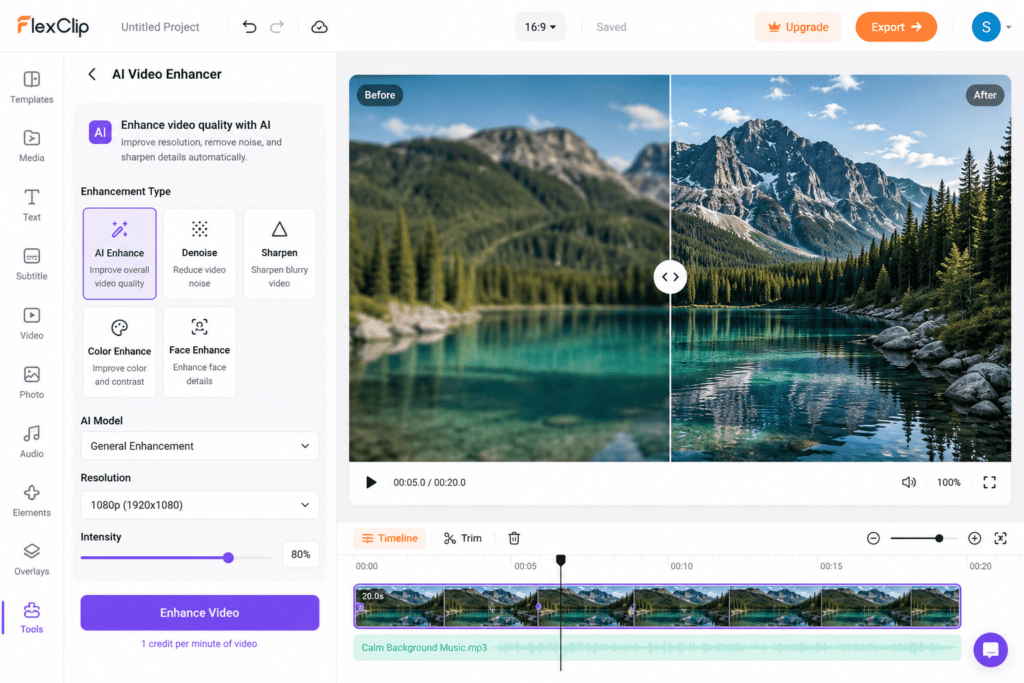
FlexClip combines video editing with AI enhancement.
You can improve video quality and edit videos simultaneously.
Features include:
- AI enhancement
- Templates
- Subtitle generation
- Text animation
Perfect for:
- YouTube creators
- Businesses
- Marketing agencies
8. Fotor AI Video Enhancer
Fotor has expanded beyond photo editing into AI video enhancement.
Features include:
- Blur removal
- Resolution enhancement
- Noise reduction
- Color optimization
Advantages
- Easy interface
- Browser based
- Free trial
Comparison Table
| Tool | Free Version | Blur Removal | Upscaling | Online |
|---|---|---|---|---|
| CapCut | ✅ | ✅ | ✅ | ✅ |
| Canva | ✅ | ✅ | Limited | ✅ |
| Vmake | ✅ | ✅ | ✅ | ✅ |
| Media.io | ✅ | ✅ | ✅ | ✅ |
| TensorPix | ✅ | ✅ | ✅ | ✅ |
| Cutout.Pro | ✅ | ✅ | ✅ | ✅ |
| FlexClip | ✅ | ✅ | Limited | ✅ |
| Fotor | ✅ | ✅ | ✅ | ✅ |
How to Fix Blurry Videos Online Using AI
The process is almost identical across most platforms.
Step 1
Open your preferred AI video enhancement website.
Step 2
Upload your blurry video.
Step 3
Choose the AI enhancement option.
Step 4
Select your desired output resolution.
Options usually include:
- HD
- Full HD
- 2K
- 4K
Step 5
Start AI processing.
Step 6
Preview the enhanced result.
Step 7
Download your improved video.
Tips for Getting Better AI Enhancement Results
Even the best AI cannot recover information that was never captured, but these tips help maximize results.
Upload the Original File
Avoid compressed copies from messaging apps.
Choose Higher Resolution
Export in HD or 4K when available.
Improve Lighting Before Recording
Better source footage always produces better AI results.
Avoid Multiple Compression Cycles
Repeated uploads reduce quality.
Use Stable Footage
AI sharpening works best on stable videos.
AI Enhancement vs Traditional Video Editing
| AI Enhancement | Manual Editing |
|---|---|
| Automatic | Manual |
| Beginner friendly | Requires experience |
| Fast | Time-consuming |
| Cloud-based | Software installation |
| Smart restoration | Basic filters |
Common Limitations of Free AI Video Enhancers
Free versions often include:
- Watermarks
- Daily upload limits
- Lower export resolution
- Slower rendering
- Credit-based usage
- File size restrictions
Despite these limitations, free plans are usually sufficient for testing and occasional projects.
Best AI Video Enhancer for Different Users
Best Overall
CapCut AI
Best for Beginners
Canva
Best for Old Videos
TensorPix
Best for Portrait Videos
Vmake AI
Best for Marketing Videos
FlexClip
Best for Professional Quality
Cutout.Pro
Frequently Asked Questions
Can AI really fix blurry videos?
Yes. AI can significantly improve blurry videos by reconstructing details, reducing noise, sharpening edges, and increasing resolution. However, results depend on the quality of the original footage.
Are free AI video enhancers good?
Yes. Free plans from tools like CapCut, Canva, Media.io, and TensorPix provide excellent results for most everyday videos.
Can AI convert SD videos to HD?
Yes. Many AI upscalers can enhance SD videos to HD, Full HD, or even 4K using advanced machine learning models.
Will AI remove motion blur?
Some AI tools can reduce mild motion blur, but severe motion blur caused by fast movement may not be fully recoverable.
Do I need to install software?
No. Most modern AI video enhancers work entirely online in your web browser, making them accessible from any device.
Final Thoughts
AI has transformed video restoration, making it easier than ever to improve blurry footage without expensive software or professional editing skills. Whether you’re creating content for YouTube, TikTok, Instagram, online courses, or business marketing, free AI video enhancement tools can dramatically improve your video’s appearance in just a few clicks.
For most users, CapCut AI offers the best balance of ease of use and powerful enhancement features. If you’re already working within a design workflow, Canva AI is a convenient choice. For restoring older or lower-quality footage, TensorPix and Cutout.Pro provide excellent AI-powered restoration capabilities.
Before choosing a tool, compare the free plan’s limitations, such as watermarks, export resolution, and usage credits. Experiment with several platforms to see which delivers the best results for your specific videos. With the right AI enhancer, even blurry recordings can become clearer, sharper, and more professional-looking—helping your content stand out and engage your audience.
Check Out here if you want to know about How to Generate Trending Meme Templates Using Free AI Image Generators (2026 Guide)