Introduction
Have you ever found an old logo, blurry icon, or low-resolution image that becomes pixelated when you try to enlarge it? This is a common problem with raster images such as JPG, PNG, BMP, and GIF files. These image formats are made up of pixels, so increasing their size often results in blurry edges and poor quality.
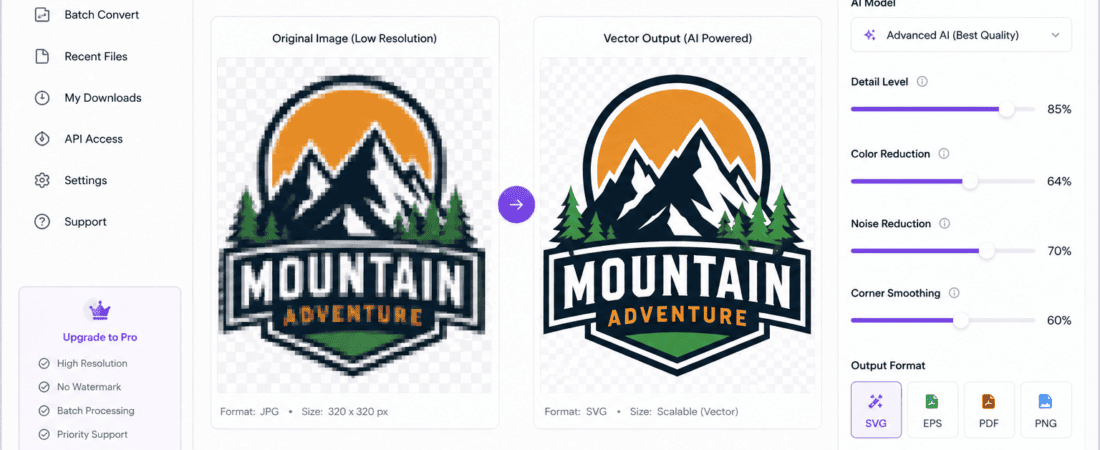
Fortunately, modern AI technology has made it easier than ever to convert low-resolution images into scalable vector graphics. Instead of manually tracing every shape in design software, AI-powered vector conversion tools can automatically detect edges, colors, and curves to generate professional-quality vector files within seconds.
Whether you’re a graphic designer, business owner, illustrator, print shop operator, or content creator, AI vector converters can save hours of manual work while delivering impressive results.
In this guide, you’ll discover the best free AI tools to convert low-resolution images to vector files, how AI vectorization works, their advantages, and which tool is best for different types of images.
What Is a Vector File?
A vector file is an image created using mathematical paths instead of pixels. Because vectors rely on shapes, curves, and points rather than fixed pixels, they can be resized infinitely without losing quality.
Common vector formats include:
- SVG
- AI
- EPS
- PDF (Vector)
- DXF
Unlike JPG or PNG images, vector graphics always remain sharp regardless of their size.
For example:
- A 200×200 pixel logo becomes blurry when enlarged to a billboard.
- The same logo converted into SVG or EPS remains perfectly sharp whether printed on a business card or a highway billboard.
This scalability makes vector graphics essential for branding, printing, web design, and digital illustration.
Raster Images vs Vector Graphics
| Raster Images | Vector Graphics |
|---|---|
| Made of pixels | Made of mathematical paths |
| Lose quality when enlarged | Infinite scalability |
| Best for photographs | Best for logos and illustrations |
| JPG, PNG, GIF | SVG, AI, EPS |
| Large file sizes | Smaller and cleaner files |
If you plan to print logos, create merchandise, laser engravings, CNC designs, or website icons, vector graphics are always the better choice.
Why Convert Low Resolution Images into Vector Files?
Many people only have access to small or blurry versions of important graphics.
Examples include:
- Old company logos
- Social media profile pictures
- Scanned drawings
- Hand sketches
- Vintage artwork
- Pixelated icons
- Low-resolution screenshots
AI vector converters can intelligently recreate missing edges, smooth curves, and sharpen details to produce editable vector graphics.
Instead of redrawing everything from scratch, AI automates most of the work.
Benefits of AI Vector Conversion
Using AI-powered vector tools offers several major advantages.
1. Save Hours of Manual Tracing
Traditional vectorization in Adobe Illustrator often requires manually tracing every shape using the Pen Tool.
AI can complete this task within seconds.
2. Improve Image Quality
Modern AI algorithms identify blurry edges and recreate smoother lines, making low-quality images appear much cleaner.
3. Preserve Fine Details
Good AI vector converters retain:
- Curves
- Rounded corners
- Letter spacing
- Icon shapes
- Small design elements
This makes logos and illustrations look professional.
4. Perfect for Printing
Large-format printing requires vector graphics because they maintain sharpness regardless of print size.
Ideal for:
- T-shirts
- Stickers
- Banners
- Packaging
- Business cards
- Billboards
5. Easy Editing
After conversion, vector files can be edited in software like:
- Adobe Illustrator
- Inkscape
- CorelDRAW
- Affinity Designer
- Figma (SVG)
You can change colors, resize objects, edit text, or modify shapes without degrading quality.
How AI Converts Low Resolution Images into Vector Graphics
AI vectorization involves several intelligent processing steps.
Step 1: Image Analysis
The AI scans the uploaded image to identify:
- Objects
- Shapes
- Lines
- Colors
- Edges
- Text regions
Step 2: Edge Detection
Advanced machine learning models locate object boundaries more accurately than traditional tracing software.
This reduces jagged edges.
Step 3: Shape Recognition
The AI identifies geometric shapes such as:
- Circles
- Rectangles
- Curves
- Letters
- Icons
These are converted into editable vector paths.
Step 4: Path Generation
Instead of storing pixels, the software creates Bézier curves and anchor points.
These mathematical paths ensure infinite scalability.
Step 5: Export
Most AI tools export files in formats such as:
- SVG
- EPS
- AI
These can be edited later in vector design software.
Best Free AI Tools to Convert Low Resolution Images to Vector Files
Below are some of the best free AI-powered vector converters available today.
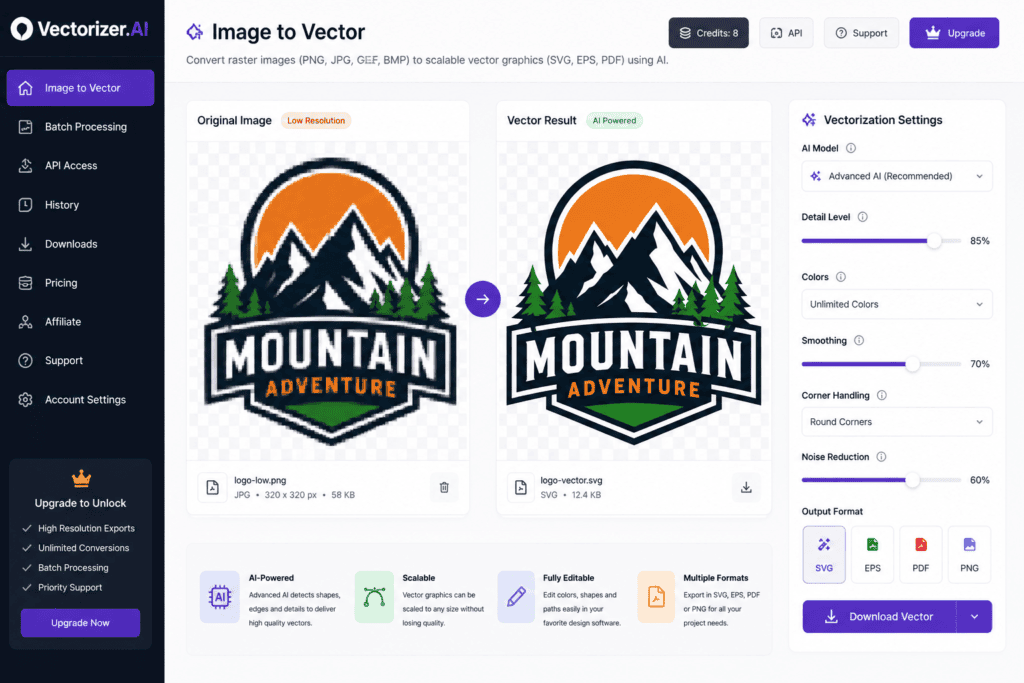
1. Vectorizer.AI
Vectorizer.AI has quickly become one of the most accurate AI-powered image-to-vector conversion tools available. It is designed specifically for transforming raster images into clean, editable vector graphics with minimal user effort.
Unlike traditional auto-tracing software, it uses advanced machine learning to detect edges, smooth curves, and preserve intricate design details. This makes it an excellent choice for logos, icons, illustrations, and digital artwork.
Key Features
- AI-powered automatic vectorization
- Converts JPG, PNG, BMP, and GIF
- Produces clean SVG, EPS, PDF, and DXF outputs
- High-quality edge detection
- Smooth Bézier curve generation
- Maintains color accuracy
- Fast cloud-based processing
Pros
- Outstanding vector quality
- Very easy to use
- Excellent for logos
- Accurate color preservation
- Professional results
Cons
- Free usage has limitations
- Advanced exports may require a paid plan
Best For
- Logo conversion
- Business branding
- Print-ready graphics
- Web icons
- Professional designers
2. Adobe Express Image to SVG
Adobe Express offers a free AI-powered feature that converts PNG images into scalable SVG files. Its simple interface makes it accessible for beginners while benefiting from Adobe’s image processing technology.
Key Features
- One-click PNG to SVG conversion
- Browser-based tool
- AI-enhanced edge detection
- Clean SVG exports
- Works well with logos and icons
Pros
- Beginner-friendly
- No software installation required
- Reliable output quality
- Integrated with the Adobe ecosystem
Cons
- Best suited for simple graphics
- Limited customization options in the free version
Best For
- Small business logos
- Social media icons
- Website graphics
- Quick SVG creation
3. SVG Converter by Picsvg
Picsvg is a lightweight online converter that allows users to transform raster images into SVG files quickly. While it doesn’t use advanced AI to the same extent as premium platforms, it provides a fast and free solution for basic vectorization tasks.
Key Features
- Supports JPG and PNG uploads
- Converts to SVG format
- Adjustable detail levels
- Browser-based
- No installation required
Pros
- Free to use
- Fast processing
- Simple interface
- Good for basic graphics
Cons
- Less accurate with complex images
- Limited editing features
Best For
- Simple icons
- Basic illustrations
- Hobby projects
- Educational use
4. Inkscape (Free Open-Source Vector Converter)
Inkscape is one of the most popular free vector graphic editors available today. Although it isn’t purely AI-powered, its Trace Bitmap feature uses intelligent edge detection to convert raster images into editable vector graphics. When paired with AI image enhancement tools, Inkscape can produce professional-quality vector files at no cost.
It supports Windows, macOS, and Linux, making it an excellent choice for beginners and professionals alike.
Key Features
- Completely free and open source
- Built-in Trace Bitmap tool
- Supports SVG, EPS, PDF, and DXF
- Advanced editing capabilities
- Multiple tracing modes
- Community-supported updates
Pros
- 100% free forever
- No watermarks
- Powerful editing tools
- Excellent for detailed artwork
- Large user community
Cons
- Learning curve for beginners
- Manual adjustments may be required
- Slower than dedicated AI tools
Best For
- Graphic designers
- Students
- Print shops
- Logo editing
- DIY vector projects
5. Vector Magic (Free Trial)
Vector Magic has long been recognized as one of the most accurate image-to-vector conversion tools. It combines advanced image analysis with intelligent edge detection to generate clean vector graphics from low-resolution images.
Although the full version is paid, the free trial allows users to test its powerful conversion capabilities before subscribing.
Key Features
- Automatic vector tracing
- Smooth curve generation
- Color optimization
- High-detail image processing
- Batch conversion
- Multiple export formats
Pros
- Exceptional quality
- Professional-grade results
- Excellent text recognition
- Great for complex artwork
Cons
- Free version has limitations
- Subscription required for full features
Best For
- Professional logos
- Print-ready graphics
- Brand assets
- Commercial projects
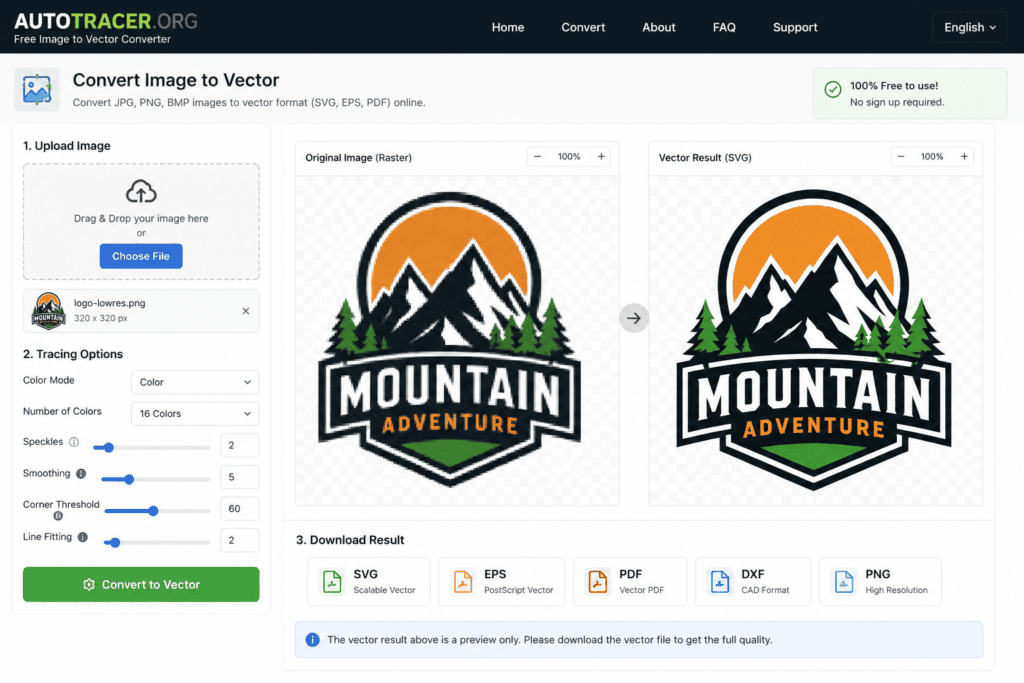
6. Autotracer.org
Autotracer.org is a lightweight online vector converter that supports multiple input and output formats. While it doesn’t use advanced AI like newer platforms, it remains a useful free option for basic image vectorization.
Key Features
- Browser-based converter
- Supports JPG, PNG, BMP
- Outputs SVG, EPS, PDF
- Adjustable smoothing settings
- No software installation
Pros
- Free to use
- Quick conversion
- Multiple export options
- Beginner-friendly
Cons
- Less accurate on complex artwork
- Limited customization
Best For
- Icons
- Simple graphics
- Educational projects
- Personal use
Step-by-Step Guide: Convert a Low-Resolution Image into a Vector File
Converting an image into a vector file is easier than ever with AI-powered tools. Follow these simple steps for the best results.
Step 1: Choose Your AI Vector Converter
Select a tool based on your needs:
- Vectorizer.AI for high-quality logo conversion
- Adobe Express for quick SVG creation
- Inkscape for free editing
- Vector Magic for professional results
- Autotracer.org for basic conversions
Step 2: Upload Your Image
Supported formats usually include:
- JPG
- PNG
- BMP
- GIF
For the best outcome, use the highest-quality source image available, even if it’s small.
Step 3: Let the AI Analyze the Image
The AI scans the image to identify:
- Shapes
- Lines
- Colors
- Curves
- Text
- Edges
This process typically takes only a few seconds.
Step 4: Adjust the Settings
Most AI tools allow you to fine-tune the conversion with options such as:
- Color count
- Smoothing
- Detail level
- Noise reduction
- Curve precision
- Background removal
Adjust these settings based on the complexity of your image.
Step 5: Preview the Vector
Before downloading, inspect the output carefully. Zoom in and check:
- Smooth edges
- Accurate curves
- Clean text
- Correct colors
- Missing details
If needed, tweak the settings and regenerate the vector.
Step 6: Download the Vector File
Common export formats include:
- SVG
- EPS
- AI
- DXF
Choose the format that best fits your design or printing workflow.
Comparison of the Best Free AI Vector Converter Tools
| Tool | Free Version | AI Features | Best For | Output Formats |
|---|---|---|---|---|
| Vectorizer.AI | Yes (Limited) | Excellent | Logos & Branding | SVG, EPS, PDF, DXF |
| Adobe Express | Yes | Very Good | Icons & Simple Graphics | SVG |
| Inkscape | Yes | Good | Manual Editing | SVG, EPS, PDF |
| Vector Magic | Trial | Excellent | Professional Design | SVG, EPS, AI |
| Autotracer.org | Yes | Basic | Simple Graphics | SVG, EPS |
Tips for Getting Better AI Vector Results
Even the best AI tools perform better when you prepare the source image correctly.
Use the Highest Resolution Available
Although AI can improve low-quality images, starting with a clearer image usually produces cleaner vector paths.
Remove Background Noise
Busy or textured backgrounds can confuse the AI. Crop the image or remove the background before converting.
Increase Image Contrast
High contrast between the subject and the background helps AI detect edges more accurately.
Avoid Heavy Compression
Images with strong JPEG compression often contain artifacts that reduce tracing quality.
Convert Logos Separately
If your image contains both a logo and a photograph, isolate the logo first for more accurate vectorization.
Common Mistakes to Avoid
Many users don’t get the best results because of a few avoidable errors.
Using Extremely Blurry Images
If the source image is heavily pixelated, even AI may struggle to recreate fine details.
Expecting Perfect Text Recognition
Some AI tools convert text into shapes instead of editable fonts. You may need to replace text manually after conversion.
Ignoring Preview Mode
Always review the vector output before downloading to catch missing details or rough edges.
Choosing the Wrong Output Format
Different projects require different formats. For example:
- SVG for websites
- EPS for professional printing
- DXF for CNC and laser cutting
- PDF for sharing and printing
Selecting the correct format saves time later.
Frequently Asked Questions (FAQs)
1. What is the best free AI tool to convert low-resolution images to vector files?
Vectorizer.AI is one of the best AI-powered tools for converting low-resolution images into high-quality vector files. It offers accurate edge detection, smooth curves, and exports in formats like SVG, EPS, and PDF. If you prefer a completely free solution, Inkscape with its Trace Bitmap feature is another excellent choice.
2. Can AI convert JPG to SVG?
Yes. Many AI-powered tools can automatically convert JPG images into SVG vector graphics. They analyze the image, detect edges and shapes, and recreate them as scalable vector paths.
3. Are free AI vector converters accurate?
Most modern AI vector converters are highly accurate for:
- Logos
- Icons
- Illustrations
- Line art
- Simple graphics
However, highly detailed photographs may still require manual editing after conversion.
4. Which vector file format is best?
It depends on your project:
- SVG – Websites, apps, Cricut, and digital graphics
- EPS – Professional printing
- AI – Adobe Illustrator editing
- PDF (Vector) – Printing and sharing
- DXF – CNC machines and laser cutters
5. Can AI vectorize logos?
Yes. AI tools are especially effective at converting logos into editable vector graphics while preserving smooth lines and accurate colors.
6. Do I need Adobe Illustrator?
No. Many free tools allow you to create and edit vector graphics without Adobe Illustrator. Inkscape is one of the best free alternatives, while online AI vector converters work directly in your browser.
7. Can AI convert handwritten drawings into vectors?
Yes. Many AI-powered vector tools can transform hand-drawn sketches, signatures, and illustrations into clean, editable vector files. Results are even better when the drawing has high contrast and a plain background.
8. Is SVG better than PNG?
Yes, for graphics like logos, icons, and illustrations. SVG files can be resized infinitely without losing quality, whereas PNG files become blurry when enlarged.
9. Can I edit an AI-generated vector later?
Absolutely. Once exported as SVG, AI, EPS, or PDF, the vector can be edited using software like Adobe Illustrator, Inkscape, CorelDRAW, or Affinity Designer.
10. Are AI vector converters safe?
Most reputable AI tools are safe to use. However, if you’re uploading sensitive or confidential designs, review the platform’s privacy policy before using the service.
11. Can AI convert photos into vector art?
Yes, but the quality depends on the complexity of the image. Simple portraits and illustrations convert well, while highly detailed photographs may result in stylized vector artwork rather than exact reproductions.
12. Are AI vector tools suitable for printing?
Yes. Once your design is converted into a vector format, it can be printed on business cards, banners, T-shirts, packaging, signs, and other large-format materials without losing quality.
13. Can I use AI-generated vectors for commercial projects?
Most tools allow commercial use of exported files, but licensing varies by platform. Always review the terms of use before using vectors for branding, merchandise, or client work.
14. What types of images work best with AI vector converters?
The best results are achieved with:
- Company logos
- Icons
- Cartoons
- Flat illustrations
- Black-and-white artwork
- Line drawings
Complex photographs may need additional editing.
15. Are free AI vector tools enough for professionals?
For many everyday design tasks, yes. Free tools like Vectorizer.AI (limited free tier), Adobe Express, and Inkscape are capable of producing high-quality vector graphics. Professional designers handling intricate branding or large commercial projects may benefit from premium features.
Best AI Tool Based on Your Needs
Choosing the right AI vector converter depends on your project. Here’s a quick recommendation guide:
| Use Case | Recommended Tool |
|---|---|
| Best Overall | Vectorizer.AI |
| Completely Free | Inkscape |
| Beginners | Adobe Express |
| Professional Designers | Vector Magic |
| Quick Online Conversion | Autotracer.org |
| Logos | Vectorizer.AI |
| Icons | Adobe Express |
| Print Designs | Vector Magic |
| Cricut Projects | SVG Export Tools |
| Hand Drawings | Inkscape + AI Enhancement |
Pro Tips for Better Vector Conversion
To get the highest-quality results every time:
- Use the clearest source image available.
- Remove unnecessary backgrounds before uploading.
- Increase contrast for sharper edge detection.
- Preview the vector before downloading.
- Export in the format best suited to your project.
- Keep a copy of the original image for comparison.
- Edit the final vector to refine small details if needed.
These simple practices can significantly improve the final output.
Final Verdict
AI-powered vector conversion tools have transformed the way designers, businesses, and creators work with low-resolution images. Tasks that once required hours of manual tracing can now be completed in just a few clicks.
If you’re looking for the best balance of speed and quality, Vectorizer.AI is an excellent option. For users who want a completely free workflow, Inkscape remains one of the strongest choices thanks to its powerful editing capabilities. Beginners may appreciate the simplicity of Adobe Express, while professionals working on complex commercial projects may prefer Vector Magic for its advanced features.
Regardless of the tool you choose, AI vectorization can help you produce clean, scalable graphics suitable for websites, branding, printing, and digital design.
Conclusion
Converting low-resolution images into vector files no longer requires advanced design skills or expensive software. With today’s free AI-powered tools, anyone can transform blurry logos, icons, sketches, and illustrations into sharp, scalable graphics in minutes.
Whether you’re creating marketing materials, building a brand, preparing print-ready artwork, or designing for the web, AI vector converters offer a fast, accurate, and cost-effective solution.
Start with one of the tools featured in this guide, compare the results, and choose the one that best fits your workflow. As AI technology continues to improve, creating professional-quality vector graphics will become even faster and more accessible.
Check Out here if you want to know about Best Free AI Tools to Fix Blurry Video Quality Online (2026 Guide)