Introduction
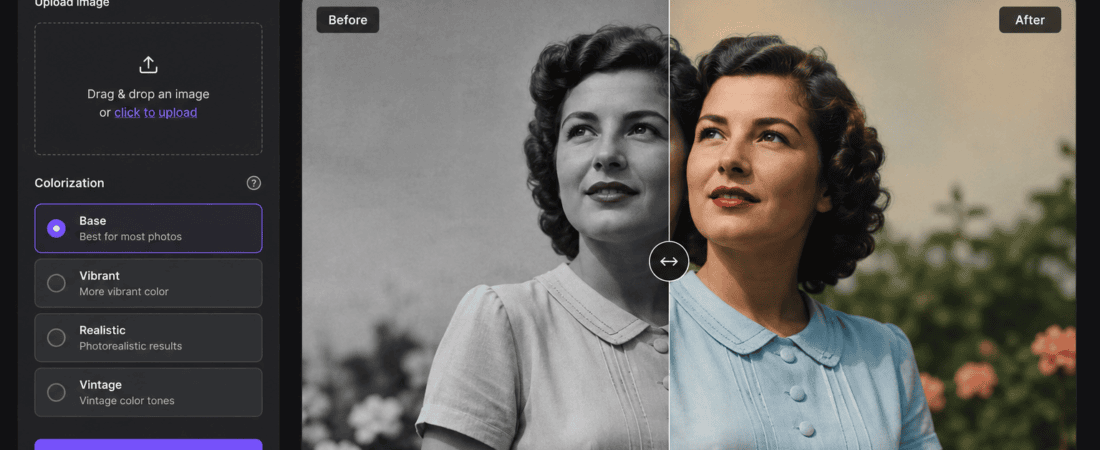
Free AI Tools: Old black and white photographs preserve priceless memories, but they often lack the emotional impact that color brings. Whether it’s a picture of your grandparents, a historical family portrait, or vintage travel photography, adding realistic colors can make these memories feel alive again.
Until recently, colorizing black and white images required professional Photoshop skills and hours of manual editing. Today, artificial intelligence has completely changed this process. Modern AI can analyze facial features, clothing, landscapes, skies, vegetation, and lighting conditions to automatically generate realistic colors within seconds.
The best part? Many AI photo colorization tools are completely free and work directly in your browser without installing complicated software.
In this guide, you’ll discover the best free AI tools to colorize old black and white photos automatically, learn how AI colorization works, compare their features, and find the right tool for restoring your treasured memories.
Why Colorize Old Photos?
Colorized photos create a stronger emotional connection because they make historical moments appear more realistic and relatable.
Benefits include:
- Bring family memories back to life
- Restore faded historical photographs
- Improve genealogy projects
- Create engaging social media posts
- Preserve family history digitally
- Enhance museum archives
- Improve educational presentations
- Make vintage portraits more attractive
Many people are surprised by how realistic AI-generated colors look today.
How AI Photo Colorization Works
Artificial intelligence uses deep learning models trained on millions of color photographs.
The AI identifies objects such as:
- Human skin
- Hair
- Eyes
- Trees
- Grass
- Buildings
- Water
- Mountains
- Sky
- Clothing
- Animals
After recognizing these objects, it predicts the most realistic colors based on millions of similar examples.
Instead of simply adding random colors, AI understands context.
For example:
- Grass becomes green.
- Blue skies remain natural.
- Human skin tones vary realistically.
- Hair colors appear natural.
- Vintage clothing receives historically accurate colors.
Modern AI can complete this process in less than one minute.
Advantages of AI Colorization
Compared to manual editing in Photoshop, AI provides numerous advantages.
Extremely Fast
Most tools finish processing in under 30 seconds.
Beginner Friendly
No editing experience is required.
One-Click Restoration
Simply upload your image and let AI handle everything automatically.
Free Options Available
Many websites allow free colorization without subscriptions.
Online Access
Most tools work directly in your browser.
Better Historical Restoration
Modern AI understands old photographs much better than previous algorithms.
Best Free AI Tools to Colorize Old Black and White Photos
1. Palette.fm
Palette.fm has become one of the internet’s favorite AI photo colorization tools because it generates incredibly realistic results.
Key Features
- One-click colorization
- Realistic skin tones
- Natural landscapes
- Multiple color styles
- Fast processing
- High-quality previews
- Browser-based editing
Pros
- Excellent realism
- Easy to use
- No Photoshop needed
- Multiple color options
- Very accurate portraits
Cons
- Free version has download limitations
- Some premium features require payment
Best for:
- Family photographs
- Historical portraits
- Vintage wedding photos
2. MyHeritage In Color
Originally developed for genealogy, MyHeritage’s AI Colorization tool is excellent for restoring family photographs.
Features
- AI color restoration
- Face enhancement
- Photo repair
- Scratch removal
- Family history integration
Pros
- Great facial recognition
- High-quality restoration
- Excellent old portrait handling
Cons
- Requires account creation
- Watermark on some free downloads
Best for:
- Family albums
- Genealogy projects
- Historical archives
3. ImageColorizer
ImageColorizer specializes in restoring damaged black and white photographs.
Besides colorization, it also offers:
- Scratch removal
- Face enhancement
- Noise reduction
- AI sharpening
- Photo repair
Pros
- Multiple restoration features
- Easy interface
- Free daily credits
Cons
- Credit system
- Slower during busy hours
Ideal for:
- Damaged vintage photos
- Old scanned images
- Family restoration projects
4. Fotor AI Photo Colorizer
Fotor combines photo editing with AI-powered restoration tools.
Features
- Automatic colorization
- Image enhancement
- Face retouching
- AI upscaling
- Background editing
Advantages
- Beginner friendly
- Online editor
- Multiple export formats
- Batch editing available
Limitations
- Watermark in some free exports
- Premium features locked
Best for:
- Social media
- Photo restoration
- Quick editing
5. Hotpot AI Colorizer
Hotpot AI provides one-click automatic colorization with impressive speed.
Its AI analyzes:
- Faces
- Buildings
- Nature
- Vehicles
- Clothing
- Interior scenes
Features
- Fast processing
- Browser-based
- AI enhancement
- Restoration options
- Image upscaling
Pros
- Simple workflow
- Good results
- No editing skills needed
Cons
- Free credits are limited
- Premium plans unlock higher resolutions
What Makes a Good AI Colorization Tool?
When choosing an AI colorizer, consider the following factors:
- Color accuracy
- Processing speed
- Image quality
- Ease of use
- Download resolution
- Watermark policy
- Free usage limits
- Additional restoration features
The best AI tools balance all of these factors while remaining easy enough for beginners.
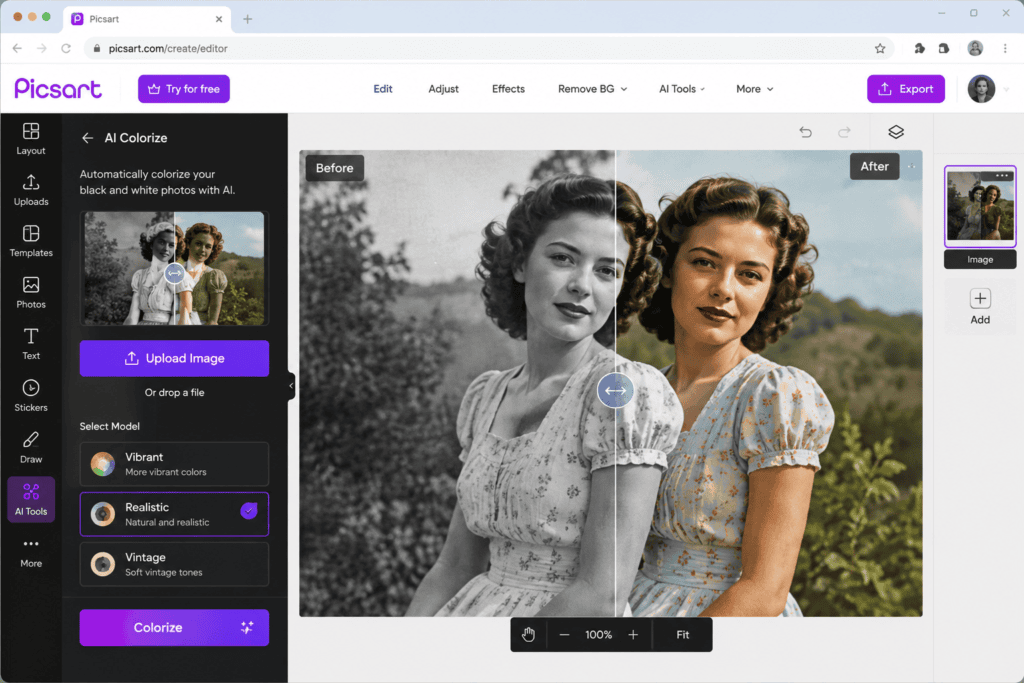
6. Picsart AI Colorize
Picsart is widely known as an all-in-one photo editor, but it also offers an AI-powered colorization feature that can breathe new life into old black-and-white images. Its cloud-based AI processes photos quickly and delivers vibrant, natural-looking colors with minimal effort.
Key Features
- One-click AI photo colorization
- Built-in photo editor
- AI background remover
- AI image enhancer
- Filters and effects
- Mobile and desktop support
Pros
- User-friendly interface
- Fast processing
- Additional editing tools included
- Available on Android, iOS, and web
Cons
- Some downloads require a premium subscription
- Free version has limited exports
Best For
- Beginners
- Social media creators
- Family photo restoration
7. Colorize.cc
Colorize.cc is a lightweight online AI tool designed specifically for restoring old black-and-white photographs. It focuses on simplicity and delivers colorized images in just a few clicks.
Features
- AI-powered automatic colorization
- Fast cloud processing
- No software installation
- Easy drag-and-drop upload
- Supports JPG and PNG
Pros
- Very easy to use
- Quick results
- Clean interface
Cons
- Limited editing controls
- Lower free resolution
Best For
- Quick restorations
- Casual users
- Vintage portraits
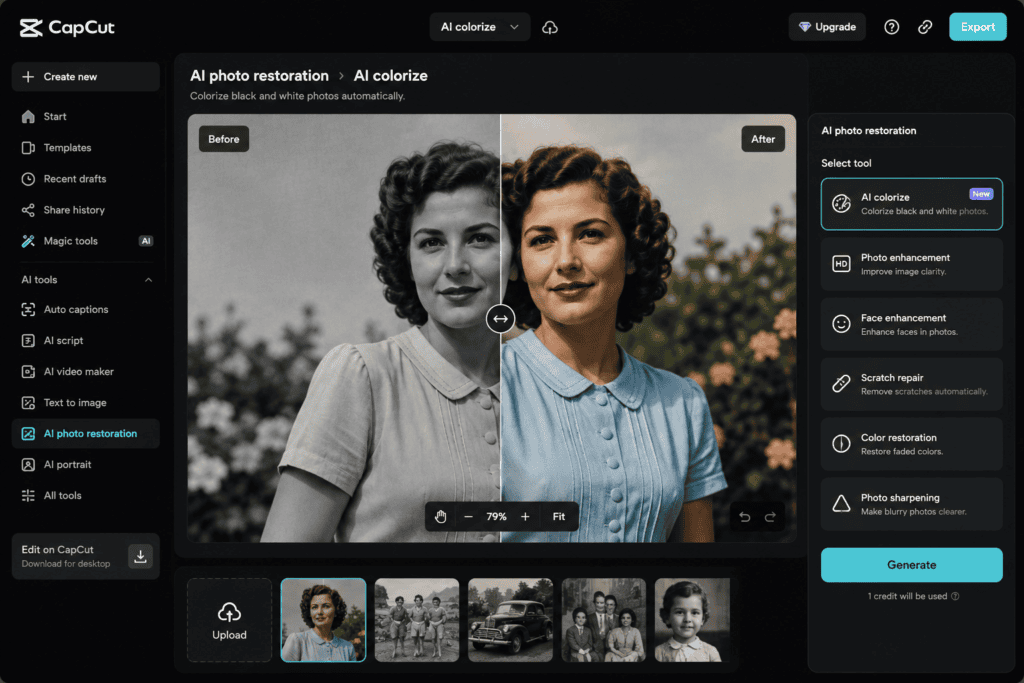
8. CapCut AI Photo Restoration
Although CapCut is famous for video editing, its AI photo tools have become increasingly powerful. The AI Photo Restoration feature includes automatic colorization, sharpening, and enhancement.
Features
- AI colorization
- AI face enhancement
- Scratch removal
- Image sharpening
- Noise reduction
- Mobile support
Pros
- Free to use
- Great mobile app
- Multiple AI enhancement tools
Cons
- Requires login for some features
- Limited advanced customization
Best For
- Smartphone users
- Social media creators
- Quick family photo restoration
9. VanceAI Photo Colorizer
VanceAI combines deep learning with image restoration technology to produce realistic colors while improving overall image quality.
Features
- AI color restoration
- Image denoising
- AI upscaling
- Face enhancement
- Cloud processing
Pros
- Excellent image quality
- Multiple restoration options
- Supports high-resolution images
Cons
- Daily free credits are limited
- Watermark on some free downloads
Best For
- Historical photographs
- High-resolution restorations
- Professional users
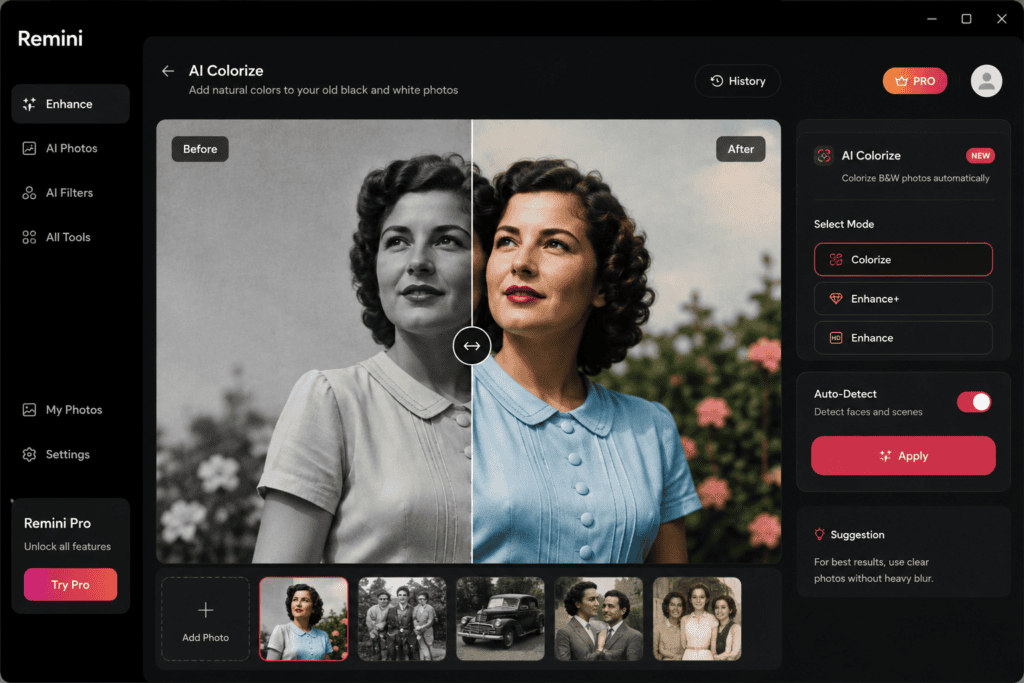
10. Remini AI
Remini is best known for enhancing blurry faces, but it also includes AI-powered restoration and colorization features.
Features
- AI photo enhancement
- Face restoration
- AI colorization
- Detail recovery
- Mobile application
Pros
- Excellent portrait enhancement
- Fast processing
- Easy to use
Cons
- Ads in the free version
- Limited free exports
Best For
- Portrait photography
- Family albums
- Vintage selfies
Comparison Table
| Tool | Free Version | AI Colorization | Photo Enhancement | Face Restoration | Watermark |
|---|---|---|---|---|---|
| Palette.fm | Yes | ⭐⭐⭐⭐⭐ | ⭐⭐⭐⭐ | ⭐⭐⭐⭐ | Limited |
| MyHeritage In Color | Yes | ⭐⭐⭐⭐⭐ | ⭐⭐⭐⭐⭐ | ⭐⭐⭐⭐⭐ | Sometimes |
| ImageColorizer | Yes | ⭐⭐⭐⭐ | ⭐⭐⭐⭐⭐ | ⭐⭐⭐⭐ | No |
| Fotor | Yes | ⭐⭐⭐⭐ | ⭐⭐⭐⭐ | ⭐⭐⭐ | Sometimes |
| Hotpot AI | Yes | ⭐⭐⭐⭐ | ⭐⭐⭐ | ⭐⭐⭐ | No |
| Picsart | Yes | ⭐⭐⭐⭐ | ⭐⭐⭐⭐ | ⭐⭐⭐ | Limited |
| Colorize.cc | Yes | ⭐⭐⭐ | ⭐⭐ | ⭐⭐ | No |
| CapCut AI | Yes | ⭐⭐⭐⭐ | ⭐⭐⭐⭐ | ⭐⭐⭐⭐ | No |
| VanceAI | Yes | ⭐⭐⭐⭐⭐ | ⭐⭐⭐⭐⭐ | ⭐⭐⭐⭐ | Sometimes |
| Remini | Yes | ⭐⭐⭐⭐ | ⭐⭐⭐⭐⭐ | ⭐⭐⭐⭐⭐ | No |
How to Colorize Old Photos Using AI
Most AI colorization tools follow a similar workflow. Here’s a simple step-by-step guide.
Step 1: Scan Your Old Photo
If your photo is printed, scan it at 300–600 DPI for better quality. Avoid taking pictures with poor lighting or blurry cameras.
Step 2: Open an AI Colorization Tool
Visit your preferred AI colorizer and upload your black-and-white image.
Step 3: Upload the Image
Most tools support:
- JPG
- JPEG
- PNG
- WEBP
Simply drag and drop your image into the upload area.
Step 4: Let the AI Process the Photo
The AI analyzes the image, identifies objects, and applies realistic colors automatically. This usually takes 10–60 seconds, depending on the image size and the tool used.
Step 5: Review the Results
Compare the original and colorized versions. Many tools provide a side-by-side preview so you can easily see the improvements.
Step 6: Make Adjustments (Optional)
Some tools let you tweak:
- Saturation
- Brightness
- Contrast
- Color intensity
- Sharpness
These adjustments can make the final image look even more natural.
Step 7: Download the Final Image
Save the restored photo in high resolution if available. Consider keeping both the original and colorized versions for archival purposes.
Tips for Better AI Colorization Results
To get the most realistic output:
- Use high-resolution scans whenever possible.
- Clean dust and scratches before uploading.
- Avoid heavily compressed images.
- Crop unnecessary borders.
- Straighten tilted photos.
- Choose tools that also enhance image quality.
- Compare results from multiple AI tools.
- Save edits in a lossless format if available.
Common Challenges with AI Colorization
Although AI has advanced significantly, it isn’t perfect. Here are a few common issues:
Inaccurate Clothing Colors
The AI may guess clothing colors that differ from the originals because it lacks historical context.
Unnatural Skin Tones
Older or damaged photos can confuse the model, resulting in unrealistic skin tones.
Damaged Images
Heavy scratches, tears, or missing sections may reduce colorization quality. Running a restoration tool first often improves the outcome.
Historical Accuracy
AI predicts likely colors rather than recreating exact historical colors. For historically significant images, manual verification may be needed.
Can AI Restore Damaged Photos Too?
Yes. Many modern AI platforms combine several restoration features in one workflow, including:
- Colorization
- Scratch removal
- Face enhancement
- Noise reduction
- Image sharpening
- Upscaling
- Detail recovery
This means you can often transform an old, faded photograph into a vibrant, high-quality image with just a few clicks.
Which AI Tool Should You Choose?
Your ideal tool depends on your needs:
- Best overall quality: Palette.fm
- Best for family history: MyHeritage In Color
- Best all-in-one restoration: ImageColorizer
- Best for beginners: Fotor
- Best mobile experience: CapCut AI
- Best portrait enhancement: Remini
- Best high-resolution restoration: VanceAI
Testing the same image with multiple tools is often the best way to achieve the most realistic result, as each AI model interprets colors differently.
Free vs Paid AI Photo Colorizers
Many users wonder whether a free AI colorization tool is enough or if upgrading to a paid plan is worth it. The answer depends on how often you restore photos and the quality you need.
Free AI Colorizers
Free tools are ideal if you only want to restore a few family photos or experiment with AI technology.
Advantages
- No cost
- Easy to use
- Quick processing
- Great for personal projects
- No editing experience required
Limitations
- Lower download resolution
- Daily usage limits
- Watermarks on some tools
- Fewer customization options
- Limited batch processing
Paid AI Colorizers
Premium versions are designed for professionals, photographers, museums, and businesses that need higher-quality outputs.
Advantages
- High-resolution downloads
- Faster processing
- Batch colorization
- Commercial usage rights (depending on the platform)
- More AI restoration features
If you’re only restoring old family albums, a free tool is often sufficient. However, if you regularly work with historical archives or client projects, a paid plan may save time and deliver better results.
Common Mistakes to Avoid
Even though AI makes photo restoration easy, a few mistakes can reduce the quality of your results.
Uploading Low-Quality Images
Small or blurry images don’t provide enough information for AI to generate accurate colors. Whenever possible, scan printed photos at 300–600 DPI.
Using Overly Damaged Photos Without Restoration
If your image has heavy scratches, tears, or faded areas, restore it first using an AI repair tool before applying colorization.
Expecting Historically Accurate Colors
AI predicts realistic colors based on patterns, not historical facts. If you’re restoring historically significant photographs, compare the results with historical references.
Overediting the Final Image
Applying excessive filters, saturation, or contrast can make the restored photo look artificial. A subtle touch usually creates the most authentic result.
Ignoring File Quality
Always save the final image in the highest available resolution. Avoid repeatedly compressing the same file, as this can reduce quality over time.
Tips for Getting the Best Colorization Results
To maximize the quality of your AI-restored photos:
- Scan old photographs instead of taking phone pictures.
- Remove dust before scanning.
- Straighten crooked photos.
- Crop unnecessary borders.
- Test the same image with two or three AI tools.
- Enhance image sharpness after colorization if needed.
- Keep the original black-and-white image as a backup.
- Save edited images in PNG or high-quality JPG format.
These simple steps can noticeably improve the final result.
Who Can Benefit from AI Photo Colorization?
AI colorization isn’t just for photography enthusiasts. Many people and organizations can use these tools effectively.
Families
Restore treasured family albums and preserve memories for future generations.
Genealogy Researchers
Bring historical family records to life with realistic colors.
Students
Enhance history projects and presentations using restored historical photographs.
Teachers
Create engaging educational materials that help students connect with historical events.
Museums and Archives
Digitize and restore aging collections for exhibitions and preservation.
Content Creators
Use restored vintage images in YouTube videos, blogs, documentaries, and social media content.
Graphic Designers
Incorporate restored historical images into posters, marketing campaigns, and creative projects.
Are AI Colorized Photos Accurate?
AI-generated colors are educated predictions, not exact reproductions of the original scene.
For example:
- Trees are typically colored green.
- Blue skies are restored naturally.
- Water often appears blue.
- Skin tones are generated realistically.
However, AI cannot determine the exact color of a person’s clothing, a vintage car, or a painted building unless there is additional reference information. For historically important images, manual review is recommended.
Frequently Asked Questions (FAQs)
1. Can AI colorize photos for free?
Yes. Many AI tools offer free photo colorization with certain limitations, such as lower-resolution downloads, watermarks, or daily usage caps.
2. Which AI tool gives the most realistic colors?
Palette.fm, MyHeritage In Color, and VanceAI are among the most popular choices for realistic AI colorization.
3. Do I need Photoshop to colorize old photos?
No. Most AI colorization tools work directly in your web browser and require no editing experience.
4. Can AI restore damaged old photos?
Yes. Many platforms combine colorization with scratch removal, sharpening, face enhancement, denoising, and image upscaling.
5. Is my uploaded photo safe?
Most reputable AI services use secure cloud processing, but you should always review the platform’s privacy policy before uploading sensitive or personal images.
6. Can AI colorize multiple photos at once?
Some tools support batch processing, though this feature is often included only in premium plans.
7. Which image format works best?
JPG, JPEG, and PNG are commonly supported. For the best quality, use high-resolution scans.
8. Can AI improve blurry old photos?
Yes. Many AI restoration tools include sharpening and face enhancement features in addition to colorization.
9. Are AI colorized photos suitable for printing?
Yes, provided you download the highest available resolution. High-quality files are ideal for photo books, framed prints, and family albums.
10. Is AI colorization better than manual editing?
For speed and convenience, AI is an excellent choice. Manual editing still offers greater control for professionals who require historically accurate or highly customized results.
Final Thoughts
Artificial intelligence has transformed the way we restore old black-and-white photographs. Tasks that once demanded hours of manual editing can now be completed in seconds with impressive accuracy.
Whether you’re preserving family memories, restoring historical images, or creating engaging content, today’s free AI photo colorizers provide an easy and accessible solution. While no AI tool is perfect, experimenting with different platforms and following best practices can produce remarkable results.
As AI technology continues to evolve, automatic photo colorization will become even more realistic, making it easier than ever to reconnect with the past through vibrant, lifelike images.
Conclusion
Free AI tools have made restoring old black-and-white photographs faster, easier, and more accessible than ever before. From one-click colorization to advanced photo enhancement and damage repair, these tools help anyone transform faded memories into vibrant keepsakes without needing professional editing skills.
If you’re just getting started, try a few different AI colorizers and compare the results. Each platform uses a different AI model, so testing multiple tools often produces the best outcome. With a high-quality scan and the right AI tool, you can preserve precious family history and enjoy old photographs in a whole new way.
Check out here if you want to know about How to Create Consistent Characters in Free AI Image Models