
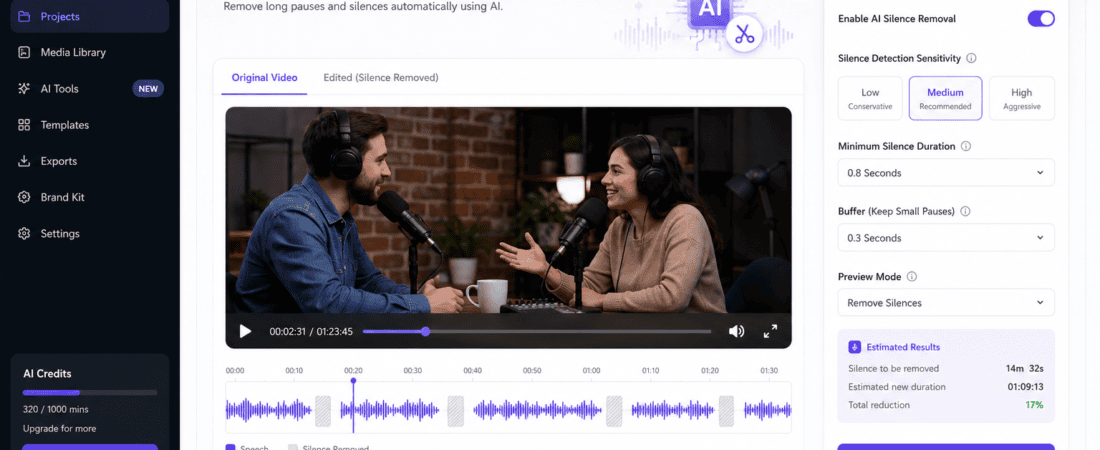
Free AI Tools to Auto Cut Silence from Long Podcast Videos
Auto Cut Silence from Long Podcast Videos (Free AI tools to auto cut silence from long podcast videos)
AI Tools to Auto Cut Silence: Editing long podcast videos is one of the most time-consuming parts of content creation. Whether you’re producing YouTube podcasts, interview videos, webinars, online courses, or business presentations, manually removing long pauses and awkward silences can take hours.
Fortunately, artificial intelligence (AI) has transformed podcast editing. Modern AI-powered editing tools can automatically detect and remove silent sections, dead air, filler pauses, and unnecessary gaps with just a few clicks.
Instead of spending hours cutting every pause manually, AI can complete the process in minutes while maintaining a natural conversation flow.
In this guide, you’ll discover the best free AI tools to auto cut silence from long podcast videos, compare their features, learn how they work, and find out which tool is best for your editing workflow.
Why Remove Silence from Podcast Videos?
Many creators believe every second of silence makes a video feel more professional. While short pauses can improve storytelling, long periods of silence often reduce viewer engagement.
Removing unnecessary pauses can:
- Improve audience retention
- Increase watch time
- Make conversations sound more natural
- Reduce editing time
- Create professional-quality podcasts
- Improve YouTube performance
- Keep listeners engaged
Research consistently shows that fast-paced videos generally retain viewers better than videos with excessive dead air.
What Is AI Silence Detection?
AI silence detection uses machine learning to analyze audio waveforms and automatically identify moments where nobody is speaking.
Instead of manually reviewing every minute of footage, AI detects:
- Long pauses
- Dead air
- Silent gaps
- Empty sections
- Microphone idle time
- Recording delays
Most AI tools let you choose how aggressive the silence removal should be. You can keep natural conversational pauses while eliminating awkward gaps.
Benefits of Using AI to Remove Silence
Using AI-powered silence removal offers several advantages over manual editing.
Saves Hours of Editing
A two-hour podcast may take several hours to edit manually. AI can complete the same task in minutes.
Consistent Results
AI applies the same silence threshold throughout your project, creating a more polished and professional listening experience.
Beginner Friendly
Most AI tools work with a single click, making them ideal for beginners who have little or no editing experience.
Better Viewer Retention
Faster-paced videos keep audiences engaged, leading to higher watch time and improved content performance.
Works with Multiple Formats
Most AI tools support MP4, MOV, WAV, MP3, and many other popular audio and video formats.
Best Free AI Tools to Auto Cut Silence from Long Podcast Videos
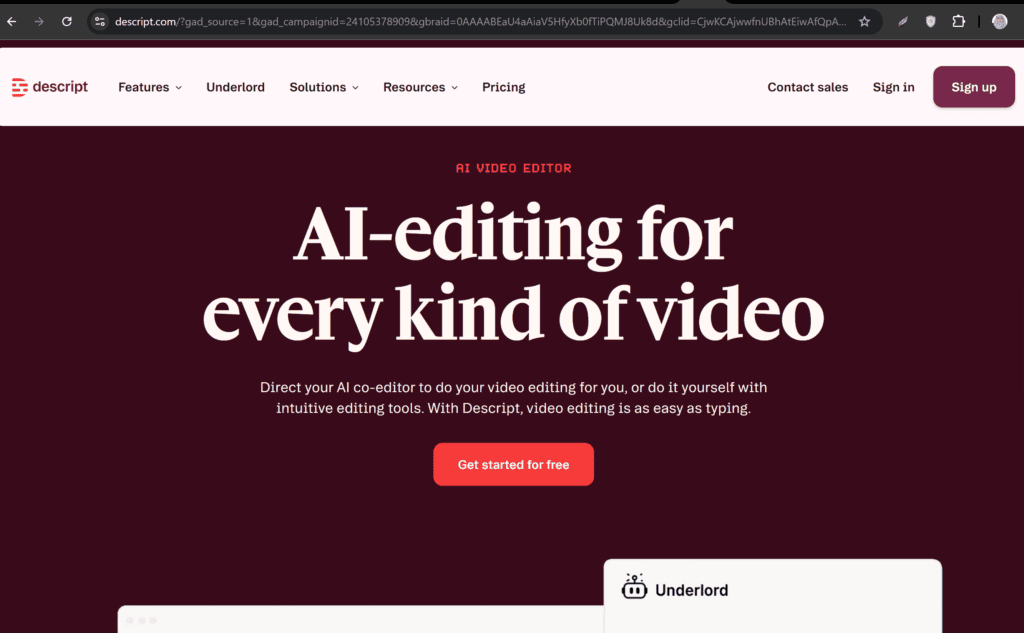
1. Descript
Descript is one of the most powerful AI editing platforms available today. It combines transcription, podcast editing, video editing, and AI-powered silence removal into a single workspace.
Its Remove Filler Words and Remove Word Gaps features automatically detect silent moments and unnecessary pauses.
Best For
- Podcast creators
- YouTubers
- Online educators
- Interview videos
- Business presentations
Features
- Automatic silence removal
- AI transcription
- Remove filler words
- Text-based editing
- Screen recording
- Multi-track editing
Pros
- Extremely accurate
- Saves hours of editing
- Excellent transcription
- Beginner friendly
- Supports video editing
Cons
- Some AI features are limited in the free plan
- Large projects require more processing time
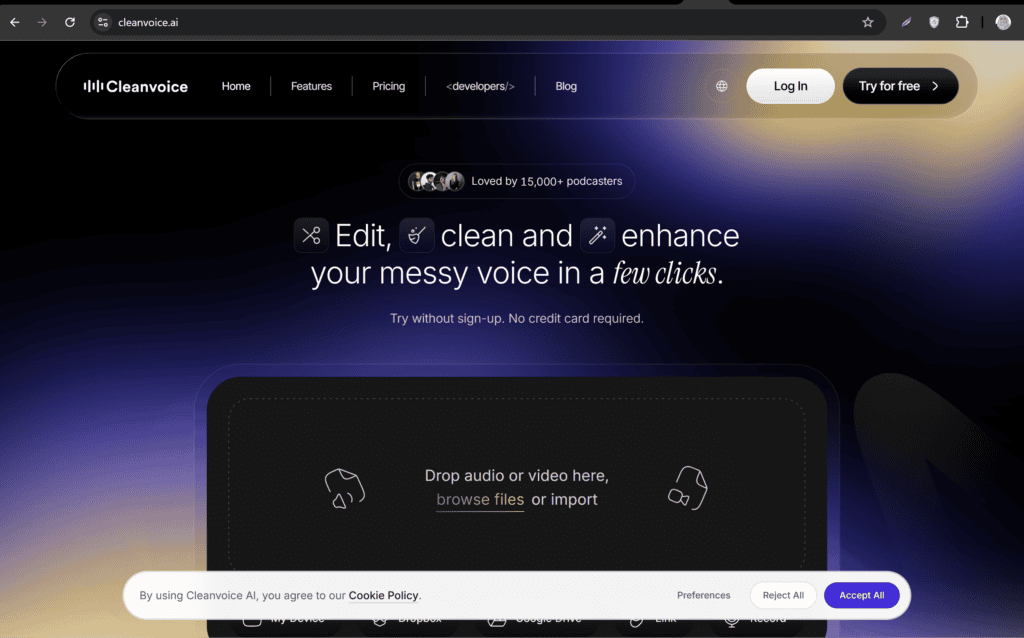
2. Cleanvoice AI
Cleanvoice AI specializes in editing spoken content. It not only removes silence but also detects filler words, repeated phrases, mouth clicks, and breathing sounds.
This makes it one of the best AI tools for professional podcast editing.
Best For
- Podcasts
- Audiobooks
- Interviews
- Educational content
- Voice recordings
Features
- Automatic silence removal
- Remove “um” and “uh”
- Breath removal
- Mouth click removal
- AI speech cleanup
Pros
- Excellent voice quality
- Saves significant editing time
- Very accurate pause detection
- Easy-to-use interface
Cons
- Limited free processing
- Mainly designed for speech recordings
3. CapCut AI
CapCut has become a favorite among YouTube and social media creators.
Its AI-powered editing features can automatically detect silent moments while also providing auto captions, voice enhancement, and smart editing tools.
Best For
- YouTube creators
- Instagram Reels
- TikTok
- YouTube Shorts
- Video podcasts
Features
- AI silence detection
- Smart editing
- Auto captions
- Audio enhancement
- Video trimming
Pros
- Free to use
- Easy interface
- Great mobile app
- Fast editing workflow
Cons
- Advanced AI features may vary by region
- Requires internet for some AI tools
4. VEED.io
VEED.io offers an online AI video editor that automatically detects pauses, trims unwanted sections, and improves workflow without requiring software installation.
Features
- Browser-based editing
- Silence detection
- Auto subtitles
- Video trimming
- AI editing tools
Pros
- Beginner friendly
- Fast processing
- Works in any browser
- Multiple editing features
Cons
- Export limits on the free plan
- Watermark on some free exports
5. Adobe Podcast Enhance
Adobe Podcast Enhance is primarily known for improving voice quality, but it also helps creators speed up podcast editing by enhancing speech clarity after silent sections have been removed. It works exceptionally well when paired with another AI editor that automatically cuts pauses.
Best For
- Podcast creators
- Voiceovers
- Interviews
- YouTube podcasts
- Online courses
Key Features
- AI voice enhancement
- Background noise removal
- Echo reduction
- Browser-based editor
- Professional voice processing
Pros
- Studio-quality voice enhancement
- Extremely simple interface
- No software installation
- Excellent speech clarity
Cons
- Doesn’t focus solely on silence removal
- Free usage limits apply
6. Riverside AI
Riverside is one of the fastest-growing podcast recording and editing platforms. Its AI-powered Magic Editor automatically removes long pauses, trims unnecessary silence, and creates polished podcast videos within minutes.
Best For
- Remote podcasts
- Video interviews
- Team discussions
- Business podcasts
- Online interviews
Features
- AI silence removal
- Automatic editing
- Speaker detection
- Local recording
- 4K video support
- AI transcription
Pros
- Professional podcast workflow
- Excellent recording quality
- Easy editing
- Great collaboration features
Cons
- Premium features require a subscription
- Learning curve for beginners
7. Wisecut
Wisecut is specifically designed to edit talking-head videos automatically. One of its most popular AI features is automatic silence removal.
Instead of manually cutting every pause, Wisecut detects silent moments and trims them while keeping conversations natural.
Best For
- YouTube creators
- Tutorials
- Educational videos
- Podcasts
- Interviews
Features
- Automatic silence removal
- AI subtitles
- Smart background music
- Voice recognition
- Auto zoom
- Storyboard editing
Pros
- Huge time saver
- Very beginner friendly
- Browser-based
- Fast rendering
Cons
- Free plan has export limitations
- Watermark on some exports
8. Gling AI
Gling AI has become incredibly popular among YouTubers because it removes everything creators normally edit manually.
The AI automatically removes:
- Long pauses
- Silence
- “Um”
- “Uh”
- Bad takes
- Repeated words
It then exports the edited project directly into professional editing software.
Best For
- YouTube podcasts
- Talking-head videos
- Educational content
- Product reviews
- Tutorials
Features
- AI silence detection
- Remove filler words
- Smart timeline editing
- Automatic cuts
- Export to Premiere Pro
- Export to Final Cut Pro
Pros
- Built specifically for creators
- Extremely fast workflow
- Excellent AI accuracy
- Saves hours of editing
Cons
- Limited free exports
- Desktop application required
9. OpusClip
Although OpusClip is mainly known for creating viral short clips, its AI also removes unnecessary pauses before generating clips.
This creates smoother videos that perform better on social media.
Best For
- Podcast clips
- Instagram Reels
- TikTok
- YouTube Shorts
- Facebook Reels
Features
- AI clip generation
- Silence removal
- Speaker tracking
- Auto captions
- Viral score
- AI reframing
Pros
- Excellent for repurposing podcasts
- Automatic clip creation
- Fast workflow
- Social media optimized
Cons
- Not designed for complete podcast editing
- Some premium features require payment
Comparison Table
| AI Tool | Free Plan | Removes Silence | Removes Filler Words | Video Editing | Best For |
|---|---|---|---|---|---|
| Descript | ✅ | ✅ | ✅ | ✅ | Podcasts & YouTube |
| Cleanvoice AI | ✅ Limited | ✅ | ✅ | ❌ | Audio Podcasts |
| CapCut | ✅ | ✅ | ❌ | ✅ | Social Media Videos |
| VEED.io | ✅ | ✅ | ❌ | ✅ | Browser Editing |
| Adobe Podcast | ✅ | Partial | ❌ | ❌ | Voice Enhancement |
| Riverside | ✅ Limited | ✅ | ❌ | ✅ | Remote Podcasts |
| Wisecut | ✅ | ✅ | Partial | ✅ | Talking Head Videos |
| Gling AI | ✅ Limited | ✅ | ✅ | ✅ | YouTubers |
| OpusClip | ✅ | ✅ | Partial | ✅ | Short Video Clips |
How to Automatically Remove Silence from Podcast Videos
Most AI editing tools follow a similar workflow.
Step 1: Record Your Podcast
Record your podcast with the highest possible audio quality. Use a dedicated microphone whenever possible.
Step 2: Upload Your Video
Open your preferred AI editing tool and upload your podcast video.
Most tools support:
- MP4
- MOV
- AVI
- MP3
- WAV
Step 3: Enable AI Silence Detection
Look for features such as:
- Remove Silence
- Remove Pauses
- Smart Cut
- AI Edit
- Auto Trim
Enable the option and let the AI scan your recording.
Step 4: Review the Edits
Preview the edited version.
If the conversation feels too fast, reduce the silence removal intensity. Most tools allow you to adjust how much silence should remain between sentences.
Step 5: Export the Final Video
Once you’re satisfied with the results, export your podcast in the desired format and upload it to your preferred platform.
Tips for Better AI Podcast Editing
To get the best results from AI-powered silence removal:
- Record in a quiet environment.
- Use a quality microphone.
- Speak naturally instead of rushing.
- Leave short pauses between topics.
- Avoid talking over other speakers.
- Record separate audio tracks for multiple speakers when possible.
- Enhance your audio with AI after removing silence.
- Always review the edited version before publishing.
These simple practices help AI tools produce cleaner, more natural-sounding podcast videos while reducing the need for manual editing.
Common Mistakes to Avoid When Using AI Silence Removal Tools
AI tools are incredibly effective, but using them incorrectly can make your podcast sound unnatural. Here are the most common mistakes to avoid.
1. Removing Every Pause
Not every pause should be deleted. Natural pauses help listeners process information and make conversations feel authentic. Over-editing can make speech sound rushed.
2. Ignoring Audio Quality
AI works best with clean recordings. If your microphone captures excessive background noise or echo, remove that noise before applying silence detection.
3. Using the Same Settings for Every Podcast
Different podcast styles require different editing approaches. Interviews, educational content, and storytelling podcasts all benefit from different silence thresholds.
4. Not Reviewing the AI Edit
Although AI is highly accurate, it can occasionally remove intentional pauses. Always preview your final edit before exporting.
5. Forgetting to Add Transitions
If AI removes long pauses, consider adding subtle transitions or background music to maintain a smooth listening experience.
How to Choose the Best AI Tool
Choosing the right AI tool depends on your workflow and content type.
Choose Descript if:
- You edit podcasts every week.
- You need text-based editing.
- You want transcription and silence removal in one tool.
Choose Cleanvoice AI if:
- Your podcast contains many filler words.
- You want automatic speech cleanup.
- You prefer a simple editing workflow.
Choose Wisecut if:
- You create YouTube videos.
- You want automatic cuts and subtitles.
- You need quick editing.
Choose Gling AI if:
- You record talking-head videos.
- You create educational content.
- You use Adobe Premiere Pro.
Choose CapCut if:
- You create short-form videos.
- You edit on mobile devices.
- You publish Instagram Reels or YouTube Shorts.
Choose Riverside if:
- You host remote interviews.
- You record professional podcasts.
- You need high-quality audio and video recording.
Frequently Asked Questions (FAQs)
1. What is the best free AI tool to auto cut silence from long podcast videos?
Descript is one of the best free AI tools because it combines automatic silence removal, transcription, filler-word removal, and video editing in a single platform.
2. Can AI remove silence without affecting speech?
Yes. Modern AI models are trained to distinguish between speech and silence, allowing them to remove long pauses while preserving natural conversation.
3. Is AI podcast editing free?
Many AI tools offer free plans with monthly limits. Premium plans usually provide higher export limits, advanced editing features, and faster processing.
4. Can AI remove filler words like “um” and “uh”?
Yes. Tools such as Descript, Cleanvoice AI, and Gling AI can automatically detect and remove filler words, making podcasts sound more polished.
5. Which AI tool is best for YouTube podcasts?
Descript, Gling AI, and Wisecut are among the best choices for YouTube creators because they combine silence removal with video editing and transcription.
6. Can AI edit multi-speaker podcasts?
Yes. Many AI podcast editors support multiple speakers and can intelligently remove pauses while preserving the natural flow of conversation.
7. Do AI tools work with video and audio files?
Yes. Most support popular formats including:
- MP4
- MOV
- AVI
- MP3
- WAV
- M4A
8. Is it safe to upload podcast recordings to AI tools?
Most reputable platforms use encrypted uploads and secure cloud processing. Always review the provider’s privacy policy before uploading confidential recordings.
Final Verdict
AI-powered podcast editing has dramatically reduced the time required to produce professional-quality content. Instead of spending hours manually trimming silent sections, modern AI tools can identify and remove unnecessary pauses in just a few minutes.
For most creators, Descript is the best all-around option because it combines silence removal, transcription, text-based editing, and filler-word detection in one intuitive platform. Cleanvoice AI is ideal for speech-focused podcasts, Wisecut excels at YouTube content, Gling AI streamlines talking-head videos, and CapCut is perfect for social media creators.
Experiment with a few tools to find the workflow that best suits your content and publishing schedule.
Conclusion
Long pauses and awkward silences can make podcasts feel slow and reduce audience engagement. Fortunately, AI-powered editing tools now make it easy to eliminate dead air automatically while preserving natural conversations.
Whether you’re producing podcasts, interviews, online courses, webinars, or YouTube videos, these AI tools can help you save hours of editing time, improve viewer retention, and create a more professional listening experience.
By incorporating AI into your editing process, you can focus more on creating valuable content and less on repetitive editing tasks.
Checkout here if you are interested to know 10 best free AI tools to remove background noise from video audio (2026 Guide)