Generate Transparent PNG Images Introduction
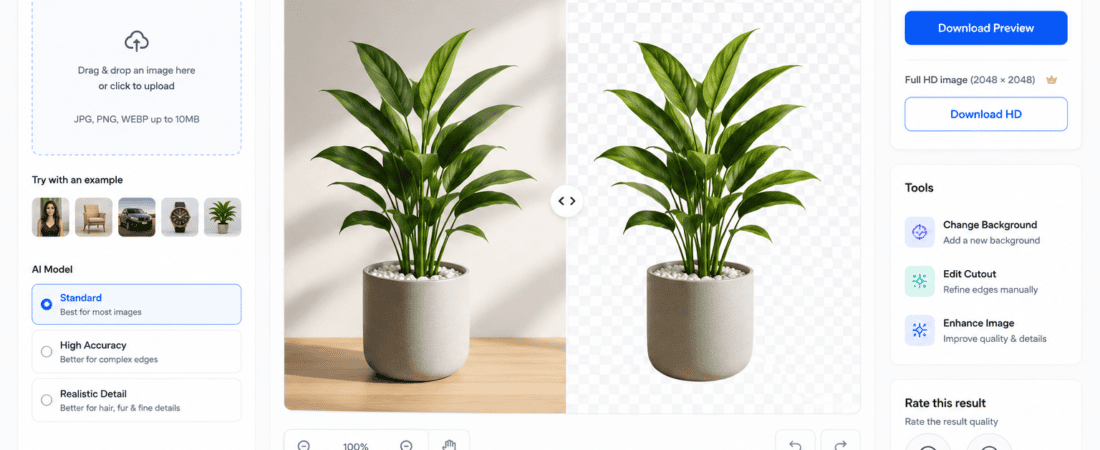
Transparent PNG images have become an essential part of modern graphic design, digital marketing, e-commerce, and content creation. Unlike standard JPEG images, PNG files support transparent backgrounds, allowing you to place logos, product photos, icons, and graphics seamlessly on websites, presentations, social media posts, and marketing materials.
In the past, creating transparent PNG images required advanced editing skills and software like Adobe Photoshop. Today, artificial intelligence (AI) has made the process much faster and easier. Free AI-powered tools can automatically remove backgrounds, generate transparent objects, and create professional-quality PNG images in just a few clicks.
Whether you’re a graphic designer, blogger, online seller, YouTuber, social media manager, student, or small business owner, AI can help you produce clean transparent PNG images without spending hours on manual editing.
In this guide, you’ll learn how to use free AI to generate transparent PNG images, discover the best free AI tools, compare their features, and find the right solution for your creative projects.
What Is a Transparent PNG Image?
A transparent PNG is an image file that contains an alpha channel, allowing parts of the image to remain completely transparent instead of showing a solid background.
Unlike JPEG images, PNG files preserve transparency, making them ideal for placing graphics on different backgrounds without visible borders or white boxes.
Transparent PNG images are commonly used for:
- Company logos
- Product photos
- Website icons
- Stickers
- Social media graphics
- Presentations
- Digital artwork
- E-commerce listings
- YouTube thumbnails
Because of their flexibility, PNG images are one of the most widely used formats for digital design.
Why Use AI to Generate Transparent PNG Images?
Artificial intelligence has simplified background removal and image generation.
Instead of manually selecting objects with complicated editing tools, AI automatically detects the subject and removes the background while preserving fine details.
Examples include:
- Hair
- Shadows
- Transparent objects
- Clothing edges
- Fur
- Product outlines
Modern AI models can generate cleaner results than many traditional editing methods.
Benefits of Using AI PNG Generators
AI-powered background removal offers several advantages.
1. Save Time
Manual background removal can take several minutes—or even hours for complex images.
AI usually completes the process in just a few seconds.
2. No Design Experience Needed
Most AI tools are designed for beginners.
Simply upload your image, and the AI automatically removes the background.
3. Better Edge Detection
Modern AI accurately detects:
- Hair
- Fur
- Curved edges
- Transparent objects
- Fine details
- Soft shadows
This results in cleaner cutouts than basic editing tools.
4. Works Online
Many AI PNG generators are cloud-based.
You don’t need to install expensive software or use a high-performance computer.
5. Free to Use
Several AI image editing platforms offer generous free plans that are suitable for personal projects, social media content, and even small business needs.
How AI Generates Transparent PNG Images
AI background removal involves several intelligent steps.
Step 1: Image Analysis
The AI scans the uploaded image to identify:
- Main subject
- Background
- Colors
- Lighting
- Shadows
- Edges
- Textures
Step 2: Subject Detection
Machine learning models recognize the primary object, such as:
- People
- Products
- Animals
- Vehicles
- Food
- Logos
Step 3: Background Separation
The AI separates the subject from the background while preserving intricate details like hair, fur, and transparent materials.
Step 4: Edge Refinement
Advanced algorithms smooth rough edges and remove background artifacts for a clean, natural appearance.
Step 5: PNG Export
The final image is exported as a transparent PNG file with an alpha channel, ready for use in websites, presentations, marketing materials, or graphic design projects.
Best Free AI Tools to Generate Transparent PNG Images
Below are some of the best free AI-powered tools for creating transparent PNG images.
1. Adobe Express Background Remover
Adobe Express offers a fast and reliable AI-powered background removal tool that automatically converts photos into transparent PNG images. Its clean interface makes it suitable for beginners and professionals alike.
Key Features
- AI background removal
- Transparent PNG export
- Browser-based editing
- One-click workflow
- Integration with Adobe Express editor
- Additional design tools
Pros
- Very easy to use
- High-quality edge detection
- Fast processing
- Trusted Adobe technology
- Free plan available
Cons
- Premium features require an Adobe account
- Free usage limits apply
Best For
- Logos
- Product photos
- Marketing graphics
- Website assets
- Social media content
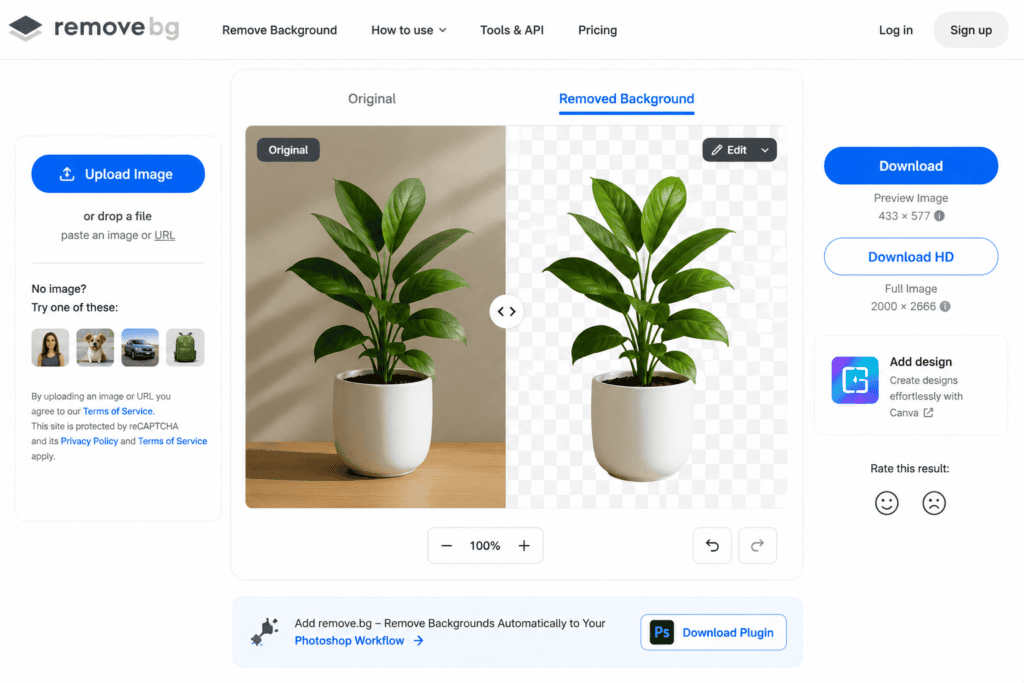
2. Remove.bg
Remove.bg is one of the most popular AI background removal tools available today. It specializes in automatically removing backgrounds from photos while preserving fine details such as hair and transparent objects.
Key Features
- One-click AI background removal
- Transparent PNG downloads
- API integration
- Batch processing
- Automatic edge detection
- Fast cloud processing
Pros
- Excellent accuracy
- Beginner-friendly
- Supports bulk processing
- Works on desktop and mobile
Cons
- High-resolution downloads may require credits
- Free version has resolution limitations
Best For
- E-commerce product photos
- Portraits
- Social media graphics
- Marketing materials
3. Canva Background Remover
Canva includes an AI-powered Background Remover that lets users create transparent PNG images directly within the Canva editor. It integrates seamlessly with Canva’s design tools, making it ideal for marketing and branding projects.
Key Features
- AI background removal
- Transparent PNG export
- Drag-and-drop editor
- Design templates
- Cloud storage
- Team collaboration
Pros
- Extremely beginner-friendly
- Integrated design platform
- Fast AI processing
- Excellent for branding projects
Cons
- Background Remover is primarily available with Canva Pro
- Free users have limited AI capabilities
Best For
- Social media managers
- Business owners
- Bloggers
- Marketing teams
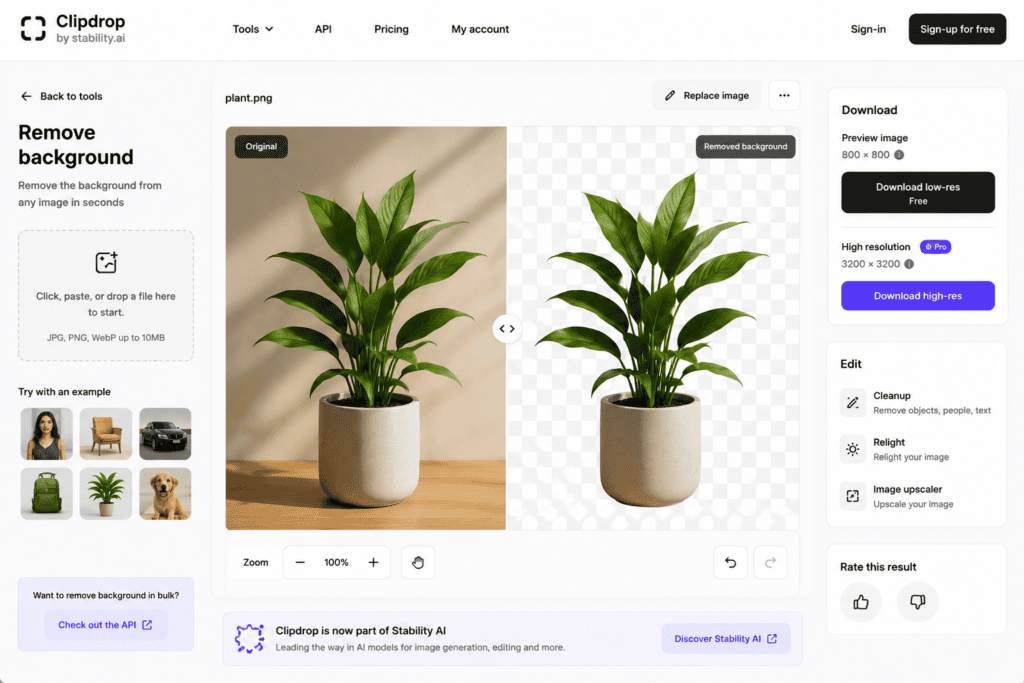
4. Clipdrop Remove Background
Clipdrop, developed by Stability AI, provides advanced AI background removal with excellent edge detection and realistic cutouts. It performs exceptionally well with complex objects and detailed subjects.
Key Features
- AI background remover
- Transparent PNG export
- Smart edge refinement
- Browser-based editing
- High-quality AI processing
Pros
- Outstanding quality
- Preserves fine details
- Easy workflow
- Multiple AI editing tools
Cons
- Limited free credits
- Premium plan offers additional features
Best For
- Product photography
- Graphic designers
- Professional marketing
- Creative agencies
5. Pixlr Remove Background
Pixlr offers a free AI-powered background remover that allows users to create transparent PNG images quickly without installing software. It also includes additional photo editing features for refining the final image.
Key Features
- AI background removal
- Transparent PNG download
- Browser-based editing
- Layer support
- Image enhancement tools
Pros
- Free version available
- Easy interface
- Additional editing features
- Fast processing
Cons
- Advertisements in the free version
- Daily AI usage limits
Best For
- Bloggers
- Website graphics
- Product images
- YouTube thumbnails
6. Microsoft Designer Background Remover
Microsoft Designer includes an AI-powered background removal tool that automatically isolates the subject from an image and creates a transparent PNG. Its clean interface and integration with Microsoft services make it a great choice for beginners and professionals alike.
Key Features
- AI background removal
- Transparent PNG export
- Browser-based editor
- Smart subject detection
- Image enhancement tools
- Quick download options
Pros
- Easy to use
- Fast AI processing
- Clean user interface
- Free to get started
- High-quality cutouts
Cons
- Some premium features require a Microsoft account
- Daily AI usage limits
Best For
- Business graphics
- Website assets
- Product photos
- Marketing materials
7. Fotor AI Background Remover
Fotor AI uses advanced artificial intelligence to remove backgrounds from images while preserving fine details such as hair, clothing edges, and transparent objects. It also includes additional photo editing tools to refine the final PNG.
Key Features
- AI background remover
- Transparent PNG export
- Batch processing
- Photo enhancement
- AI object removal
- Browser-based editor
Pros
- Beginner-friendly
- Fast processing
- High-quality edge detection
- Free version available
Cons
- Watermark on some free exports
- Premium plan unlocks additional features
Best For
- E-commerce
- Product photography
- Portrait editing
- Marketing content
8. PhotoRoom
PhotoRoom is a popular AI-powered image editing platform designed specifically for creating professional product photos and transparent PNG images. It automatically removes backgrounds and offers tools for adding new backgrounds, shadows, and branding elements.
Key Features
- AI background remover
- Transparent PNG downloads
- Product photo editing
- Batch editing
- AI background generation
- Mobile and web support
Pros
- Excellent product cutouts
- Easy workflow
- High-quality exports
- Ideal for online stores
Cons
- Free exports may include limitations
- Premium features require a subscription
Best For
- Amazon sellers
- Etsy stores
- Shopify businesses
- Social media product promotions
Comparison of the Best Free AI Transparent PNG Generators
| Tool | Free Version | Transparent PNG | Edge Detection | Best For |
|---|---|---|---|---|
| Adobe Express | Yes | ✔ | Excellent | Marketing Graphics |
| Remove.bg | Yes | ✔ | Excellent | Portraits |
| Canva | Limited | ✔ | Very Good | Social Media |
| Clipdrop | Yes | ✔ | Excellent | Professional Design |
| Pixlr | Yes | ✔ | Very Good | Bloggers |
| Microsoft Designer | Yes | ✔ | Excellent | Business Graphics |
| Fotor AI | Yes | ✔ | Very Good | Product Photos |
| PhotoRoom | Yes | ✔ | Excellent | E-commerce |
Step-by-Step Guide to Generate Transparent PNG Images with AI
Creating a transparent PNG image using AI takes only a few minutes.
Step 1: Choose an AI Tool
Select the AI platform that best suits your needs.
Popular options include:
- Remove.bg
- Adobe Express
- Clipdrop
- Microsoft Designer
- PhotoRoom
Step 2: Upload Your Image
Most tools support:
- JPG
- PNG
- JPEG
- WEBP
For the best results, use a high-resolution image with good lighting.
Step 3: Let the AI Remove the Background
The AI automatically detects the main subject and removes the background while preserving important details such as hair, clothing, shadows, and transparent objects.
Processing typically takes only a few seconds.
Step 4: Review the Result
Carefully inspect the cutout.
Zoom in and look for:
- Missing edges
- Jagged outlines
- Background artifacts
- Hair details
- Shadow consistency
If necessary, use the tool’s manual refinement options.
Step 5: Download the Transparent PNG
Once you’re satisfied with the result, download the image as a PNG with a transparent background.
Some tools also allow additional editing before exporting.
Best Practices for Creating High-Quality Transparent PNG Images
Following these tips will help you achieve cleaner, more professional results.
Use High-Resolution Images
Higher-quality images provide more detail for the AI to analyze, leading to cleaner cutouts.
Choose Good Lighting
Images with clear lighting and strong contrast make subject detection more accurate.
Avoid Busy Backgrounds
Simple backgrounds generally produce better results because the AI can distinguish the subject more easily.
Refine the Edges
If your tool includes edge refinement or brush tools, use them to clean up difficult areas like hair, fur, or transparent materials.
Save a Copy of the Original Image
Always keep the original image in case you need to make further edits or compare results.
Common Mistakes to Avoid
Avoid these common issues when generating transparent PNG images.
Using Blurry Images
Low-resolution or blurry photos often result in rough edges and inaccurate cutouts.
Ignoring Edge Details
Always inspect areas around:
- Hair
- Fingers
- Clothing
- Glass
- Jewelry
These areas may require slight manual adjustments.
Choosing the Wrong File Format
To preserve transparency, always export the final image as a PNG.
Formats like JPG and JPEG do not support transparent backgrounds.
Overediting
Applying too many edits after background removal can reduce image quality and make the final result look unnatural.
Forgetting Image Licensing
Ensure you have the rights to edit and use the image, especially for commercial or client projects.
Frequently Asked Questions (FAQs)
1. What is the best free AI tool to generate transparent PNG images?
Some of the best free AI tools include Remove.bg, Adobe Express, Clipdrop, Microsoft Designer, Pixlr, PhotoRoom, Fotor AI, and Canva. Each tool offers AI-powered background removal and transparent PNG export, although free plans may have certain limitations.
2. What is a transparent PNG?
A transparent PNG is an image file with an alpha channel that allows the background to remain invisible. This makes it perfect for logos, product photos, website graphics, and social media designs.
3. Can AI automatically remove backgrounds?
Yes. Modern AI tools detect the main subject, separate it from the background, refine edges, and generate a transparent PNG automatically within seconds.
4. Are AI background remover tools free?
Many AI platforms provide free plans with limited downloads, AI credits, or export resolutions. Premium plans usually unlock unlimited access and higher-quality downloads.
5. Which AI tool is best for product photography?
PhotoRoom, Remove.bg, and Clipdrop are excellent choices for creating transparent PNG product images for e-commerce stores and online marketplaces.
6. Can AI preserve hair and fine details?
Yes. Advanced AI models are trained to recognize and preserve challenging elements such as:
- Hair
- Fur
- Glass
- Transparent materials
- Soft shadows
- Clothing edges
However, results may vary depending on image quality.
7. Do I need Photoshop?
No. Browser-based AI tools allow you to create transparent PNG images without installing Adobe Photoshop or having advanced editing skills.
8. Can I create transparent logos?
Yes. AI background removal tools can convert logo images into transparent PNG files, making them suitable for websites, presentations, and branding materials.
9. What image formats are supported?
Most AI platforms support common formats such as:
- JPG
- JPEG
- PNG
- WEBP
Some also support HEIC or other formats depending on the service.
10. Can I use AI-generated PNGs commercially?
Many platforms allow commercial use of exported images, but licensing terms vary. Always review the platform’s usage policy before using AI-generated assets in client or commercial projects.
11. Why does my PNG still have a white background?
This can happen if:
- The image was downloaded as a JPG instead of PNG.
- Transparency wasn’t enabled during export.
- The editing tool flattened the image before saving.
Always choose the PNG format to preserve transparency.
12. Can AI generate transparent PNGs on mobile?
Yes. Most leading AI tools are accessible through mobile browsers, and many also provide dedicated Android and iOS apps.
13. Is internet access required?
Most AI background removal tools process images in the cloud, so an internet connection is required. Some desktop applications may offer offline functionality.
14. How can I improve the quality of transparent PNGs?
For the best results:
- Use high-resolution images.
- Ensure good lighting.
- Avoid cluttered backgrounds.
- Refine edges if needed.
- Export in PNG format.
15. Which AI tool is best for beginners?
Remove.bg, Adobe Express, Microsoft Designer, and Canva are among the easiest tools to use thanks to their simple interfaces and one-click background removal.
Best AI Tool Based on Your Needs
| Use Case | Recommended Tool |
|---|---|
| Best Overall | Remove.bg |
| Best Free Option | Microsoft Designer |
| Best for Beginners | Adobe Express |
| Best for Product Photos | PhotoRoom |
| Best for Professional Designers | Clipdrop |
| Best for Social Media | Canva |
| Best for Website Graphics | Pixlr |
| Best for E-commerce | PhotoRoom |
| Best Browser-Based Editor | Remove.bg |
| Best Marketing Graphics | Adobe Express |
Pro Tips for Better Transparent PNG Images
To create professional-quality transparent PNGs, follow these best practices:
- Upload the highest-resolution image available.
- Use images with clear lighting and contrast.
- Avoid busy or cluttered backgrounds whenever possible.
- Inspect fine details like hair, fingers, and transparent objects before downloading.
- Use manual refinement tools if the AI leaves rough edges.
- Always export in PNG format to preserve transparency.
- Save a copy of the original image for future edits.
These techniques help ensure cleaner cutouts and more polished results.
Final Verdict
AI-powered background removal tools have made it easier than ever to generate transparent PNG images without professional editing skills. What once required time-consuming manual work in advanced software can now be accomplished with just a few clicks.
If you’re looking for the best all-around option, Remove.bg delivers excellent accuracy and speed. Adobe Express is a strong choice for marketers and designers, while Microsoft Designer provides an intuitive interface for beginners. PhotoRoom stands out for product photography, and Clipdrop offers advanced capabilities for professional editing.
Choosing the right tool depends on your workflow, the type of images you edit, and your specific design requirements.
Conclusion
Creating transparent PNG images no longer requires expensive software or extensive design experience. Free AI-powered tools make it possible to remove backgrounds automatically while preserving fine details and producing clean, professional results.
Whether you’re designing a logo, editing product photos, creating social media content, or preparing website graphics, the AI tools featured in this guide can streamline your workflow and improve productivity.
Experiment with a few of these platforms to find the one that best matches your creative needs, and take advantage of AI to produce high-quality transparent PNG images quickly and efficiently.
Key Takeaways
- AI can automatically generate transparent PNG images by removing backgrounds.
- Remove.bg, Adobe Express, Clipdrop, Microsoft Designer, Pixlr, PhotoRoom, Fotor AI, and Canva are among the top free options.
- High-resolution images and good lighting improve AI accuracy.
- PNG is the preferred format for preserving transparency.
- AI background removal saves time and requires little to no editing experience.
Check Out here if you want to know about Free AI Tools to Remove Text from Image Without Ruining Background (2026 Guide)