
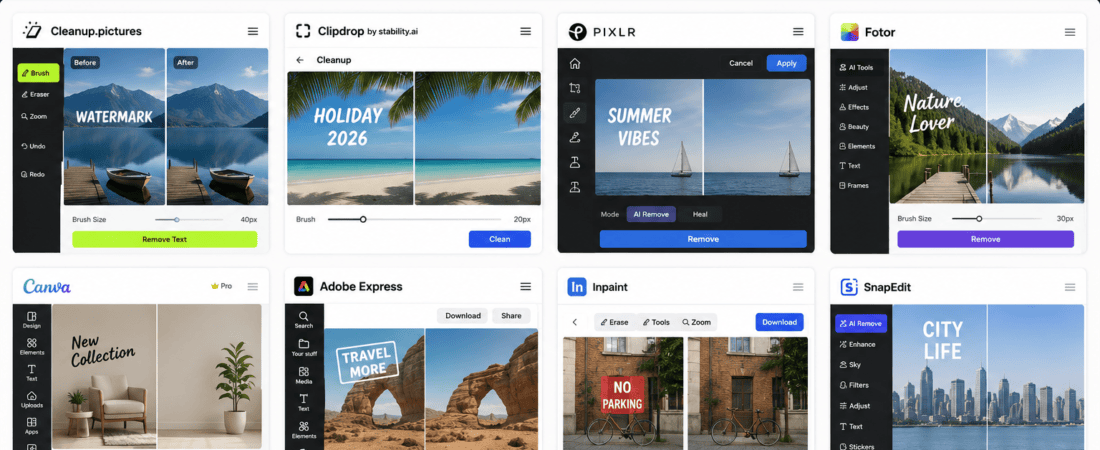
AI Tools to Remove Text from Image Introduction
AI Tools to Remove Text from Image: Removing unwanted text from an image used to require advanced photo editing skills and expensive software like Adobe Photoshop. Whether it was a watermark, date stamp, subtitle, logo, caption, or unwanted label, manually removing text while preserving the original background often took a significant amount of time.
Today, artificial intelligence has completely changed this process. Modern AI-powered image editing tools can intelligently detect text, analyze the surrounding area, and reconstruct the background naturally within seconds. These tools use advanced inpainting and content-aware fill technology to make the edited area look as if the text was never there.
Whether you’re a graphic designer, blogger, social media manager, photographer, student, marketer, or business owner, AI text remover tools can save time while delivering professional-quality results.
In this guide, you’ll discover the best free AI tools to remove text from images without ruining the background, learn how AI text removal works, compare the top tools, and find out which one is best for your editing needs.
What Is AI Text Removal?
AI text removal is an image editing technology that uses artificial intelligence to erase text from an image while automatically rebuilding the missing background.
Unlike traditional editing methods that require manual cloning or healing brushes, AI analyzes nearby pixels, textures, colors, lighting, and patterns to recreate a realistic background.
This process is commonly known as:
- AI Inpainting
- Content-Aware Fill
- AI Object Removal
- AI Cleanup
- Smart Eraser
The result is a clean image with no visible traces of the removed text.
Why Remove Text Without Damaging the Background?
Many images contain unwanted text that reduces their visual appeal or limits their usability.
Common examples include:
- Watermarks on personal images
- Date and time stamps
- Promotional banners
- Social media captions
- Logos on mockups
- Product labels
- Screenshot annotations
- Presentation notes
- Subtitles in photos
AI tools make it possible to remove these elements while keeping the background smooth and natural.
Benefits of AI Text Removal Tools
AI-powered text removal tools provide several advantages over traditional editing software.
1. Save Time
Tasks that previously required 20–30 minutes of careful editing can now be completed in just a few seconds.
2. No Editing Experience Required
Most AI tools are beginner-friendly.
Simply upload an image, highlight the unwanted text, and let the AI handle the rest.
3. Preserve Background Details
Advanced AI models reconstruct:
- Textures
- Shadows
- Lighting
- Patterns
- Colors
- Objects
This creates seamless edits with minimal effort.
4. Browser-Based Editing
Many AI text remover tools work entirely online, eliminating the need to download or install heavy software.
5. Cost-Effective Solution
Several AI image editing platforms offer free plans, making professional-quality text removal accessible to everyone.
How AI Removes Text from Images
AI text removal involves several intelligent processing steps.
Step 1: Image Analysis
The AI scans the image to understand:
- Objects
- Background textures
- Lighting
- Shadows
- Colors
- Edges
- Patterns
Step 2: Text Detection
The system identifies letters, words, and text regions that need to be removed.
Some tools automatically detect text, while others let users manually select the area.
Step 3: Background Prediction
The AI studies the surrounding pixels and predicts what the hidden background should look like once the text is removed.
Step 4: Content Reconstruction
Using inpainting algorithms, the AI recreates the missing area by blending textures, colors, and patterns with the surrounding image.
Step 5: Final Refinement
Many tools generate multiple variations or allow additional adjustments to achieve the most natural-looking result.
Best Free AI Tools to Remove Text from Images Without Ruining Background
Below are some of the best free AI-powered text remover tools available today.
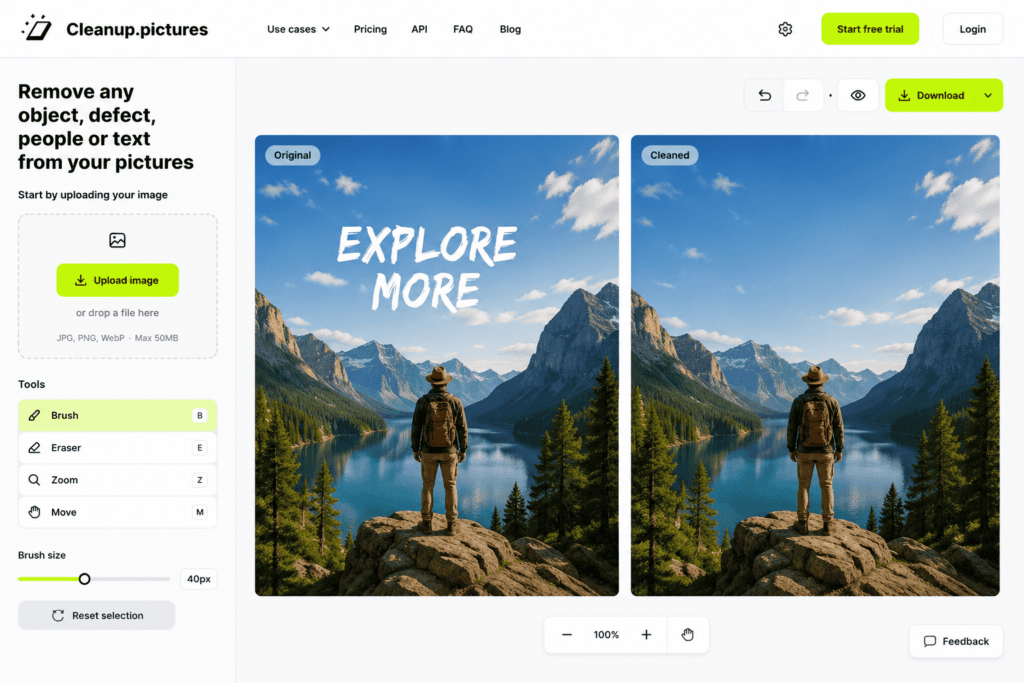
1. Cleanup.pictures
Cleanup.pictures is one of the most popular AI-powered image cleanup tools. It specializes in removing text, watermarks, unwanted objects, and people while preserving the original background.
Its simple interface makes it ideal for beginners and professionals alike.
Key Features
- AI text removal
- Object remover
- Watermark cleanup
- Browser-based editing
- Smart background reconstruction
- One-click workflow
Pros
- Extremely easy to use
- Fast processing
- High-quality AI results
- No software installation
- Free version available
Cons
- High-resolution exports may require a paid plan
- Limited advanced editing tools
Best For
- Removing text from photos
- Product images
- Social media graphics
- Marketing materials
- Personal image editing
2. Clipdrop Cleanup
Clipdrop Cleanup, developed by Stability AI, is a powerful AI editing tool that removes unwanted text and objects while reconstructing complex backgrounds with impressive accuracy.
It performs especially well on detailed scenes where maintaining realistic textures is essential.
Key Features
- AI Cleanup
- Text removal
- Object removal
- Background reconstruction
- Smart inpainting
- Browser-based editor
Pros
- Excellent image quality
- Fast AI processing
- Handles complex backgrounds well
- Beginner-friendly interface
Cons
- Limited free credits
- Premium plan unlocks additional features
Best For
- Professional photo editing
- Marketing graphics
- Product photography
- Creative projects
3. Pixlr Remove Object
Pixlr includes an AI-powered Remove Object tool that makes it easy to erase text, logos, and unwanted elements from images. It combines intelligent object detection with content-aware filling to deliver clean, natural-looking edits.
Key Features
- AI object remover
- Text removal
- Healing tool
- Layer support
- Browser-based editor
- Multiple export formats
Pros
- Easy to use
- Fast performance
- Free version available
- Additional editing features included
Cons
- Advertisements in the free version
- Daily AI usage limits
Best For
- Bloggers
- YouTube creators
- Website graphics
- Social media posts
4. Fotor AI Object Remover
Fotor AI Object Remover uses advanced AI algorithms to remove text, logos, people, and other unwanted elements while preserving image quality. It is designed for users who need quick edits without complicated tools.
Key Features
- AI text remover
- Background reconstruction
- Smart brush selection
- AI photo enhancement
- Cloud-based editing
Pros
- Beginner-friendly
- Clean interface
- Fast processing
- Good quality results
Cons
- Watermarks on some free exports
- Premium features require a subscription
Best For
- Business images
- Social media content
- Product photography
- Personal photo editing
5. Canva Magic Eraser
Canva Magic Eraser is part of Canva’s AI-powered editing suite. It enables users to remove text and unwanted objects directly within the Canva editor, making it ideal for marketers and content creators already using the platform.
Key Features
- AI Magic Eraser
- Object removal
- Background cleanup
- Integrated design editor
- Browser-based workflow
Pros
- Very easy to use
- Integrated with Canva projects
- Excellent for marketing graphics
- Free plan available
Cons
- AI credits are limited on the free plan
- Best suited for simple edits
Best For
Social media, graphics, Presentations, Marketing materials & Content creators.
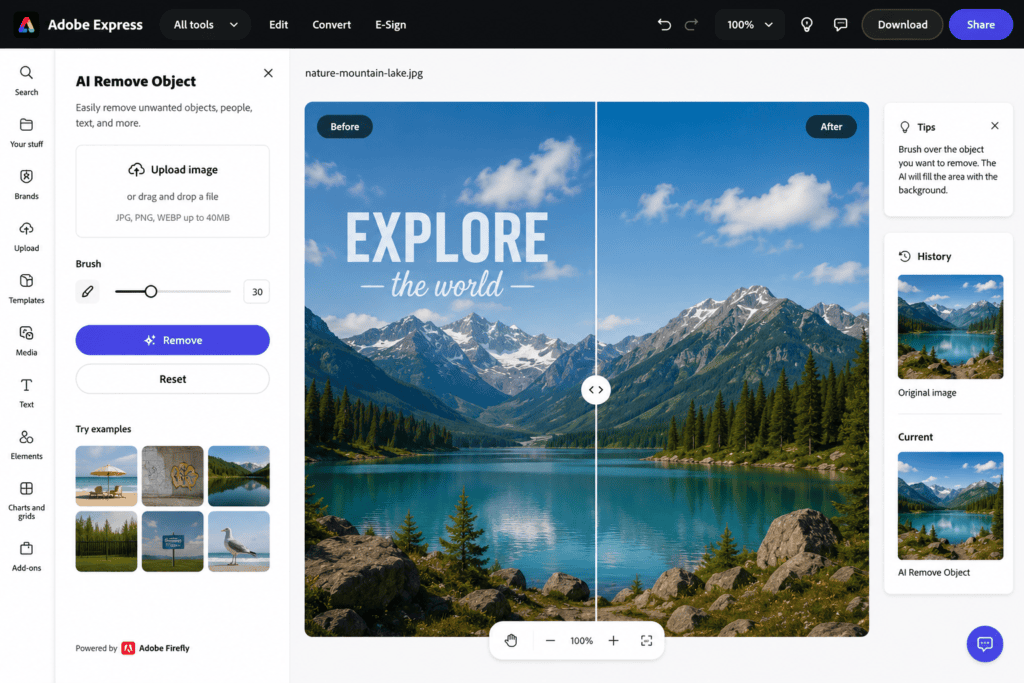
6. Adobe Express AI Remove Object
Adobe Express includes an AI-powered Remove Object tool that intelligently removes unwanted text, logos, and distractions from images. Built on Adobe’s AI technology, it provides clean edits while preserving the surrounding background.
Its browser-based interface makes it a convenient option for users who want professional-quality results without using the full Photoshop application.
Key Features
- AI text removal
- Object removal
- Content-aware background fill
- Browser-based editing
- One-click AI cleanup
- High-quality exports
Pros
- Easy to use
- Excellent AI accuracy
- Clean interface
- Works on desktop and mobile
- Free plan available
Cons
- Premium features require an Adobe account
- Limited AI generations on the free plan
Best For
- Marketing graphics
- Business presentations
- Social media content
- Website images
7. Inpaint
Inpaint is a dedicated AI-powered image restoration tool designed specifically for removing unwanted elements such as text, watermarks, logos, and date stamps. It automatically fills the selected area using surrounding textures for a natural-looking result.
Key Features
- AI text remover
- Watermark removal
- Logo removal
- Smart background reconstruction
- Browser-based editor
Pros
- Very simple interface
- Accurate background filling
- Fast processing
- Beginner-friendly
Cons
- Free version has export limitations
- Advanced features require payment
Best For
- Old photographs
- Product images
- Social media graphics
- Personal photos
8. SnapEdit AI
SnapEdit AI is a powerful online image editing platform that uses artificial intelligence to remove text, objects, and other distractions from photos while preserving fine details.
Its smart AI engine performs well on both simple and complex backgrounds.
Key Features
- AI text remover
- AI object remover
- Smart brush tool
- Background reconstruction
- Photo enhancement
- Batch processing support
Pros
- High-quality AI editing
- Easy workflow
- Fast processing
- Free version available
Cons
- Daily AI usage limits
- Some premium features require a subscription
Best For
- Bloggers
- E-commerce stores
- Social media managers
- Photographers
Comparison of the Best Free AI Text Removal Tools
| Tool | Free Version | AI Text Removal | Background Reconstruction | Best For |
|---|---|---|---|---|
| Cleanup.pictures | Yes | ✔ | Excellent | General Image Editing |
| Clipdrop Cleanup | Yes | ✔ | Excellent | Professional Editing |
| Pixlr | Yes | ✔ | Very Good | Bloggers |
| Fotor AI | Yes | ✔ | Very Good | Beginners |
| Canva Magic Eraser | Yes | ✔ | Good | Marketing Graphics |
| Adobe Express | Yes | ✔ | Excellent | Business Content |
| Inpaint | Limited | ✔ | Very Good | Watermark Removal |
| SnapEdit AI | Yes | ✔ | Excellent | E-commerce Images |
Step-by-Step Guide to Remove Text Without Ruining the Background
Removing unwanted text from an image with AI is quick and straightforward.
Step 1: Choose an AI Text Removal Tool
Select the tool that best matches your project.
Examples include:
- Cleanup.pictures
- Clipdrop Cleanup
- Pixlr
- Adobe Express
- SnapEdit AI
Step 2: Upload Your Image
Most tools support:
- JPG
- PNG
- WEBP
Using a higher-resolution image generally produces better results.
Step 3: Highlight the Text
Use the brush or selection tool to paint over the text you want to remove.
Try to cover only the unwanted text without selecting too much of the surrounding background.
Step 4: Let the AI Process the Image
The AI analyzes nearby textures, colors, shadows, and patterns to recreate the missing background naturally.
Processing usually takes only a few seconds.
Step 5: Review the Results
Zoom in and inspect the edited area carefully.
Look for:
- Blurred textures
- Repeating patterns
- Visible seams
- Color mismatches
If necessary, run the AI again or adjust the selection.
Step 6: Download the Edited Image
Once satisfied, export the image in your preferred format.
Common formats include:
- PNG
- JPG
- WEBP
Some platforms also allow high-resolution downloads with premium plans.
Best Practices for Clean AI Text Removal
Following these tips can significantly improve your editing results.
Use High-Resolution Images
The more detail the AI has to analyze, the more natural the reconstructed background will appear.
Zoom In Before Selecting
Accurate selections reduce the risk of removing important details around the text.
Remove Small Areas First
For large text blocks, erase them gradually instead of selecting everything at once.
This often produces smoother results.
Choose Tools with Inpainting Technology
AI inpainting tools generally provide more realistic background reconstruction than basic clone or erase tools.
Save the Original Image
Always keep an untouched copy in case you want to compare results or make further edits later.
Common Mistakes to Avoid
Avoid these common errors to achieve the best outcome.
Selecting Too Much Area
A large selection gives the AI more information to recreate, which can sometimes produce unrealistic textures.
Using Very Low-Quality Images
Small or heavily compressed images provide less visual data, making accurate reconstruction more difficult.
Ignoring Fine Details
Zoom in after editing to check edges, shadows, and repeating patterns before exporting.
Removing Text Over Faces or Complex Objects
AI may struggle with intricate details like facial features, hands, or detailed artwork. Manual touch-ups may still be necessary.
Overediting
Repeated edits on the same area can sometimes create unnatural textures. Aim to achieve the best result in as few passes as possible.
1. What is the best free AI tool to remove text from an image?
Some of the best free AI tools include Cleanup.pictures, Clipdrop Cleanup, Pixlr, Adobe Express, Fotor AI, Canva Magic Eraser, SnapEdit AI, and Inpaint. These platforms use AI-powered inpainting technology to remove text while preserving the background.
2. Can AI remove text without damaging the background?
Yes. Modern AI tools analyze surrounding pixels, textures, colors, lighting, and patterns to reconstruct the hidden background, making the removed text area appear natural.
3. Are AI text remover tools free?
Most AI image editors offer free plans with limited daily usage or export quality. Premium subscriptions usually unlock higher-resolution downloads and additional AI credits.
4. Which AI tool works best for removing watermarks?
Cleanup.pictures, Clipdrop Cleanup, and Inpaint are among the best options for removing simple watermarks from images. Be sure you have the right to remove a watermark before doing so.
5. Can AI remove subtitles from images?
Yes. AI text remover tools can erase subtitles, captions, and overlays from images while filling the background automatically.
6. Can I remove logos from images?
Yes, provided you have permission to edit the image. AI object removal tools can erase logos and reconstruct the surrounding background.
7. Does AI work on complex backgrounds?
Yes. Advanced AI models perform well on many textured or detailed backgrounds, although very intricate patterns may occasionally require additional touch-ups.
8. Can AI remove handwritten text?
Yes. Most AI object removal tools can erase handwritten notes, signatures, and annotations from images while preserving nearby details.
9. What image formats are supported?
Most platforms support:
- JPG
- JPEG
- PNG
- WEBP
Some also support additional formats depending on the service.
10. Can AI remove text from scanned documents?
AI image cleanup tools can remove text from scanned images, but if you need to edit document content while preserving formatting, dedicated PDF or document editors may be more suitable.
11. Is Photoshop required?
No. Browser-based AI editors provide similar text removal capabilities without requiring Adobe Photoshop or advanced editing skills.
12. Are AI-edited images suitable for commercial use?
Many platforms allow commercial use, but licensing policies differ. Always review each platform’s terms before using edited images in commercial projects.
13. Can I edit photos on my phone?
Yes. Many AI text removal tools work directly in mobile browsers, and some also offer dedicated Android and iOS apps.
14. Why does AI sometimes leave blurry areas?
This usually happens when:
- The original image is very low resolution.
- The selected area is too large.
- The background contains highly complex textures.
- The AI has limited surrounding information.
Using a higher-quality image often improves results.
15. Which AI tool is best for beginners?
Cleanup.pictures, Canva Magic Eraser, and Fotor AI are excellent choices because of their simple interfaces and fast, one-click editing experience.
Best AI Tool Based on Your Needs
| Use Case | Recommended Tool |
|---|---|
| Best Overall | Cleanup.pictures |
| Best Professional Tool | Clipdrop Cleanup |
| Best Free Option | Pixlr |
| Best for Beginners | Canva Magic Eraser |
| Best for Watermark Removal | Inpaint |
| Best for Product Photos | SnapEdit AI |
| Best for Social Media | Canva Magic Eraser |
| Best for Marketing Graphics | Adobe Express |
| Best Mobile Experience | SnapEdit AI |
| Best Browser-Based Editor | Cleanup.pictures |
Pro Tips for Better AI Text Removal
To achieve professional-looking results, keep these tips in mind:
- Upload the highest-resolution image available.
- Zoom in before selecting the unwanted text.
- Remove text in smaller sections when dealing with large paragraphs.
- Use precise brush strokes to avoid altering important parts of the image.
- Compare multiple AI-generated results if the tool offers variations.
- Save the original image before making edits.
- Perform a final quality check at 100% zoom before downloading.
These practices help produce cleaner and more natural edits.
Final Verdict
AI-powered text removal tools have made professional image editing faster and more accessible than ever. Instead of spending hours using clone stamps or healing brushes, you can now erase unwanted text with just a few clicks while preserving the original background.
For the best overall performance, Cleanup.pictures offers an excellent balance of speed, simplicity, and quality. Clipdrop Cleanup is ideal for users who need advanced AI reconstruction, while Pixlr provides a versatile editing experience with additional photo editing features. Beginners may prefer Canva Magic Eraser or Fotor AI, and users focused on watermark or logo removal can consider Inpaint.
The best choice depends on your workflow, image complexity, and editing goals.
Conclusion
Removing unwanted text from images no longer requires expensive software or professional editing skills. Thanks to AI-powered inpainting technology, you can erase captions, labels, logos, date stamps, and other distractions while maintaining a natural-looking background.
The free AI tools covered in this guide are suitable for designers, bloggers, marketers, photographers, online sellers, students, and anyone who wants quick, high-quality image edits. By selecting the right platform and following the best practices outlined above, you can achieve clean, polished results in just a few minutes.
As AI technology continues to improve, text removal tools will become even more accurate, making professional image editing accessible to everyone.
Key Takeaways
- AI text removal tools can erase unwanted text while intelligently reconstructing the background.
- Cleanup.pictures, Clipdrop Cleanup, Pixlr, Adobe Express, Fotor AI, Canva Magic Eraser, Inpaint, and SnapEdit AI are among the best free options.
- High-resolution images and accurate selections improve editing quality.
- Most AI tools are browser-based and beginner-friendly.
- AI-powered text removal is ideal for social media graphics, product photos, marketing materials, and personal image editing.
Checkout here if you want to know about Best Free AI Alternatives to Photoshop Generative Fill (2026 Guide)