Introduction
Free AI alternatives to Photoshop: Adobe Photoshop’s Generative Fill feature has transformed the way designers edit images. Powered by artificial intelligence, it allows users to remove unwanted objects, extend backgrounds, replace elements, and create entirely new content using simple text prompts. While this feature is incredibly powerful, it requires an Adobe subscription, making it inaccessible for many freelancers, students, bloggers, and content creators.
Fortunately, several free AI-powered image editing tools now offer similar capabilities. These alternatives can intelligently fill missing areas, remove objects, expand images, replace backgrounds, and generate realistic content—all without requiring an expensive Photoshop license.
Whether you’re a graphic designer, digital marketer, social media manager, photographer, or beginner, these AI tools can help you create professional-quality edits quickly and efficiently.
In this guide, you’ll discover the best free AI alternatives to Photoshop Generative Fill, compare their features, explore their pros and cons, and learn which tool is best for your editing workflow.
What Is Photoshop Generative Fill?
Photoshop Generative Fill is an AI-powered editing feature that uses Adobe Firefly technology to generate realistic image content based on text prompts.
Instead of manually cloning, masking, or painting objects, users simply highlight an area and describe what they want. The AI then creates new pixels that blend naturally with the surrounding image.
For example, you can:
- Remove unwanted objects
- Add new people or objects
- Extend image backgrounds
- Replace skies
- Fill empty spaces
- Restore damaged photos
- Generate creative scenes
- Edit product photos
This feature has significantly reduced editing time for professionals.
Why Look for Free Alternatives?
Although Photoshop Generative Fill is powerful, it isn’t the best choice for everyone.
Here are some common reasons users seek free AI alternatives.
1. Adobe Subscription Cost
Photoshop requires a paid Creative Cloud subscription, which may not fit every budget.
Free AI tools offer similar features without recurring monthly fees.
2. Browser-Based Editing
Many AI editors work entirely online.
There’s no need to install heavy software or own a powerful computer.
3. Easier for Beginners
Photoshop has a steep learning curve.
Most AI editors feature simple drag-and-drop interfaces that are much easier for beginners to use.
4. Faster Workflow
Many AI tools complete edits in just a few seconds.
Instead of manually masking objects or using complicated selection tools, AI handles most of the work automatically.
5. Great for Social Media Content
Content creators frequently need to:
- Remove backgrounds
- Extend Instagram photos
- Create YouTube thumbnails
- Design advertisements
- Edit product images
Free AI editors simplify these tasks.
Benefits of AI Generative Fill Tools
AI-powered editing tools offer several advantages over traditional editing methods.
Save Time
Tasks that once required 30–60 minutes can now be completed in seconds.
Beginner Friendly
No advanced Photoshop skills are required.
Simply upload an image, enter a prompt, and let the AI generate the result.
High-Quality Results
Modern AI models create realistic textures, lighting, shadows, and object placement that blend naturally with the original image.
Cost Effective
Many platforms offer generous free plans, making professional-quality editing accessible to everyone.
Multi-Purpose Editing
AI tools can handle a wide range of tasks, including:
- Object removal
- Image expansion
- Background replacement
- Photo restoration
- Product editing
- Creative image generation
- Content-aware fill
- Inpainting and outpainting
How AI Generative Fill Works
AI generative fill relies on machine learning models trained on millions of images.
The process typically involves the following steps:
Step 1: Image Analysis
The AI analyzes the uploaded image to understand:
- Objects
- Colors
- Lighting
- Perspective
- Textures
- Shadows
Step 2: Area Selection
The user selects the portion of the image to edit or generate.
This can be an empty background, an unwanted object, or a selected region.
Step 3: Text Prompt
Users describe what they want using simple instructions.
Examples include:
- “Replace with a sunset beach.”
- “Remove the person.”
- “Add green grass.”
- “Generate modern office furniture.”
Step 4: AI Generation
The AI predicts what should appear in the selected area while maintaining realistic lighting, depth, and perspective.
Step 5: Final Editing
Most tools provide multiple variations so users can choose the best result or regenerate new versions.
Best Free AI Alternatives to Photoshop Generative Fill
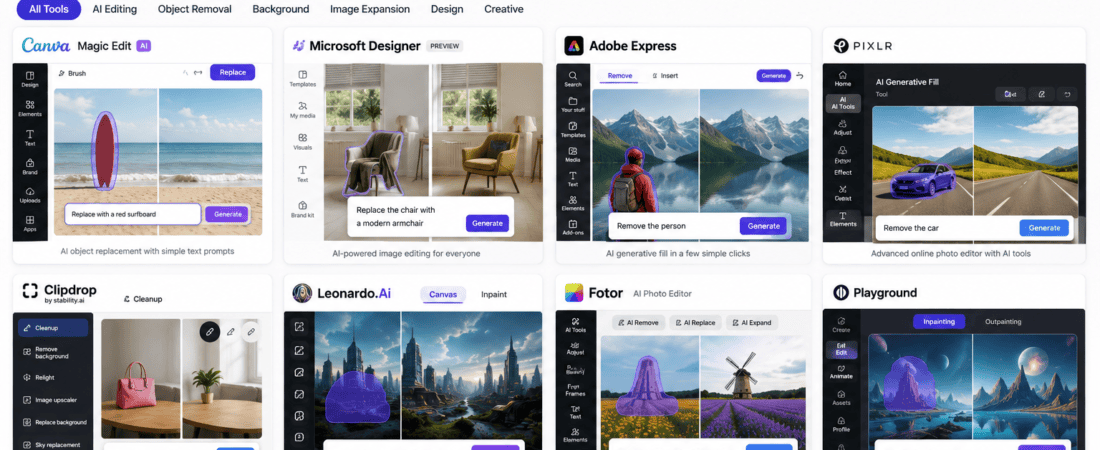
Below are some of the best free AI image editing tools available today.
1. Canva Magic Edit
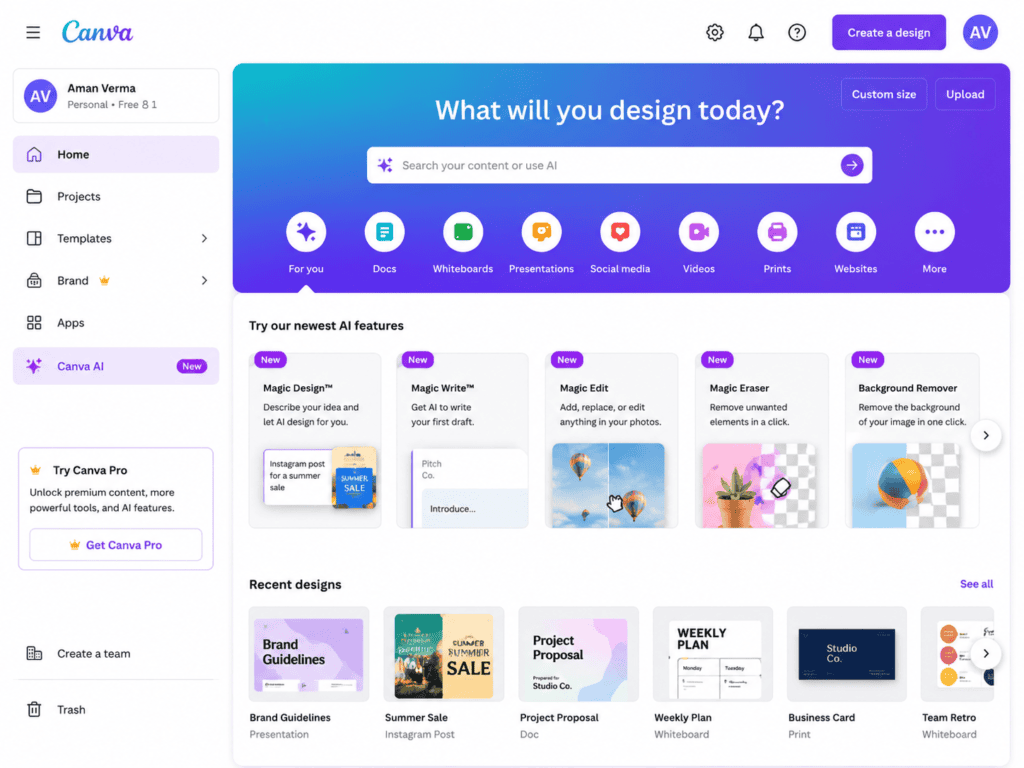
Canva Magic Edit is one of the easiest AI-powered editing tools for beginners. It allows users to replace objects, edit photos, and generate realistic content using simple text prompts—all within Canva’s intuitive drag-and-drop interface.
It’s especially useful for social media graphics, presentations, marketing materials, and quick image edits.
Key Features
- AI object replacement
- Text-prompt image editing
- Background editing
- One-click interface
- Integrated with Canva Design Studio
- Cloud-based editing
Pros
- Extremely beginner-friendly
- Fast AI generation
- Works directly in the browser
- Excellent for marketing content
- Free plan available
Cons
- Limited free credits
- Best suited for simple edits
Best For
- Social media managers
- Bloggers
- Students
- Small businesses
- Content creators
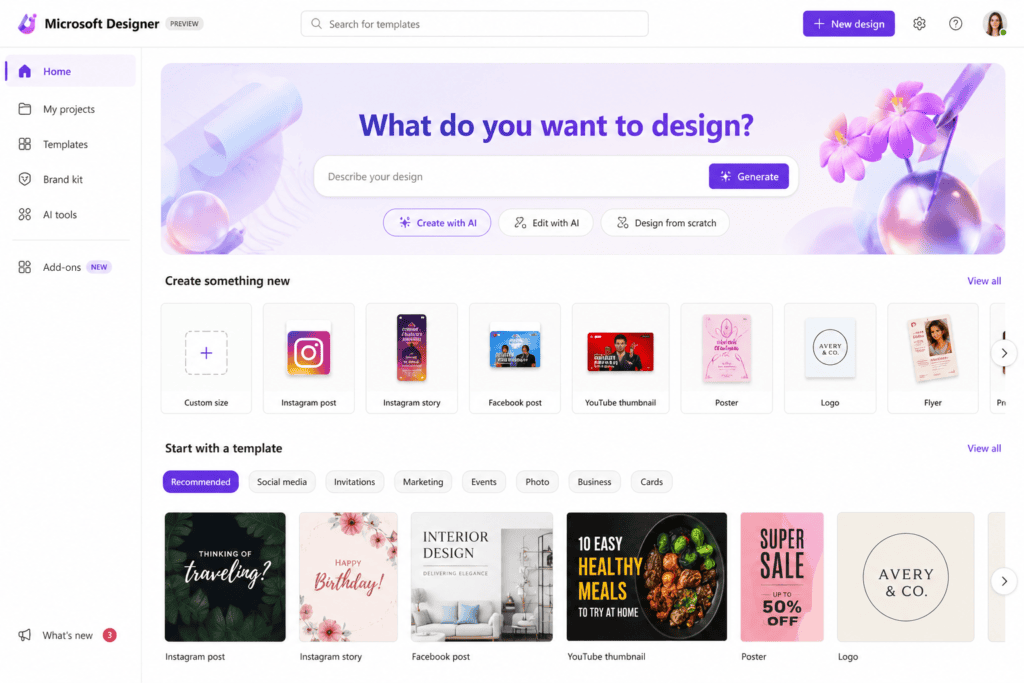
2. Microsoft Designer AI
Microsoft Designer includes powerful AI image editing tools powered by advanced generative technology. Users can remove objects, replace backgrounds, expand images, and generate new visual elements with just a few clicks.
Its seamless integration with Microsoft services makes it a convenient option for creating professional visuals without complex editing software.
Key Features
- AI-powered image editing
- Object removal
- Background replacement
- Image expansion
- Prompt-based generation
- Browser-based workspace
Pros
- Clean and modern interface
- Easy to learn
- High-quality AI results
- Great for presentations and marketing
- Free to get started
Cons
- Some advanced features require sign-in
- Daily usage limits on free accounts
Best For
- Business graphics
- Marketing campaigns
- Presentation design
- Website visuals
3. Adobe Express AI Fill
Adobe Express offers AI-powered editing features inspired by Photoshop’s Generative Fill but in a much simpler, browser-based interface. It enables users to remove unwanted elements, replace backgrounds, and enhance images with minimal effort.
Because it is part of the Adobe ecosystem, it delivers reliable performance while remaining more accessible than the full Photoshop application.
Key Features
- AI object removal
- Background editing
- Generative Fill capabilities
- Image expansion
- Cloud storage integration
- User-friendly interface
Pros
- High-quality output
- Trusted Adobe technology
- Easy to use
- Browser-based editing
- Free plan available
Cons
- Premium features require an Adobe account
- Free usage limits apply
Best For
- Quick photo edits
- Marketing materials
- Digital content creation
- Small business branding
4. Pixlr AI
Pixlr AI is a popular online photo editor that includes AI-powered tools for generative fill, object removal, background replacement, and image enhancement. Its lightweight interface and quick processing make it a favorite among users who need fast edits without installing software.
Key Features
- AI Generative Fill
- Smart object removal
- Background replacement
- AI image expansion
- Layer support
- Browser-based editor
Pros
- Fast performance
- No installation required
- Beginner-friendly
- Supports multiple editing tools
- Free version available
Cons
- Ads in the free version
- Limited daily AI generations
Best For
- Bloggers
- E-commerce product photos
- YouTube thumbnails
- Website graphics
5. Clipdrop by Stability AI
Clipdrop is one of the most advanced AI-powered image editing platforms available. Developed by Stability AI, it offers tools for generative fill, object cleanup, background replacement, image upscaling, relighting, and more.
Its AI produces realistic edits with impressive detail, making it a strong alternative to Photoshop for both creative and professional projects.
Key Features
- AI Generative Fill
- Cleanup tool for object removal
- Background replacement
- Image upscaler
- Relight AI
- Text-to-image generation
- Browser-based editing
Pros
- Excellent image quality
- Advanced AI capabilities
- Fast processing
- Multiple creative tools in one platform
- Free tier available
Cons
- Limited free credits
- Premium plan unlocks higher usage
Best For
- Professional designers
- Digital artists
- Product photography
- Creative marketing
- High-quality AI image editing
6. Leonardo AI Canvas
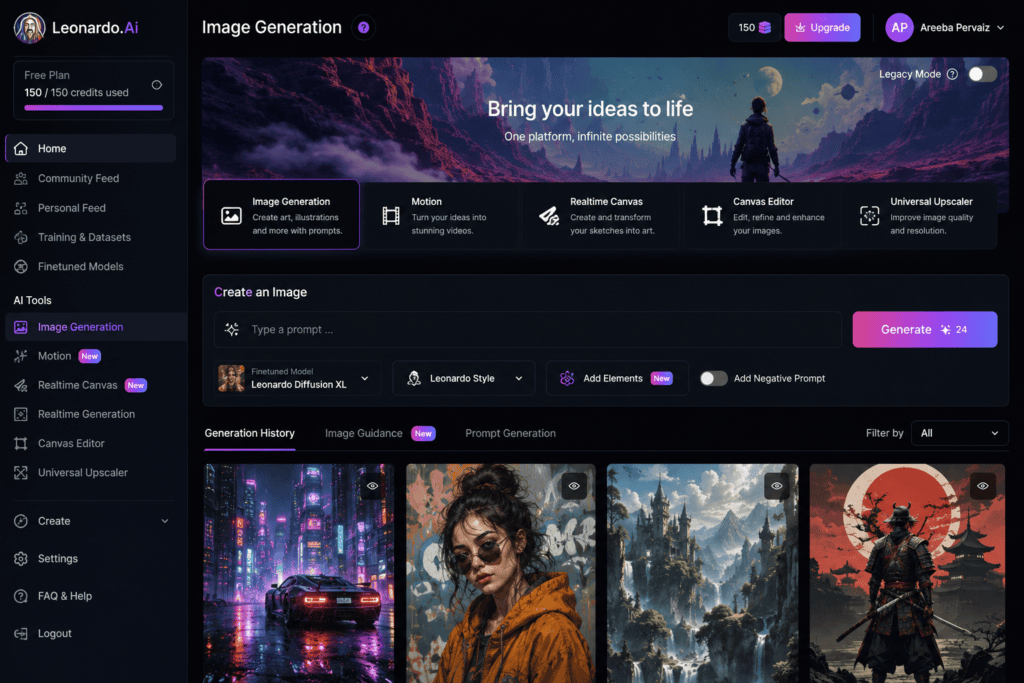
Leonardo AI is widely known for AI image generation, but its AI Canvas feature also provides powerful generative editing tools. Users can erase objects, expand images, replace backgrounds, and create entirely new scenes using simple text prompts.
Its advanced AI models make it an excellent choice for designers, game developers, and digital artists.
Key Features
- AI Canvas editor
- Generative Fill
- AI Inpainting
- AI Outpainting
- Text-to-image editing
- Multiple AI models
- High-resolution exports
Pros
- Excellent image quality
- Powerful editing capabilities
- Daily free AI credits
- Suitable for creative projects
- Modern interface
Cons
- Learning curve for beginners
- Some premium models require a paid plan
Best For
- Digital artists
- Concept designers
- Marketing creatives
- Game asset creation
7. Fotor AI Editor
Fotor AI Editor combines traditional photo editing with modern AI-powered features. It allows users to remove unwanted objects, replace backgrounds, expand images, and enhance photos in just a few clicks.
Its intuitive interface makes it suitable for users with little or no editing experience.
Key Features
- AI Generative Fill
- Object remover
- AI photo enhancer
- AI background remover
- AI image extender
- Cloud-based editing
Pros
- Easy to use
- Beginner-friendly
- Fast AI processing
- Good quality outputs
- Free version available
Cons
- Watermark on some free exports
- Daily usage limits
Best For
- Social media graphics
- Product photography
- Personal photo editing
- Marketing materials
8. Playground AI
Playground AI offers advanced AI-powered editing features that allow users to modify existing images using text prompts. It supports inpainting, outpainting, object replacement, and creative image generation.
Its generous free plan makes it a favorite among creators looking for Photoshop alternatives.
Key Features
- AI inpainting
- AI outpainting
- Prompt-based editing
- Image expansion
- Background editing
- High-resolution generation
Pros
- Generous free usage
- Excellent creative flexibility
- Browser-based
- Fast rendering
- High-quality AI images
Cons
- Can take longer for complex edits
- Premium features available
Best For
- Creative designers
- YouTube creators
- Bloggers
- AI art enthusiasts
Comparison of the Best Free AI Alternatives
| Tool | Free Version | AI Fill | Object Removal | Background Replacement | Best For |
|---|---|---|---|---|---|
| Canva Magic Edit | Yes | ✔ | ✔ | ✔ | Social Media |
| Microsoft Designer | Yes | ✔ | ✔ | ✔ | Marketing |
| Adobe Express | Yes | ✔ | ✔ | ✔ | Quick Photo Editing |
| Pixlr AI | Yes | ✔ | ✔ | ✔ | Bloggers |
| Clipdrop | Yes | ✔ | ✔ | ✔ | Professional Editing |
| Leonardo AI | Yes | ✔ | ✔ | ✔ | Digital Art |
| Fotor AI | Yes | ✔ | ✔ | ✔ | Beginners |
| Playground AI | Yes | ✔ | ✔ | ✔ | Creative Projects |
Step-by-Step Guide to Using AI Generative Fill
Follow these simple steps to edit your images using AI-powered generative fill tools.
Step 1: Choose the Right AI Tool
Select a tool based on your project requirements.
For example:
- Canva Magic Edit for social media
- Clipdrop for professional edits
- Leonardo AI for creative artwork
- Pixlr AI for everyday editing
Step 2: Upload Your Image
Supported formats usually include:
- JPG
- PNG
- WEBP
Use the highest-quality image available for the best results.
Step 3: Select the Area to Edit
Highlight the object or background you want to replace.
Many tools provide:
- Brush selection
- Rectangle selection
- Smart selection
- Object detection
Step 4: Enter a Prompt
Describe the desired edit.
Examples:
- Replace with blue sky
- Remove the chair
- Add flowers
- Generate mountain landscape
- Extend the beach
- Replace background with office
Clear prompts usually produce better results.
Step 5: Generate Variations
Most AI editors generate multiple options.
Compare each variation and select the one that looks the most realistic.
Step 6: Fine-Tune the Image
If needed, repeat the process to improve:
- Lighting
- Shadows
- Colors
- Perspective
- Object placement
Step 7: Download the Final Image
Export your edited image in your preferred format.
Common formats include:
- PNG
- JPG
- WEBP
Some premium plans also support higher-resolution downloads.
Tips for Better AI Generative Fill Results
To achieve realistic edits, follow these best practices.
Use Detailed Prompts
Instead of writing:
“Tree”
Try:
“A realistic green oak tree with natural lighting.”
Specific prompts generally produce more accurate results.
Match Lighting and Perspective
Ensure the generated object fits the existing scene.
Consistent lighting and camera angles create more believable edits.
Work with High-Resolution Images
Higher-quality source images help AI preserve details and generate cleaner results.
Remove Distractions First
Crop unnecessary elements before using generative fill to help the AI focus on the intended edit.
Experiment with Different Variations
Don’t settle for the first result.
Generating multiple versions often leads to a better final image.
Common Mistakes to Avoid
Avoid these common errors when using AI image editing tools.
Using Very Small Images
Low-resolution images may produce blurry or unrealistic AI edits.
Writing Vague Prompts
Simple prompts like “car” or “tree” often generate inconsistent results.
More descriptive prompts improve accuracy.
Overediting the Image
Applying too many AI edits can make the final image look unnatural.
Ignoring Image Composition
Generated objects should align with the existing perspective and scale of the image.
Forgetting Licensing Rules
Always review the licensing terms if you plan to use AI-generated images for commercial purposes.
Frequently Asked Questions (FAQs)
1. What is the best free alternative to Photoshop Generative Fill?
Several excellent free alternatives are available. Clipdrop, Canva Magic Edit, Microsoft Designer, Pixlr AI, and Leonardo AI are among the top choices. The best option depends on your editing needs, whether it’s social media graphics, product photos, or creative artwork.
2. Can I use AI Generative Fill without Photoshop?
Yes. Many browser-based AI image editors provide Generative Fill-like features without requiring Adobe Photoshop or a Creative Cloud subscription.
3. Is Canva Magic Edit free?
Canva offers a free plan that includes Magic Edit with limited AI credits. Additional usage and advanced features are available through paid plans.
4. Which AI tool removes objects most accurately?
Clipdrop and Adobe Express generally provide excellent object removal, while Pixlr AI and Fotor AI also deliver reliable results for most everyday editing tasks.
5. Can AI extend image backgrounds?
Yes. Many AI editors support AI Outpainting or Image Expansion, allowing you to extend backgrounds naturally while maintaining consistent textures and lighting.
6. Are AI image editing tools suitable for beginners?
Absolutely. Most AI editors feature intuitive drag-and-drop interfaces and simple text prompts, making them easy to use even if you have no prior photo editing experience.
7. Can I replace a background using AI?
Yes. Most modern AI image editors can automatically remove and replace backgrounds with realistic scenes, solid colors, or AI-generated environments.
8. Do these tools support commercial use?
Many platforms allow commercial use of edited images, but licensing policies differ. Always review the terms of service before using AI-generated content for client work, advertising, or products.
9. Which file formats are supported?
Most AI image editors support:
- PNG
- JPG
- JPEG
- WEBP
Some premium plans also support PSD or higher-resolution exports.
10. Can AI restore old photos?
Yes. Several AI tools include photo restoration features that repair scratches, improve colors, remove noise, and enhance image quality.
11. Are browser-based AI editors safe?
Reputable platforms generally use secure connections and privacy policies to protect uploaded files. If you are editing confidential or sensitive images, check the platform’s data retention policy before uploading.
12. Do I need a powerful computer?
No. Since most AI editors run in the cloud, they work well on standard laptops, desktops, and even many tablets, as long as you have a stable internet connection.
13. Can AI create realistic product photos?
Yes. AI can remove distracting backgrounds, add professional environments, improve lighting, and generate lifestyle scenes, making it useful for e-commerce and online stores.
14. Which AI editor is best for social media?
Canva Magic Edit and Microsoft Designer are excellent choices for creating Instagram posts, Facebook ads, Pinterest graphics, YouTube thumbnails, and other social media content.
15. Are free AI tools enough for professional work?
For many freelancers, marketers, and content creators, free AI tools provide everything needed for everyday editing. Designers handling complex commercial projects or requiring advanced control may still benefit from premium software.
Best AI Tool Based on Your Needs
| Use Case | Recommended Tool |
|---|---|
| Best Overall | Clipdrop |
| Best Free Option | Canva Magic Edit |
| Best for Beginners | Microsoft Designer |
| Best for Professionals | Adobe Express |
| Best for Creative Artwork | Leonardo AI |
| Best for Product Photos | Pixlr AI |
| Best for Social Media | Canva Magic Edit |
| Best for AI Art | Playground AI |
| Best for Quick Edits | Fotor AI |
| Best Browser-Based Editor | Pixlr AI |
Expert Tips for Better AI Image Editing
To achieve professional-looking results, follow these recommendations:
- Start with a high-resolution image whenever possible.
- Use clear and descriptive text prompts.
- Match lighting, shadows, and perspective with the original image.
- Generate multiple AI variations before choosing the final result.
- Refine the output using built-in editing tools if needed.
- Save copies of the original image for comparison and future edits.
- Use high-quality export settings for print or commercial use.
These practices will help you produce more natural and visually appealing AI-generated edits.
Final Verdict
Photoshop Generative Fill has set a high standard for AI-powered image editing, but it is no longer the only option. Today, several free AI tools provide similar functionality without requiring an expensive subscription.
If you’re looking for an all-around solution, Clipdrop offers some of the most advanced AI editing features available. Canva Magic Edit is ideal for beginners and marketers who need fast, polished results. Microsoft Designer combines simplicity with strong AI capabilities, while Leonardo AI excels in creative projects and concept art. Pixlr AI and Fotor AI are also reliable choices for quick, browser-based editing.
The right tool depends on your workflow, budget, and the type of images you edit most often. Experiment with a few of these platforms to find the one that best suits your needs.
Conclusion
AI-powered image editing has made professional-quality design accessible to everyone. You no longer need advanced Photoshop skills or an expensive Creative Cloud subscription to remove objects, replace backgrounds, extend images, or generate realistic content.
The free AI tools featured in this guide offer impressive capabilities for photographers, designers, marketers, bloggers, e-commerce businesses, and content creators. By choosing the right platform and following best practices, you can create polished visuals in minutes instead of hours.
As AI technology continues to evolve, these tools will become even more accurate, faster, and easier to use—making them valuable additions to any creative workflow.
Key Takeaways
- Free AI tools now provide powerful alternatives to Photoshop Generative Fill.
- Clipdrop, Canva Magic Edit, Microsoft Designer, Pixlr AI, Leonardo AI, Fotor AI, and Playground AI are among the best options.
- AI can remove objects, replace backgrounds, expand images, and generate realistic content using simple text prompts.
- Most tools work directly in your browser and require no software installation.
- Choosing detailed prompts and high-quality source images leads to the best editing results.
Chech out here if you want to know about Best Free AI Tools to Fix Blurry Video Quality Online (2026 Guide)