
Generate LinkedIn Carousels Using Free AI: LinkedIn carousels are one of my favorite formats when I want to turn a complicated topic into something people can actually read and save.
A long LinkedIn post can contain useful information, but many people simply scroll past a large block of text. A carousel changes that experience. Instead of presenting everything at once, I can break an idea into several visual slides and guide the reader from one point to the next.
The problem is that creating a carousel manually can take a surprising amount of time.
First, I need to research the topic.
Then I have to write the content, organize the slides, choose a layout, create visuals, format typography, maintain consistency, and finally export the finished carousel.
If I’m creating content regularly, doing all of that manually can become exhausting.
This is where free AI slide tools become useful.
I can start with a topic, let AI generate a presentation structure, refine the text, apply a visual layout, and then convert the result into a LinkedIn-friendly carousel.
The important part is that I don’t let AI completely take over the process.
I use AI for the repetitive work.
I still decide what information deserves to be included, what the opening slide should say, which examples are useful, and how the final carousel should sound.
In this guide, I’ll explain exactly how I use free AI slide tools to create LinkedIn carousels, which tools are worth trying, how to structure the slides, how to write better carousel content, and how to turn one idea into a complete LinkedIn content asset.
What Is a LinkedIn Carousel?
A LinkedIn carousel is a multi-page visual post designed to be consumed one page at a time.
Instead of publishing one image, I can create a sequence such as:
Slide 1: Hook
Slide 2: Problem
Slide 3: Explanation
Slide 4: Example
Slide 5: Tip
Slide 6: Mistake
Slide 7: Solution
Slide 8: Conclusion
Slide 9: Call to action
This format works particularly well for educational content.
For example:
“7 Free AI Tools Every Freelancer Should Know”
could become a nine-slide carousel.
The first slide introduces the topic.
The following slides explain the tools.
The final slide encourages readers to save or share the post.
Why Use AI to Create LinkedIn Carousels?
The biggest reason I use AI is speed.
Without AI, I might spend considerable time deciding:
- What should the first slide say?
- How many slides should I create?
- What order should the information follow?
- Which points deserve separate slides?
- How should I summarize the conclusion?
AI can handle the initial structure very quickly.
I can give it:
Topic + audience + objective
and ask for a slide-by-slide outline.
For example:
“Create a LinkedIn carousel for small business owners explaining five ways AI can save time. Use a strong hook, one clear idea per slide, practical examples, and a final call to action.”
Now I have a starting structure.
I can then edit it instead of beginning with a blank page.
The Basic AI LinkedIn Carousel Workflow
My workflow is fairly simple.
Step 1: Choose the topic
I start with one specific idea.
Step 2: Define the audience
I decide exactly who should find the carousel useful.
Step 3: Generate the outline
I use AI to create the slide structure.
Step 4: Refine the content
I remove generic statements and add examples.
Step 5: Generate the slides
I use an AI presentation tool.
Step 6: Check the design
I make sure the typography, spacing, and hierarchy work.
Step 7: Export the carousel
I convert the slides into an appropriate format for LinkedIn.
Step 8: Write the LinkedIn caption
I create a short post that gives context without repeating every slide.
This process is considerably faster than designing everything manually.
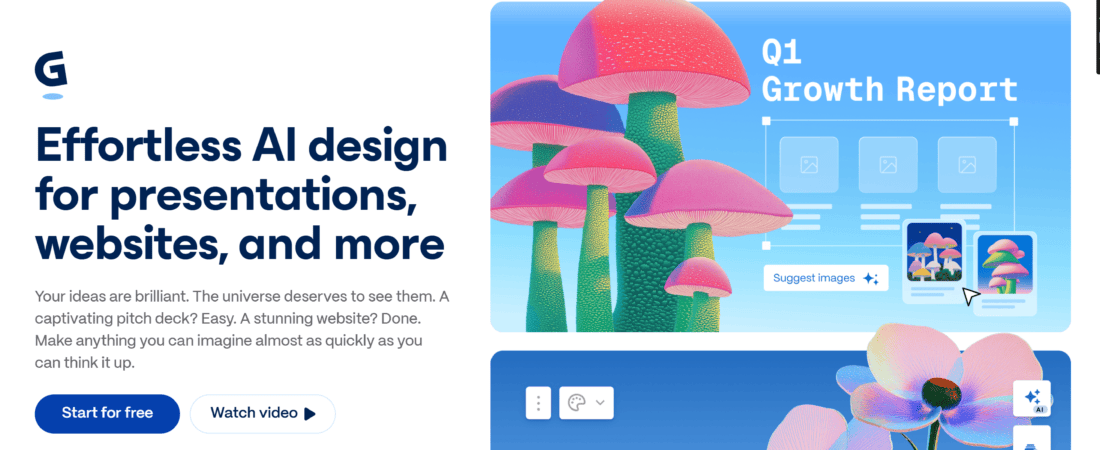
1. Gamma — One of My First Choices for AI-Generated Slides
Gamma is one of the tools I like to try when I want AI to generate an initial presentation structure quickly.
It is particularly useful when I already know my topic but don’t want to manually build every slide.
My experience with Gamma
I usually start with a very specific prompt.
For example:
“Create an 8-slide LinkedIn carousel explaining how freelancers can use free AI tools to save five hours per week. Keep each slide concise, use practical examples, and make the opening slide curiosity-driven.”
The important thing I’ve learned is that the prompt matters.
If I simply enter:
“AI tools for freelancers”
the result can feel too broad.
When I specify the audience and format, the structure becomes much more useful.
After the initial generation, I go through the slides individually.
I don’t automatically accept every sentence.
Some AI-generated text can sound generic, so I replace it with shorter and more conversational wording.
What I like most
It gets me from blank page to structured presentation very quickly.
Best for
- Educational carousels
- Business content
- LinkedIn thought leadership
- List-based posts
- Tutorials
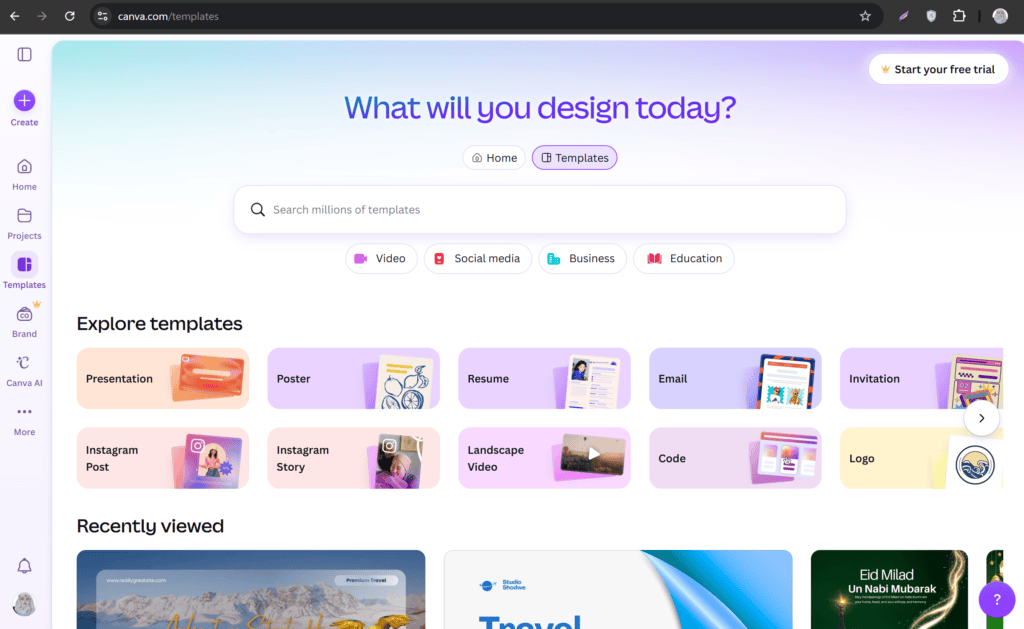
2. Canva — My Choice When I Want More Design Control
Canva is especially useful for me because I can combine AI-assisted content creation with manual design adjustments.
AI can help with the initial content, while Canva gives me much more control over the final appearance.
My experience with Canva
I usually start by creating a LinkedIn carousel layout.
Then I bring in my AI-generated content.
For example:
Slide 1
7 AI Tools That Save Freelancers Hours Every Week
Slide 2
Stop doing repetitive research manually.
Slide 3
Use AI to summarize long documents.
Then I work on the visual hierarchy.
I make sure the headline is immediately readable.
I keep supporting text smaller but still comfortable to read.
I also try to maintain the same:
- Font combination
- Margins
- Alignment
- Spacing
- Visual style
throughout the carousel.
That’s important because a carousel should feel like one piece of content rather than eight unrelated graphics.
What I like most
I can let AI help with the content without giving up control over the design.
Best for
- Designers
- Personal brands
- Agencies
- Social media managers
- Businesses
3. Slidesgo AI — Useful for Quickly Generating Presentation Structures
Slidesgo offers AI presentation-generation features that can help create an initial deck from a topic.
My experience
I find this approach useful when I need a visual starting point.
For example, if my topic is:
“How to Build a Personal Brand on LinkedIn”
I can generate a presentation and then adapt the slides specifically for LinkedIn.
The original AI presentation might contain too much information for a carousel.
So I simplify it.
A presentation slide might say:
“Personal branding involves consistently communicating your expertise, values, experience, and perspective across relevant professional channels.”
That’s fine for a presentation.
For LinkedIn, I’d probably turn it into:
Your personal brand = what people remember you for.
Then explain the idea visually.
What I like most
It helps me overcome the blank-canvas problem.
Best for
- Beginners
- Educational carousels
- Business presentations
- Quick content drafts
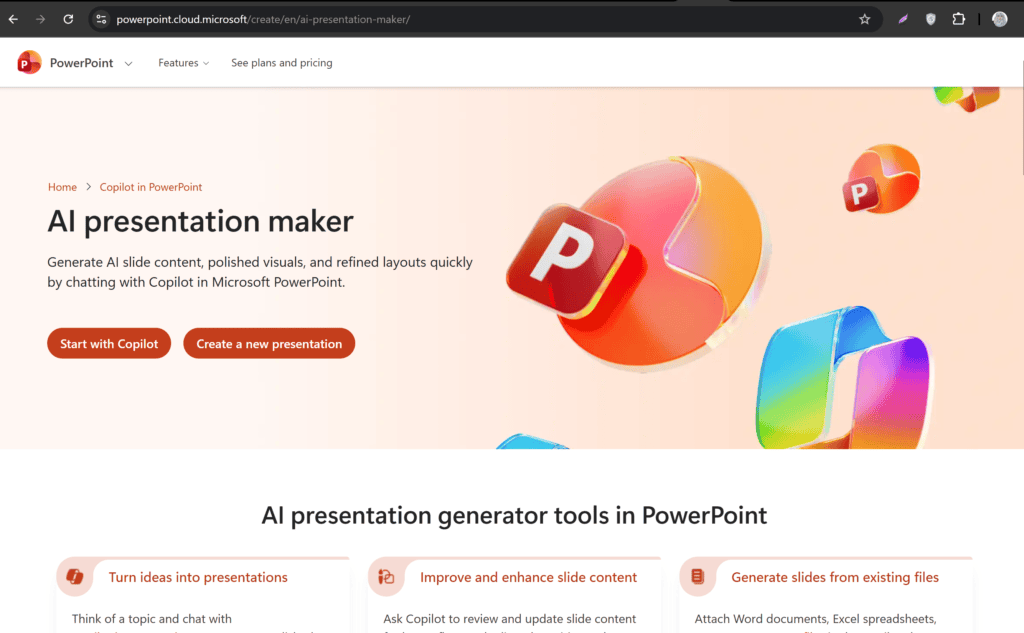
4. Microsoft PowerPoint + Copilot — Useful for Structured Business Carousels
Microsoft PowerPoint combined with Microsoft’s AI capabilities can be useful when I want a more traditional slide-based workflow.
My experience
I find this approach particularly useful for professional or corporate content.
For example, imagine I’m creating:
“5 Marketing Trends Small Businesses Should Watch.”
I can start by generating the structure with AI and then work with PowerPoint’s slide environment.
Once the content is ready, I can control:
- Typography
- Layout
- Images
- Icons
- Alignment
- Slide dimensions
The result can feel more formal than a typical social media template, which can be useful for professional audiences.
What I like most
It works well when I’m already comfortable with PowerPoint and want AI assistance without changing my entire workflow.
Best for
- Corporate creators
- Consultants
- B2B marketers
- Professional presentations
- LinkedIn thought leadership
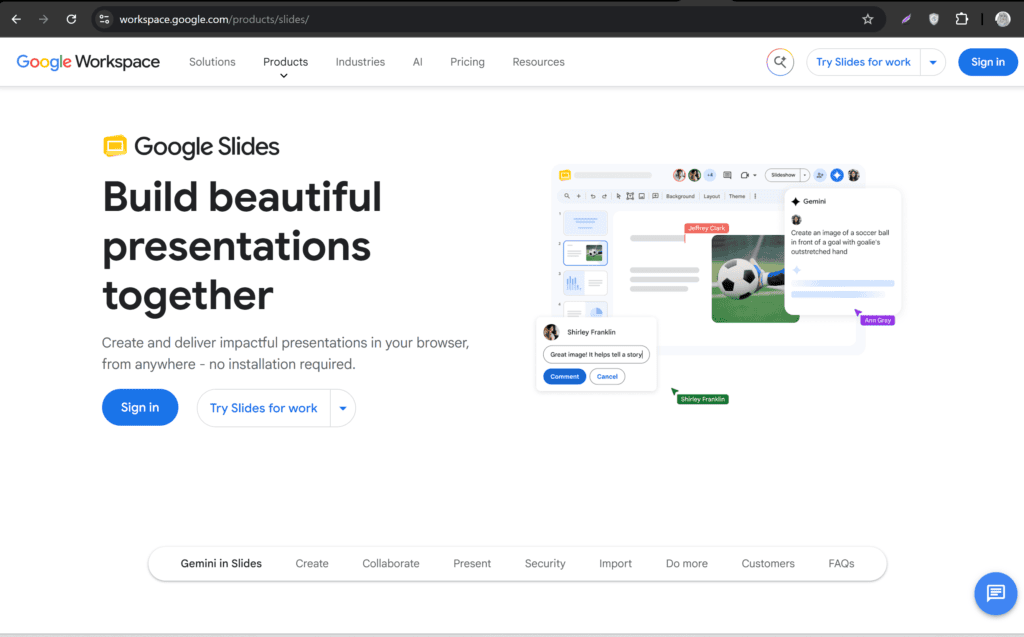
5. Google Slides + Gemini — Useful for Simple Collaborative Workflows
Google Slides can be useful when I’m collaborating with other people.
My experience
Suppose I’m creating a carousel for a marketing team.
One person handles research.
Another person checks the copy.
Another handles design.
A cloud-based slide workflow makes that collaboration easier.
AI can help with brainstorming and content generation, while the team can review the actual slides together.
I find this particularly useful when the carousel isn’t just a personal post but part of a larger content campaign.
What I like most
The collaborative nature of the workflow.
Best for
- Teams
- Agencies
- Content departments
- Collaborative projects
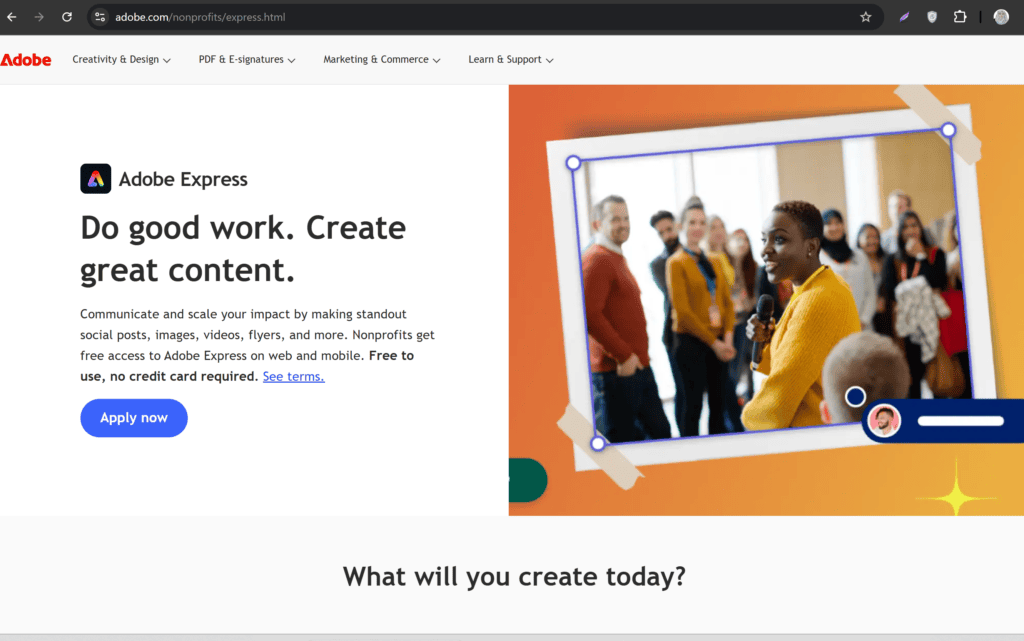
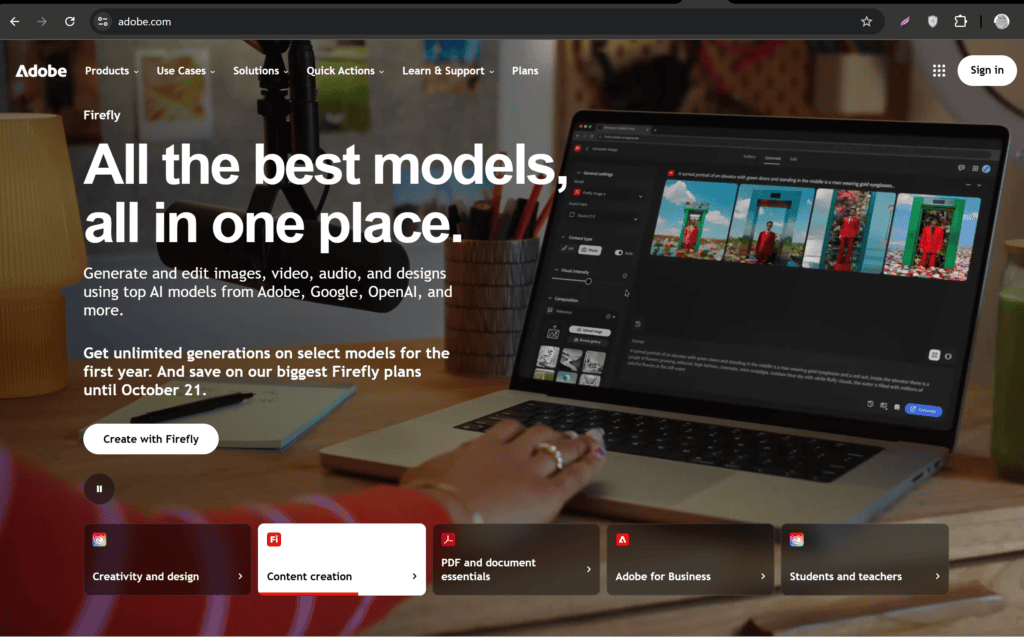
6. Adobe Express — Useful for Social-Friendly Designs
Adobe Express is another tool I consider when I want to turn AI-assisted ideas into social media graphics.
My experience
What I like about this workflow is that I can start with a content concept and then think about how that concept should look visually.
For example:
Topic:
“10 LinkedIn mistakes that make your profile look unprofessional.”
Instead of putting ten mistakes on one page, I break them down.
The first slide creates curiosity.
The middle slides explain individual mistakes.
The final slide summarizes the lesson.
I then use a consistent design system across the slides.
What I like most
It works well when I want the carousel to feel more like a polished social media asset than a traditional presentation.
Best for
- Personal brands
- Marketers
- Designers
- Social media creators
Why Slide Structure Matters More Than Fancy Design
One mistake I try to avoid is spending too much time on visual effects.
A beautiful carousel with weak content will still perform poorly.
Before thinking about colors, gradients, or illustrations, I ask:
Does every slide have a purpose?
If the answer is no, I remove it.
A strong carousel should feel like a journey.
The reader should naturally want to move from one slide to the next.
The Ideal LinkedIn Carousel Structure
A structure I frequently use looks like this:
Slide 1 — Hook
Give people a reason to stop scrolling.
Example:
You’re probably using AI the wrong way.
Slide 2 — Problem
Explain the issue.
Most people use AI only to generate text.
Slide 3 — Insight
Introduce the better approach.
AI is more useful when you treat it as a workflow assistant.
Slides 4–7 — Main Content
Give practical examples.
Slide 8 — Summary
Bring the key lesson together.
Slide 9 — CTA
Encourage the reader to:
- Save
- Share
- Comment
- Follow
The exact number of slides doesn’t matter as much as the quality of the structure.
How I Generate the Carousel Outline With AI
I usually start with this type of prompt:
“Create a LinkedIn carousel outline about [topic] for [target audience]. Use 8–10 slides. Start with a strong curiosity-driven hook, explain the problem, provide practical information, include examples, and end with a concise takeaway and call to action. Keep each slide focused on one idea.”
Then I review the outline manually.
I ask:
Is the hook interesting?
Does the information flow logically?
Are there unnecessary slides?
Are the examples useful?
Would my target audience actually save this?
If the answer isn’t yes, I refine it.
Don’t Let AI Put Paragraphs on Every Slide
This is one of the biggest problems I see with AI-generated presentations.
AI loves writing.
LinkedIn carousels need visual communication.
If a slide contains 150 words, it becomes difficult to consume.
Instead, I try to reduce the content.
For example:
AI version:
“One of the primary benefits of using AI for content marketing is that it can significantly reduce the amount of time required to perform repetitive research and drafting tasks.”
Carousel version:
Stop doing repetitive research manually.
Then:
Let AI handle the first draft.
Much easier to scan.
One Idea Per Slide
I use a simple rule:
One slide = one main idea.
Suppose my topic is:
“5 Ways AI Helps Freelancers.”
I don’t put all five tips on one slide.
Instead:
Slide 2: Research
Slide 3: Writing
Slide 4: Client communication
Slide 5: Project planning
Slide 6: Content creation
Each slide has a clear purpose.
Use AI to Shorten Your Slide Copy
After generating the content, I often give it another prompt:
“Reduce every slide to a maximum of 25–35 words. Preserve the key idea but remove filler, repetition, and generic statements. Make the language conversational and easy to scan.”
This is one of my favorite cleanup steps.
The result is usually much closer to what I actually need for a social carousel.
Make the First Slide Strong
The first slide is critical because it determines whether someone is interested enough to continue.
I avoid generic openings such as:
“5 Tips for Better Marketing”
Instead, I try more curiosity-driven structures.
Mistake
5 LinkedIn mistakes you’re probably making
Result
Your LinkedIn posts aren’t boring. Your openings are.
Number
7 AI workflows that save me hours every week
Contrarian
You don’t need to post every day on LinkedIn.
Question
Why do some LinkedIn posts get saved while others disappear?
AI can generate several hooks, but I choose the one that actually fits the content.
Use AI to Generate Multiple Hooks
I might ask:
“Generate 20 LinkedIn carousel hooks for this topic. Divide them into curiosity, problem, contrarian, question, number-based, and result-focused hooks. Avoid clickbait and exaggerated claims.”
Then I choose a few.
This is much faster than trying to invent every variation manually.
Turn a Blog Post Into a LinkedIn Carousel
This is one of the most useful workflows.
Suppose I already have a 2,000-word blog post.
I don’t need to create the carousel from scratch.
I can give the article to AI and ask:
“Turn this article into a 10-slide LinkedIn carousel. Identify the most useful insights, remove unnecessary explanations, create a strong opening hook, and keep each slide concise.”
Now I have a first draft.
Then I edit it.
This can turn one long-form article into multiple pieces of social content.
Turn a Video Script Into a Carousel
The same strategy works with video.
If I already have a TikTok, YouTube Short, or Reel script, I can ask AI to convert it into slides.
For example:
Video topic:
“3 mistakes beginners make when using AI.”
AI can transform the script into:
Slide 1: 3 AI mistakes beginners make
Slide 2: Mistake #1
Slide 3: Why it matters
Slide 4: Better approach
Slide 5: Mistake #2
and so on.
This makes content repurposing much easier.
Turn a Podcast Into a Carousel
Long-form audio can also become carousel content.
If I have a podcast transcript, I can ask AI to extract:
- Key insights
- Strong statements
- Practical tips
- Statistics
- Examples
- Lessons
Then I turn those into slides.
One podcast episode can therefore produce:
- LinkedIn carousel
- LinkedIn text post
- Short video
- Newsletter
- Blog post
- Social media snippets
AI makes this repurposing process considerably faster.
Add Personal Experience to AI-Generated Carousels
This is particularly important if I want the content to feel human.
AI-generated advice often sounds generic.
For example:
“Consistency is key to building your personal brand.”
That’s true, but it’s not memorable.
I prefer adding an actual observation:
“I used to think posting every day would grow my LinkedIn account. After tracking my results, I realized that useful posts mattered more than posting frequency.”
Now the carousel has a personal perspective.
AI can help structure the story, but the experience should come from the creator.
Use Numbers Carefully
Numbers can make carousels more compelling.
Examples:
7 AI tools
5 mistakes
3 steps
But I don’t use statistics simply because they make the slide look authoritative.
If I write:
“AI can save businesses 70% of their time.”
I need evidence.
If I don’t have reliable evidence, I avoid the number.
AI should never be allowed to invent statistics for a carousel.
Use Visual Hierarchy
When I design a carousel, I usually establish three levels.
Primary text
The main headline.
Secondary text
The supporting explanation.
Supporting elements
Icons, illustrations, numbers, screenshots, or small labels.
This makes the slide easier to scan.
A reader should understand the main point without reading every word.
Keep Your Branding Consistent
If I’m creating carousels for a personal brand or company, I create a simple visual system.
For example:
Font: One heading font + one body font
Colors: Two or three brand colors
Layout: Consistent margins
Numbers: Same style for slide numbering
CTA: Similar final-slide structure
This makes the content recognizable.
Use AI to Create a Design Brief
Before opening the slide tool, I sometimes ask AI:
“Create a visual design direction for a LinkedIn carousel about [topic]. Recommend a professional layout, typography hierarchy, image style, icon approach, spacing strategy, and visual storytelling method. Keep the design suitable for a professional LinkedIn audience.”
This gives me a starting point.
I don’t blindly follow every suggestion, but it can help when I’m stuck.
How to Make AI Slides Look Less AI-Generated
AI slide tools can sometimes produce layouts that feel generic.
To make them feel more human, I usually make several manual changes.
Shorten the copy
Remove unnecessary sentences.
Replace generic stock visuals
Use screenshots, diagrams, or relevant images.
Add personal examples
Make the content specific.
Change repetitive layouts
Don’t use the exact same structure on every slide.
Add real data
Where reliable data is available.
Improve spacing
AI-generated layouts can sometimes feel crowded.
These small changes make a huge difference.
Use Screenshots in LinkedIn Carousels
Screenshots can make educational carousels more credible.
For example, if I’m explaining an AI tool, I might show:
- The interface
- A prompt
- The generated result
- A workflow
Instead of simply writing:
“This tool is easy to use.”
I can show the reader.
That makes the content more practical.
Create Comparison Slides
AI-generated carousels are particularly good for comparisons.
For example:
ChatGPT vs Gemini
| Feature | Tool A | Tool B |
|---|---|---|
| Writing | Strong | Strong |
| Research | Good | Good |
| Images | Available | Available |
| Best for | General use | Research |
The exact information should be verified before publishing.
Comparison slides are also naturally saveable because people can return to them later.
Create Step-by-Step Carousels
Another format I use frequently is:
Step 1
Choose the topic.
Step 2
Research the audience.
Step 3
Generate the outline.
Step 4
Create the slides.
Step 5
Publish and analyze.
This format works particularly well for tutorials.
Create Mistake-Based Carousels
People naturally respond to mistakes because they want to avoid them.
Examples:
- 7 LinkedIn mistakes
- 5 SEO mistakes
- 10 Canva mistakes
- 6 AI prompting mistakes
AI can generate a list, but I make sure the mistakes are based on real experience or reliable information.
Create Checklist Carousels
Checklists are excellent for saveable content.
For example:
LinkedIn Profile Checklist
☐ Professional headline
☐ Clear profile photo
☐ Strong About section
☐ Relevant skills
☐ Portfolio or proof
☐ Clear contact information
The final slide can say:
Save this checklist before updating your profile.
How to Write the LinkedIn Caption
The carousel doesn’t exist by itself.
I also create a caption.
I usually avoid repeating every slide.
Instead, I use the caption to create context.
For example:
I’ve tested dozens of AI content workflows, and one thing keeps becoming clearer: the biggest productivity gains don’t come from asking AI to “do everything.”
Then I introduce the carousel.
The caption should complement the slides.
My AI Prompt for a LinkedIn Caption
I might use:
“Write a natural LinkedIn caption for this carousel. Don’t repeat the slide text. Start with a strong first sentence, briefly explain why the topic matters, create curiosity about the carousel, and end with a natural question or call to action. Avoid corporate buzzwords and overly promotional language.”
Then I edit it to sound like my own voice.
Add a Strong CTA
The final slide should tell the reader what to do.
Possible CTAs include:
Save this for later.
Share it with someone who needs it.
Which one would you add?
Follow for more practical tips.
Comment with your experience.
The CTA should fit the goal.
If I’m trying to encourage discussion, I use a question.
If the content is a reference guide, I encourage saving.
Exporting Your Carousel
Once the slides are complete, I check the final export carefully.
I make sure:
- Text isn’t cut off
- Images aren’t blurry
- Fonts render correctly
- Margins are consistent
- Slide order is correct
- The final CTA is present
For LinkedIn, I choose a format and dimensions supported by the platform at the time of publishing and check the exported file before uploading.
This final quality check is important because an AI-generated deck can look perfect inside the editor but have small problems after export.
Don’t Publish Without Proofreading
I always proofread AI-generated slides.
I check:
Spelling
Grammar
Numbers
Names
Statistics
Product claims
Links
Dates
AI can confidently generate incorrect information.
A professional-looking carousel with a factual error is still a bad carousel.
My Favorite AI Carousel Workflow
If I had to simplify everything into one workflow, I’d use this:
1. Research
Find a useful topic.
2. Define the audience
Know who I’m speaking to.
3. Create the outline
Use ChatGPT, Gemini, or another AI assistant.
4. Generate slides
Use Gamma, Canva, Slidesgo, PowerPoint, Google Slides, or Adobe Express.
5. Edit aggressively
Remove generic AI wording.
6. Add personal insight
Include examples and observations.
7. Improve visuals
Use screenshots, diagrams, or relevant graphics.
8. Proofread
Verify every important claim.
9. Export
Check the final file.
10. Publish
Add a complementary LinkedIn caption.
11. Measure
Track reactions, comments, shares, and saves.
How to Repurpose One Topic Into Multiple Carousels
One topic doesn’t have to produce one carousel.
Suppose my main topic is:
“Using AI for Freelancing.”
I can turn it into:
Carousel 1
7 AI tools freelancers should know
Carousel 2
5 AI mistakes freelancers make
Carousel 3
How I use AI to research clients
Carousel 4
AI prompts for freelance proposals
Carousel 5
A beginner’s AI workflow for freelancers
The topic stays within the same content pillar, but each carousel approaches it from a different angle.
Create a Monthly LinkedIn Carousel System
If I’m managing a LinkedIn account consistently, I don’t want to create every carousel at the last minute.
I can build a content system.
Monday
Research topics.
Tuesday
Generate outlines.
Wednesday
Create slides.
Thursday
Edit and proofread.
Friday
Publish and analyze.
Or I can batch the entire process.
For example, I can generate ten carousel outlines in one session and design them throughout the week.
Best Free AI Slide Tools for LinkedIn Carousels
| Tool | My Main Use | Best For |
|---|---|---|
| Gamma | Fast AI-generated slide decks | Beginners and marketers |
| Canva | AI + detailed design control | Designers and brands |
| Slidesgo AI | Quick presentation drafts | Beginners |
| PowerPoint + AI | Professional slide workflows | Businesses |
| Google Slides + Gemini | Collaborative creation | Teams |
| Adobe Express | Social-focused designs | Creators |
| ChatGPT | Outlines, hooks, and copy | Content strategy |
Free features and usage limits can change, so I always check the current plan before building a workflow around a specific feature.
Common Mistakes to Avoid
1. Letting AI write everything
Your personal perspective is what makes the content memorable.
2. Using too much text
A carousel isn’t a blog post pasted onto slides.
3. Weak first slide
If the hook isn’t interesting, people may never reach slide two.
4. Inconsistent design
Different fonts and layouts make the carousel look unprofessional.
5. Fake statistics
Never publish AI-generated numbers without verification.
6. Generic advice
“Be consistent” isn’t enough.
Explain how.
7. No CTA
Give the reader a reason to engage.
8. Skipping proofreading
AI-generated content still needs human review.
Frequently Asked Questions
Can AI automatically create LinkedIn carousels?
Yes. AI presentation tools can generate slide structures and designs from prompts. However, I recommend reviewing and editing the result before publishing.
What is the best free AI tool for LinkedIn carousels?
For fast AI-generated presentations, Gamma is a strong option. For more detailed design control, I prefer Canva. ChatGPT and Gemini are useful for generating the content and structure before designing.
Can I turn a blog post into a LinkedIn carousel with AI?
Yes. You can give an AI assistant your article and ask it to extract the most useful ideas into a concise slide-by-slide structure.
How many slides should a LinkedIn carousel have?
There isn’t one perfect number. I generally choose the number required to explain the idea without adding filler. A concise educational carousel might work well with around 7–10 slides.
Should every slide have an image?
No. Some slides work better with typography, numbers, diagrams, screenshots, or simple visual elements.
Can AI write the LinkedIn caption too?
Yes. I use AI to generate a starting caption, then edit it so it matches my natural writing style.
Final Thoughts
Creating LinkedIn carousels used to mean opening a design tool, staring at a blank canvas, and figuring everything out manually.
AI has changed that workflow.
Now I can start with a simple idea and quickly turn it into:
Topic → Outline → Slide copy → Design → Carousel → LinkedIn caption
The biggest benefit isn’t that AI can make a presentation.
Presentation software has been doing that for years.
The real advantage is that AI can help connect the thinking stage with the design stage.
I can explain what I want to teach, ask AI to organize the information, turn that structure into slides, and then spend my time improving the parts that actually require human judgment.
For quick first drafts, Gamma is one of the tools I’d consider.
For detailed visual control, Canva is extremely useful.
Slidesgo can help when I need a quick presentation structure.
PowerPoint and Google Slides are useful when I’m already working in traditional slide environments.
Adobe Express is another practical option for social-oriented visual content.
But regardless of the tool, I follow one rule:
I never publish the first AI-generated version.
The first version is only a draft.
I shorten the text.
I improve the hook.
I remove generic statements.
I add examples.
I add my own observations.
I verify facts.
Then I design the final slides.
That’s what separates an AI-generated carousel from an AI-assisted carousel.
The first one simply looks like something a machine created.
The second uses AI for speed while still carrying the creator’s knowledge, experience, personality, and judgment.
And that’s the approach I recommend for LinkedIn.
Don’t try to make AI replace your expertise.
Use it to package your expertise faster.
If you already have blog posts, videos, newsletters, client knowledge, tutorials, or professional experience, you have plenty of material for carousels.
AI simply helps you turn that knowledge into a format that is easier to consume, save, share, and revisit.
The workflow can be incredibly simple:
Find one useful idea.
Turn it into a strong outline.
Generate the first slide draft.
Edit it like a human.
Design it consistently.
Add your own perspective.
Publish.
Learn from the response.
Then repeat.
That’s how I would build an efficient LinkedIn carousel system using free AI slide tools without sacrificing the human element that makes professional content worth following.
Check out here if you want to know about Best Free AI Tools for Scheduling Automated Social Media Posts for Free