
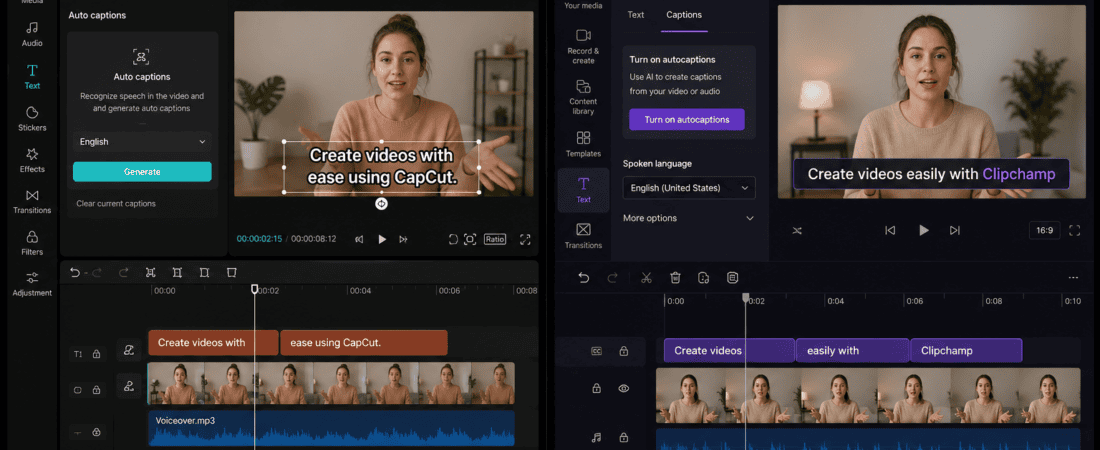
CapCut Auto Captions vs Clipchamp: If you create videos for TikTok, Instagram Reels, YouTube Shorts, Facebook, or even longer YouTube videos, subtitles are no longer something you can treat as an optional extra.
A large percentage of people watch social media videos without sound. Even when viewers have their volume turned on, captions make videos easier to follow, especially when the speaker talks quickly, uses technical terms, or records in a noisy environment.
The good news is that you don’t necessarily need expensive professional editing software to create subtitles.
Two popular options are CapCut and Microsoft Clipchamp.
Both offer automatic captioning features, and both are accessible to creators who don’t want to spend hours typing subtitles manually.
But which one is better?
CapCut auto captions vs Clipchamp — which is the best free subtitle generator?
The answer depends on the type of video you’re creating.
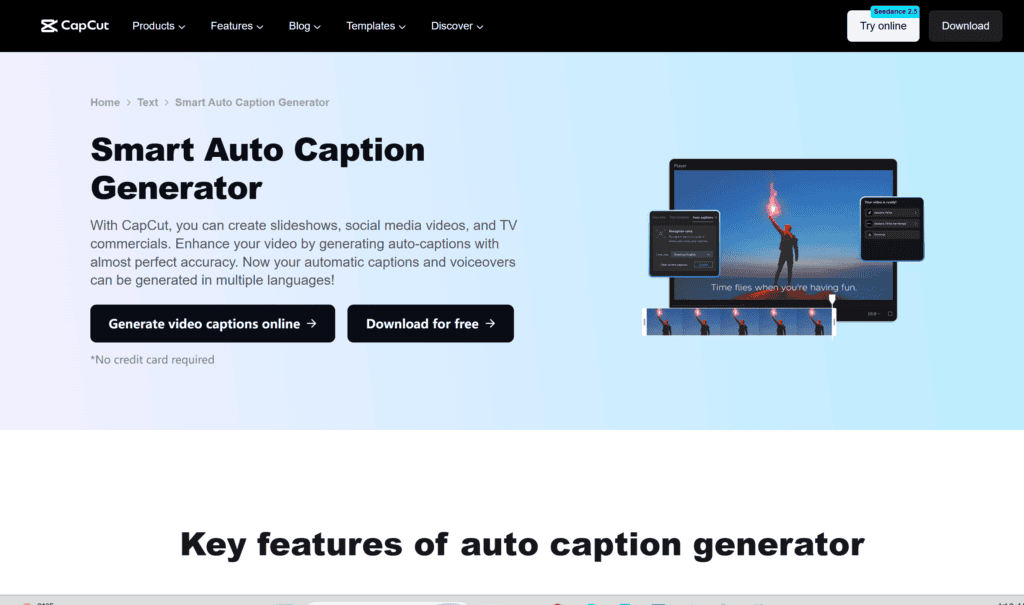
CapCut is particularly attractive to social media creators because its workflow is built around short-form video, captions, animated text, templates, effects, and fast editing.
Clipchamp takes a more traditional video-editor approach and fits naturally into the Microsoft ecosystem. It can be useful for YouTube videos, presentations, business content, tutorials, and creators who prefer a straightforward desktop editing workflow.
In this detailed comparison, we’ll look at automatic caption accuracy, subtitle styling, editing, languages, export options, ease of use, short-form videos, YouTube content, social media workflows, accessibility, and free-plan limitations.
We’ll also look at which tool makes more sense for beginners, social media managers, freelancers, and professional content creators.
CapCut Auto Captions vs Clipchamp: Quick Comparison
| Feature | CapCut | Clipchamp |
|---|---|---|
| Automatic captions | Yes | Yes |
| Subtitle generation | Excellent | Excellent |
| Ease of use | Excellent | Excellent |
| Short-form content | Excellent | Good |
| TikTok/Reels workflow | Excellent | Good |
| Subtitle customization | Excellent | Good |
| Animated captions | Excellent | More basic |
| Traditional editing | Excellent | Excellent |
| YouTube videos | Excellent | Excellent |
| Business videos | Good | Excellent |
| Microsoft integration | Limited | Excellent |
| Beginner friendly | Excellent | Excellent |
| Desktop workflow | Excellent | Excellent |
| Mobile workflow | Excellent | More desktop/web focused |
| Social media templates | Excellent | Good |
| Free option | Yes, with feature/plan limits | Yes, with plan/feature limits |
| Best for viral-style captions | CapCut | — |
| Best for simple professional subtitles | — | Clipchamp |
| Best overall for social creators | CapCut | — |
The winner isn’t identical for everyone.
For most short-form creators, I’d give CapCut the edge.
For business users and people already working inside Microsoft 365, Clipchamp can be a very practical alternative.
What Is CapCut?
CapCut is a video editing platform designed by ByteDance, the company behind TikTok.
It became especially popular among social media creators because it combines a relatively simple editing interface with features designed around modern short-form content.
Depending on the version and current plan, creators can work with:
- Automatic captions
- Text overlays
- Video effects
- Transitions
- Templates
- Background removal
- Audio tools
- Filters
- Speed controls
- AI-assisted editing features
The exact features and availability can vary between CapCut’s web, desktop, and mobile versions and can change over time.
For subtitle generation, the important feature is automatic speech-to-text captioning.
Instead of manually listening to the video and typing every sentence, the software analyzes the speech and creates timed captions.
That alone can save a huge amount of editing time.
What Is Microsoft Clipchamp?
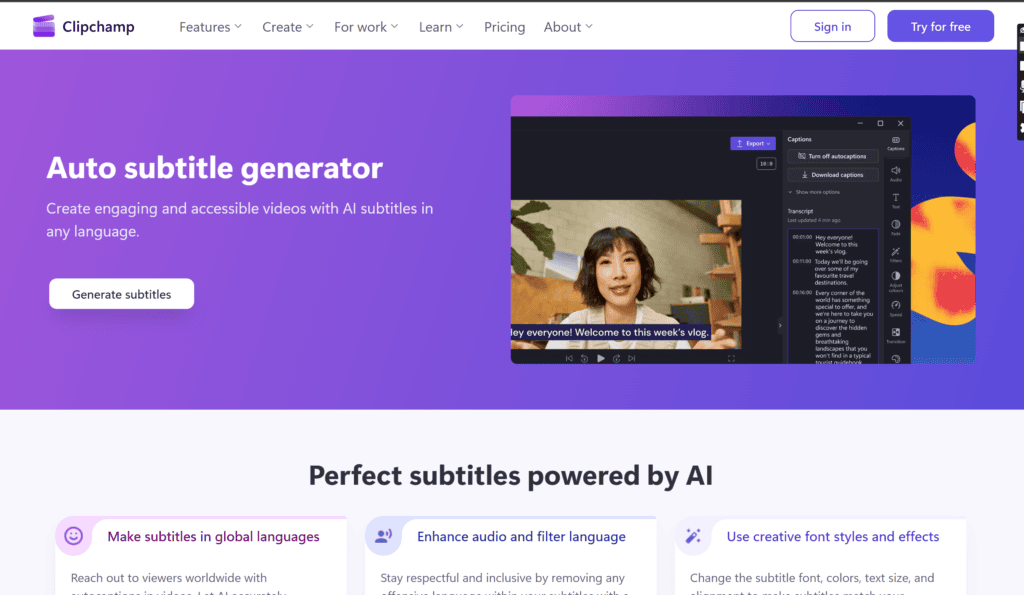
Clipchamp is Microsoft’s video editing application.
It is designed to make video creation accessible without requiring advanced professional editing software.
It can be used for:
- YouTube videos
- Tutorials
- Social media content
- Presentations
- Business videos
- Screen recordings
- Educational content
Clipchamp also includes automatic caption generation, allowing creators to turn spoken audio into subtitles.
Because Clipchamp is part of Microsoft’s ecosystem, it can be particularly convenient for users already working with Windows and Microsoft services.
Its interface feels more like a traditional beginner-friendly video editor than a social-media-first editing application.
CapCut Auto Captions vs Clipchamp: Which Is Easier?
Both tools are relatively beginner-friendly.
But their interfaces have different philosophies.
CapCut feels like it was designed with fast social media editing in mind.
The workflow is often:
Import video → Generate captions → Style captions → Add effects → Export
That’s very convenient for creators who want to produce short videos quickly.
Clipchamp follows a more traditional timeline-based editing workflow.
You can:
Import media → Place it on timeline → Generate captions → Edit → Export
If you’ve used conventional video editors before, Clipchamp can feel familiar.
Winner for social media beginners: CapCut
Winner for traditional editing beginners: Clipchamp
My Practical CapCut Caption Workflow
When approaching CapCut specifically for subtitles, the biggest advantage is speed.
I can start with a finished video, import it, and generate automatic captions rather than manually typing everything.
After generating the captions, the important part is editing the transcript.
Automatic transcription isn’t perfect.
It can misunderstand:
- Names
- Brand names
- Technical terms
- Accents
- Background speech
- Fast dialogue
So I wouldn’t simply generate captions and immediately export.
I’d quickly scan the transcript while watching the video.
The biggest time saving comes from having CapCut create the timing and initial text automatically.
After that, I can focus on styling and correcting mistakes.
My Practical Clipchamp Caption Workflow
Clipchamp follows a similarly straightforward approach.
After adding the video to the timeline, automatic captions can be generated from the video’s audio.
The practical advantage is that the creator doesn’t need to manually create subtitle timing.
Once the captions are generated, I would review the transcript carefully.
This is particularly important for:
- Tutorials
- Educational videos
- Business presentations
- Interviews
- Voice-over videos
For professional content, one incorrectly transcribed word can change the meaning of a sentence.
Clipchamp works well when the goal is clean, readable subtitles rather than highly animated social-media typography.
Which Generates More Accurate Captions?
Caption accuracy depends on several factors.
It’s not only about the software.
Accuracy can be affected by:
- Microphone quality
- Background noise
- Speaker accent
- Speaking speed
- Multiple speakers
- Audio compression
- Technical vocabulary
- Music volume
Both CapCut and Clipchamp can generate automatic captions, but you should always review them.
For example, imagine a video discussing:
“artificial intelligence”
Speech recognition might occasionally interpret unfamiliar terminology incorrectly.
The same problem can occur with brand names.
A good subtitle workflow is therefore:
Generate → Review → Correct → Style → Export
rather than:
Generate → Export
Winner: Tie
The actual accuracy can vary significantly from video to video.
CapCut vs Clipchamp for Subtitle Editing
Generating subtitles is only half the job.
The other half is making them readable.
CapCut provides a particularly broad set of visual editing possibilities.
You can create captions that feel integrated with short-form content rather than looking like plain subtitles.
This is useful for:
- TikTok
- Instagram Reels
- YouTube Shorts
- Facebook Reels
Clipchamp focuses more on straightforward video editing.
Its subtitle workflow is suitable for creators who prioritize clarity over highly stylized text.
Winner: CapCut
Which Has Better Animated Captions?
This is one of CapCut’s strongest categories.
Short-form video often uses:
- Word-by-word emphasis
- Pop-up text
- Highlight effects
- Animated subtitles
- Large center-screen captions
- Dynamic typography
These styles can make videos feel more energetic.
CapCut is particularly well suited to this style.
Clipchamp can create attractive text overlays, but it isn’t as strongly associated with the highly animated caption style common on TikTok and Reels.
Winner: CapCut
CapCut Auto Captions vs Clipchamp for TikTok
For TikTok creators, CapCut has an obvious advantage because of its close connection to the TikTok ecosystem.
The editing experience is heavily oriented toward short-form vertical video.
You can combine:
- Automatic captions
- Trending-style text
- Effects
- Music
- Stickers
- Transitions
- Speed changes
into one workflow.
Clipchamp can certainly produce vertical videos, but its overall experience isn’t as specifically centered around TikTok-style editing.
Winner: CapCut
CapCut vs Clipchamp for Instagram Reels
Instagram Reels require a similar workflow to TikTok.
Creators often want:
- Vertical video
- Large captions
- Fast cuts
- Text animation
- Music
- Visual effects
CapCut is particularly convenient for this.
Clipchamp is still capable of producing Reels, especially if you’re already using it for other video projects.
But for social-first editing, CapCut generally feels more natural.
Winner: CapCut
CapCut vs Clipchamp for YouTube
The answer changes slightly for YouTube.
YouTube creators produce everything from:
- Shorts
- Tutorials
- Vlogs
- Reviews
- Interviews
- Educational videos
CapCut can handle these projects.
Clipchamp can also be a good fit for straightforward YouTube videos.
If the video is heavily stylized and uses dynamic captions, CapCut has the advantage.
If the video is a clean tutorial, presentation, or business explainer, Clipchamp can work very well.
Winner: Tie
Which Is Better for Business Videos?
This is where Clipchamp becomes more interesting.
Businesses frequently need:
- Training videos
- Presentations
- Internal communications
- Product demonstrations
- Screen recordings
- Educational content
Clipchamp fits naturally into this type of workflow.
A business user who already works with Windows and Microsoft tools may appreciate having a familiar video editor available without learning a professional application.
CapCut can also create professional videos, but its visual style is more strongly associated with social content.
Winner: Clipchamp
Which Is Better for Educational Videos?
Both are useful.
For educational content, subtitles are particularly important because viewers may:
- Watch without sound
- Pause frequently
- Need to read technical terms
- Speak different languages
- Have hearing difficulties
Clipchamp’s straightforward editing workflow works well for tutorials.
CapCut becomes more useful when you want visually engaging educational Shorts or Reels.
Traditional educational video: Clipchamp
Short educational content: CapCut
CapCut Auto Captions vs Clipchamp for Multiple Languages
Language support is an important factor for international creators.
Both platforms support automatic captions across multiple languages, but exact language availability can vary by product version, region, account, and updates.
If you’re creating multilingual content, don’t assume a language is supported simply because you saw it listed in an older tutorial.
Check the current caption-language options inside the version you’re using.
More importantly, automatic transcription quality can vary between languages.
Always review generated captions carefully when publishing translated or multilingual content.
Winner: Depends on language
Which Is Better for Subtitle Styling?
CapCut wins this category for most social media creators.
The reason is simple.
It gives creators more creative possibilities for making captions part of the visual design.
You can use:
- Different fonts
- Colors
- Text sizes
- Positions
- Animations
- Effects
- Highlighting
This is particularly useful when your brand depends heavily on visual content.
Clipchamp offers customization too, but the overall experience is more restrained.
Winner: CapCut
Which Is Better for Readable Subtitles?
This is different from styling.
More effects don’t automatically mean better subtitles.
For accessibility, captions should be:
- Easy to read
- Large enough
- Properly positioned
- High contrast
- Timed correctly
- Short enough to process
Clipchamp’s more straightforward approach can actually be an advantage if your goal is professional readability.
CapCut can also create highly readable captions, but creators need to avoid over-styling.
Winner: Tie
CapCut vs Clipchamp for Accessibility
Captions are an important accessibility feature.
They help viewers who:
- Are deaf or hard of hearing
- Don’t speak the video’s language fluently
- Watch without sound
- Have difficulty understanding unclear audio
Automatic captions are helpful, but they’re not automatically perfect accessibility solutions.
You should review:
- Spelling
- Timing
- Speaker changes
- Punctuation
- Important terminology
A caption that says the wrong word can be worse than no caption when the content is educational or technical.
Which Is Better for Caption Timing?
Automatic captioning generally creates synchronized subtitles based on speech recognition.
That saves enormous amounts of manual work.
The important thing is to review awkward breaks.
For example, a sentence shouldn’t ideally be split in a way that makes it difficult to understand.
Instead of:
The most important thing about
content marketing is consistency.
you want natural caption segmentation.
This is one of those small editing details that makes automatically generated captions feel professionally produced.
CapCut vs Clipchamp for Short Videos
Short-form videos often need captions quickly.
A creator may produce:
- 3 Reels per day
- 5 TikToks per week
- Several Shorts
- Daily promotional clips
Manually typing captions for every video would be inefficient.
CapCut is particularly well suited to this workflow because caption generation is integrated into a broader social video editing environment.
Winner: CapCut
CapCut vs Clipchamp for Long Videos
Long-form videos can be more complicated.
A 30-minute interview might contain thousands of spoken words.
Automatic captioning saves time regardless of the platform.
But long videos also require careful transcript review.
You should pay particular attention to:
- Names
- Technical vocabulary
- Numbers
- Company names
- Quotations
For longer educational or business videos, Clipchamp can be a practical option.
Winner: Tie
Which Is Better for Beginners?
If someone has never edited a video before, I’d lean toward CapCut for social content.
Its interface is designed around fast, visually engaging editing.
The combination of templates, effects, text, and automatic captions makes it easy to get a short video looking polished.
Clipchamp is also beginner-friendly, particularly for Windows users who want a simpler desktop editing environment.
Social media beginner: CapCut
Business/desktop beginner: Clipchamp
CapCut vs Clipchamp for Freelance Video Editors
Freelancers often work for multiple clients.
One client might want TikTok videos.
Another might need YouTube tutorials.
Another might need corporate presentations.
In that situation, having both tools available can be useful.
CapCut is excellent for:
- Reels
- TikTok
- Shorts
- Fast-paced promotional videos
Clipchamp can be useful for:
- Business videos
- Presentations
- Tutorials
- Simple client projects
A freelancer shouldn’t choose software based only on the caption feature.
Consider the entire editing workflow.
CapCut Auto Captions vs Clipchamp for Content Creators
If captions are your primary concern, both tools can save you a lot of time.
But if captions are part of a larger social media production process, CapCut has a stronger advantage.
You can generate captions and then immediately continue with:
- Text animation
- Effects
- Transitions
- Music
- Stickers
- Visual edits
This reduces the need to switch between applications.
Which Is Better for Branding?
Brand consistency matters when you’re producing videos for a business.
You may want:
- Brand fonts
- Brand colors
- Consistent caption positioning
- Logo placement
- Repeated visual elements
CapCut gives creators extensive creative control for social content.
Clipchamp can also be used for branded videos, particularly business-oriented projects.
For social media branding, CapCut generally provides more creative flexibility.
Winner: CapCut
Free Plan Considerations
One important warning:
Free does not always mean every feature is free.
Both CapCut and Clipchamp have changed their feature availability, export options, AI capabilities, and plan structures over time.
Some features may be:
- Free
- Limited
- Premium
- Region-dependent
- Available only in certain versions
Before starting a large production workflow, check the current version of the software you’re using.
This is particularly important if you need:
- Premium templates
- Advanced AI features
- Certain export settings
- Stock media
- Specific effects
Don’t build your entire editing workflow around a feature without checking whether your current account can export it.
How to Create Auto Captions in CapCut
The exact interface can change, but the general workflow is straightforward.
Step 1: Import your video
Create a project and add the video.
Step 2: Open text or captions
Find the automatic caption/subtitle option.
Step 3: Select the spoken language
Choose the language used in the video.
Step 4: Generate captions
Allow the software to process the audio.
Step 5: Review the transcript
Check:
- Names
- Numbers
- Brand names
- Technical words
Step 6: Style the captions
Adjust:
- Font
- Size
- Position
- Animation
- Color
Step 7: Watch the entire video
Make sure timing looks natural.
Step 8: Export
Choose your required resolution and format.
How to Create Auto Captions in Clipchamp
The exact interface can change as Microsoft updates Clipchamp, but the workflow generally follows the same basic process.
Step 1: Start a project
Import your video.
Step 2: Add it to the timeline
Place your video into the editing timeline.
Step 3: Enable captions
Use Clipchamp’s caption/transcript feature.
Step 4: Generate the transcript
Allow the audio to be processed.
Step 5: Correct mistakes
Read through the captions while watching the video.
Step 6: Customize the appearance
Adjust the subtitle presentation where available.
Step 7: Preview
Check the complete video.
Step 8: Export
Select the appropriate output settings.
How to Make AI Captions More Accurate
No matter which editor you use, the source audio matters.
Use a clear microphone
Clean audio gives speech recognition a better chance of understanding the speaker.
Reduce background noise
Music and environmental noise can interfere with transcription.
Don’t speak too quickly
Fast speech creates more opportunities for errors.
Separate speakers when possible
Multiple people talking over one another can make captions harder to generate accurately.
Review technical terms
AI captioning may struggle with specialized vocabulary.
Review names
Names are among the most common transcription problems.
Common Caption Mistakes to Fix Before Publishing
After automatic captions are generated, look for:
Wrong words
A single incorrect word can change the meaning.
Missing punctuation
Punctuation improves readability.
Strange line breaks
Captions should be easy to read quickly.
Incorrect timing
Captions should appear when the speaker says the words.
Too much text
Long blocks are difficult to read on mobile screens.
Captions covering important visuals
Move captions when they hide:
- Faces
- Products
- Important graphics
- Buttons
- Text on screen
CapCut Auto Captions vs Clipchamp: Pros and Cons
CapCut Pros
- Excellent for short-form video
- Strong caption styling
- Dynamic text effects
- Social-media-focused workflow
- Beginner friendly
- Mobile, desktop, and web availability
- Excellent for TikTok-style content
- Strong creative editing features
CapCut Cons
- Some features may require paid access
- Interface can feel crowded for beginners
- Highly stylized captions can become distracting
- Feature availability can vary by version and region
Clipchamp Pros
- Beginner friendly
- Straightforward editing interface
- Good for tutorials and business videos
- Strong Windows/Microsoft ecosystem integration
- Useful for traditional timeline editing
- Automatic caption capabilities
- Suitable for presentations and educational videos
Clipchamp Cons
- Less social-media-focused
- Caption styling is less oriented toward viral short-form content
- Some advanced features depend on the current plan
- May feel less feature-rich for creators who want highly animated captions
CapCut Auto Captions vs Clipchamp: Which Should You Choose?
The answer becomes easy when you think about your content.
Choose CapCut if you create:
- TikToks
- Instagram Reels
- YouTube Shorts
- Facebook Reels
- Promotional videos
- Influencer content
- Fast-paced social videos
- Caption-heavy videos
Choose Clipchamp if you create:
- Business videos
- Tutorials
- Presentations
- Training videos
- Educational content
- Screen recordings
- Simple YouTube videos
- Microsoft-focused workflows
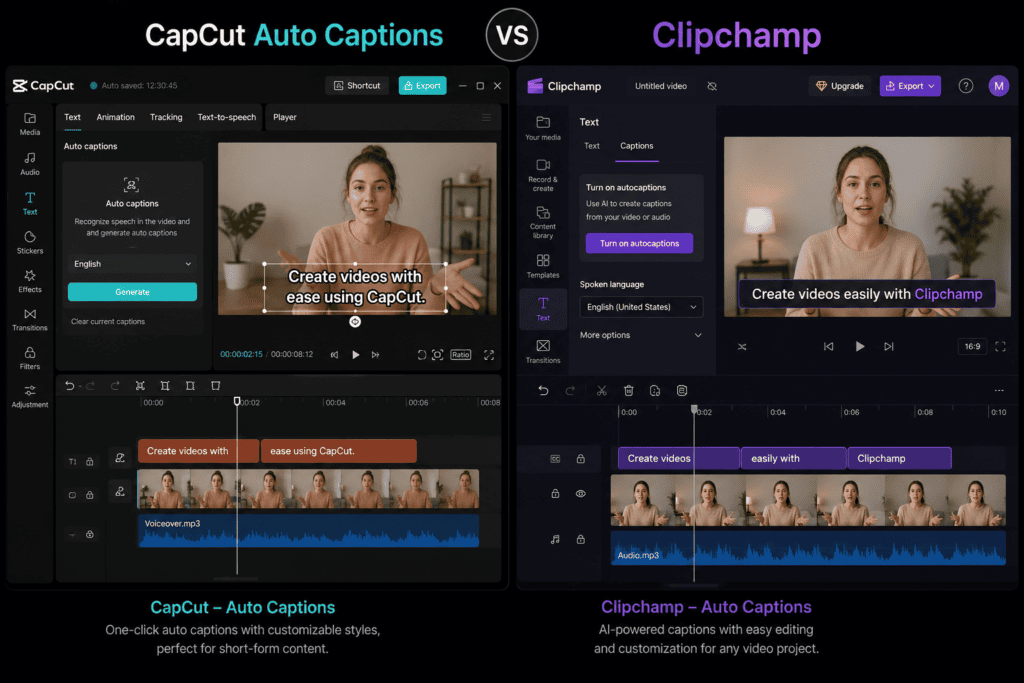
Final Verdict: CapCut Auto Captions vs Clipchamp
So, which is the best free subtitle generator tool?
For most social media creators, I’d choose CapCut.
Its automatic caption workflow is combined with a broader set of social-video editing features, making it particularly convenient for TikTok, Reels, Shorts, and other short-form formats.
The biggest advantage isn’t simply that it can generate captions.
It’s what you can do immediately afterward.
You can turn those captions into a visual part of the video using typography, animation, effects, and styling.
That makes CapCut particularly strong for creators who want subtitles to contribute to the video’s visual identity.
Clipchamp, however, is a strong alternative.
If you’re creating tutorials, presentations, educational videos, or business content, its straightforward editing environment can be more than enough.
It also makes sense for users who are already comfortable with Microsoft’s ecosystem.
So my overall ranking would be:
Best for TikTok and Reels: CapCut
Best for animated captions: CapCut
Best for YouTube Shorts: CapCut
Best for business videos: Clipchamp
Best for tutorials: Clipchamp
Best for simple subtitle generation: Tie
Best for social media creators: CapCut
Best overall for most caption-heavy creators: CapCut
But remember one thing:
Automatic captions are a starting point, not the finished product.
Always review the transcript.
Check names.
Check numbers.
Check technical terms.
Check timing.
And watch the final video with the sound turned off.
If you can understand the video comfortably from the captions alone, you’ve probably done a good job.
The best subtitle generator isn’t simply the tool that produces captions fastest.
It’s the tool that helps you turn those captions into accurate, readable, and engaging subtitles with the least amount of manual work.
For social-first creators, CapCut currently has the stronger overall advantage.
For straightforward professional and business editing, Clipchamp remains a capable free option.
Frequently Asked Questions
Is CapCut better than Clipchamp for automatic captions?
For social media content, CapCut generally has the advantage because it combines automatic captions with strong text styling and animation features. Clipchamp is also capable of generating automatic captions and can be a good choice for business and educational videos.
Is CapCut auto caption free?
CapCut provides automatic caption functionality, but availability of particular AI features can vary by version, region, and account plan. Always check the current feature availability before relying on it for a large production workflow.
Is Clipchamp subtitle generation free?
Clipchamp provides automatic caption functionality, but available features and export options can depend on the current version and plan. Check Microsoft’s current Clipchamp documentation for the latest limitations.
Which is better for TikTok captions?
CapCut is generally the better choice because its editing environment is strongly oriented toward short-form social video and dynamic captions.
Which is better for YouTube subtitles?
Both can work well. CapCut is particularly useful for visually styled captions, while Clipchamp can be suitable for straightforward tutorials, presentations, and other conventional video formats.
Can CapCut automatically translate captions?
Caption translation features and language availability can change over time and may vary by version and region. Check the current CapCut interface for the languages and translation features available to your account.
Can Clipchamp automatically generate subtitles?
Yes. Clipchamp includes automatic captioning/transcription functionality for supported workflows.
Are AI-generated captions accurate?
They can be highly useful, but they aren’t guaranteed to be perfect. Accuracy depends on audio quality, accents, background noise, speaking speed, terminology, and other factors. Always review captions before publishing.
Which subtitle generator is easiest for beginners?
Both are beginner friendly. CapCut may feel easier for social media creators, while Clipchamp can feel more familiar to users who prefer a traditional desktop video editor.
Which is better for animated subtitles?
CapCut is generally the stronger choice for highly animated and visually styled subtitles.
Should I manually edit AI-generated captions?
Yes. Even good automatic transcription can make mistakes. Correct names, numbers, technical terms, punctuation, timing, and awkward line breaks before publishing.
Which is better for professional videos?
It depends on the type of professional video. Clipchamp is a strong choice for business presentations, tutorials, and training content. CapCut is particularly strong for branded social media videos and promotional short-form content.
Check out here if you want to know about Perplexity AI vs Google Search: Which Is Faster for Content Research?