
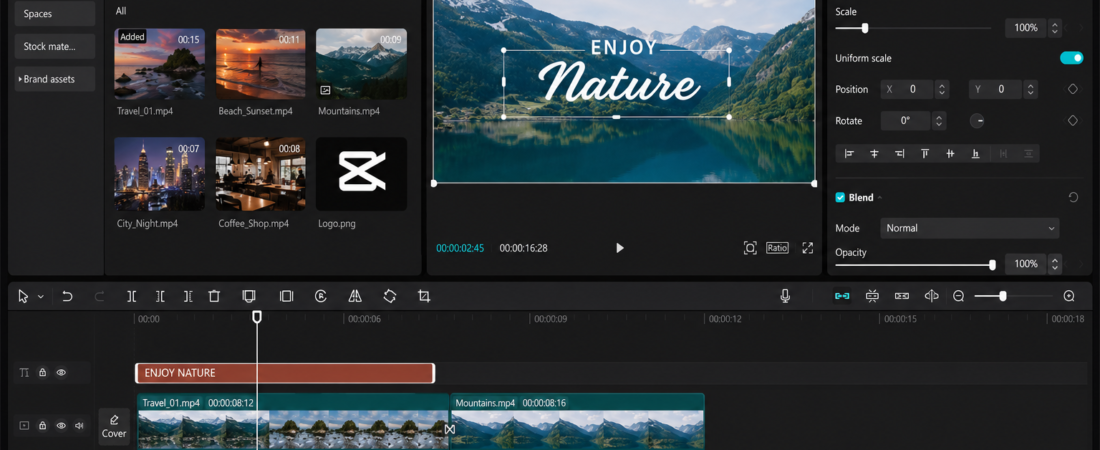
Convert landscape video to vertical:
Instagram Reels have quickly become one of the most effective ways to reach new audiences, increase engagement, and grow your social media presence. However, many content creators still record their videos in landscape (16:9) format, especially when creating content for YouTube, cameras, or other widescreen platforms. As a result, when these landscape videos are uploaded to Instagram Reels, which use a 9:16 vertical aspect ratio, important parts of the frame are often cropped. Consequently, faces, text, products, or other essential details may be cut off, reducing the overall quality and viewer experience.
Fortunately, CapCut AI provides a simple and effective solution to this common problem. With the help of advanced features such as AI Expand and Auto Reframe, you can automatically transform landscape videos into vertical videos without cropping the most important parts of your content. In addition, these AI-powered tools intelligently analyze your footage, extend the background where needed, and keep your subject perfectly centered, resulting in a professional-looking video with minimal editing effort.
In this step-by-step guide, you’ll learn exactly how to make landscape videos fit Instagram Reels without cropping using CapCut AI. By the end of this tutorial, you’ll be able to convert any horizontal video into a high-quality vertical Reel that’s ready for Instagram, TikTok, Facebook Reels, and YouTube Shorts.
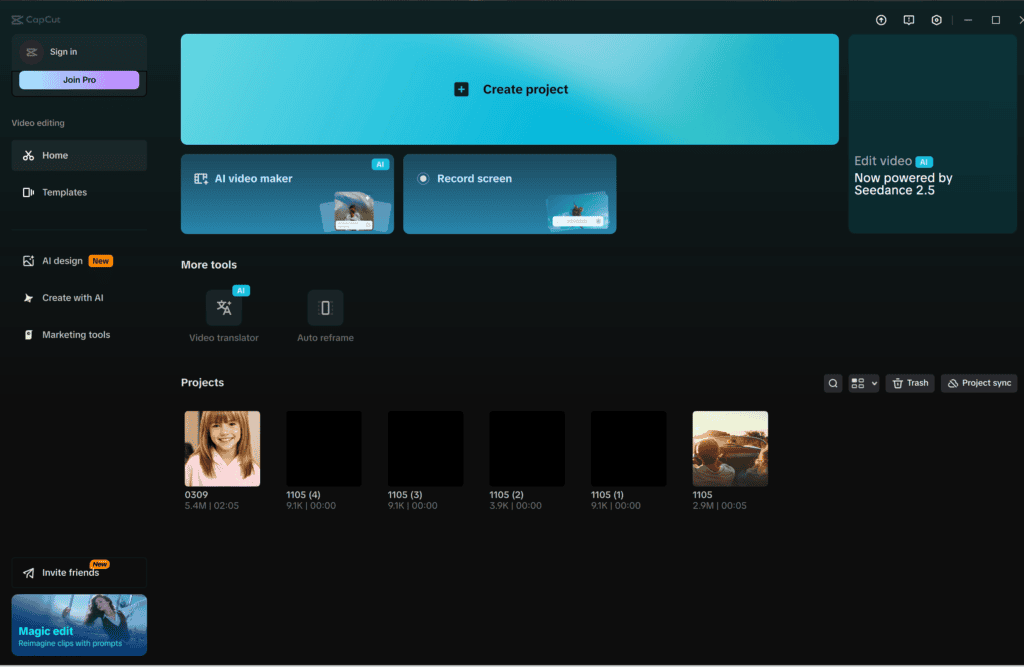
Why Landscape Videos Get Cropped on Instagram Reels
Instagram Reels use a 9:16 vertical aspect ratio, while most cameras record videos in 16:9 landscape.
Because of this difference, Instagram automatically crops the left and right sides of your video.
This can cause:
- Faces to be cut off
- Text to disappear
- Products to be cropped
- Important actions to be missed
- Lower engagement
Instead of accepting these problems, you can use AI to resize your videos intelligently.
What Is CapCut AI?
CapCut AI is an advanced, AI-powered video editing system that automatically analyzes your footage and performs complex editing tasks with minimal manual effort. Instead of spending hours resizing, cropping, or adjusting videos frame by frame, the AI intelligently recognizes the most important elements in your content and optimizes them for different social media platforms. As a result, even beginners can create professional-looking videos without requiring advanced editing skills.
Moreover, CapCut AI uses machine learning to understand the structure of your video, making smart editing decisions that help preserve quality while saving time. Whether you’re creating content for Instagram Reels, TikTok, Facebook Reels, or YouTube Shorts, these AI-powered features can significantly simplify your workflow and improve the final result.
Here are some of the powerful things CapCut AI can do:
Detect People and Objects
First, CapCut AI automatically detects people, faces, products, and other important objects within your video. This means the software knows exactly which parts of the footage should remain visible, helping you avoid accidentally cropping out essential content.
Track Movement Automatically
In addition, the AI continuously tracks your subject’s movement throughout the video. As your subject moves, CapCut AI intelligently adjusts the frame to keep them centered, creating a smooth and professional viewing experience without requiring manual keyframing.nal results.
Expand Backgrounds with AI
One of CapCut AI’s most impressive features is AI Expand. Instead of cropping your landscape video to fit a vertical screen, the AI generates realistic background extensions that blend naturally with the original footage. Consequently, your video fills the entire screen while maintaining its original composition.
Keep Subjects Perfectly Centered
Furthermore, CapCut AI automatically keeps the main subject in the center of the frame, even during fast movements or scene changes. As a result, your videos appear more polished and are easier for viewers to watch, especially on mobile devices.
Resize Videos for Different Platforms
Finally, CapCut AI can quickly resize videos for multiple social media platforms using the correct aspect ratios. Whether you need a 9:16 vertical video for Instagram Reels, a 1:1 square post for Instagram Feed, or a 16:9 widescreen video for YouTube, the AI can optimize your content with just a few clicks.
Overall, these AI-powered features dramatically reduce editing time while maintaining high video quality. In fact, what once took hours of manual editing can now be completed in just a few minutes. Therefore, whether you’re a content creator, social media manager, marketer, or business owner, CapCut AI helps you produce professional-quality videos faster, work more efficiently, and publish content consistently across multiple platforms.
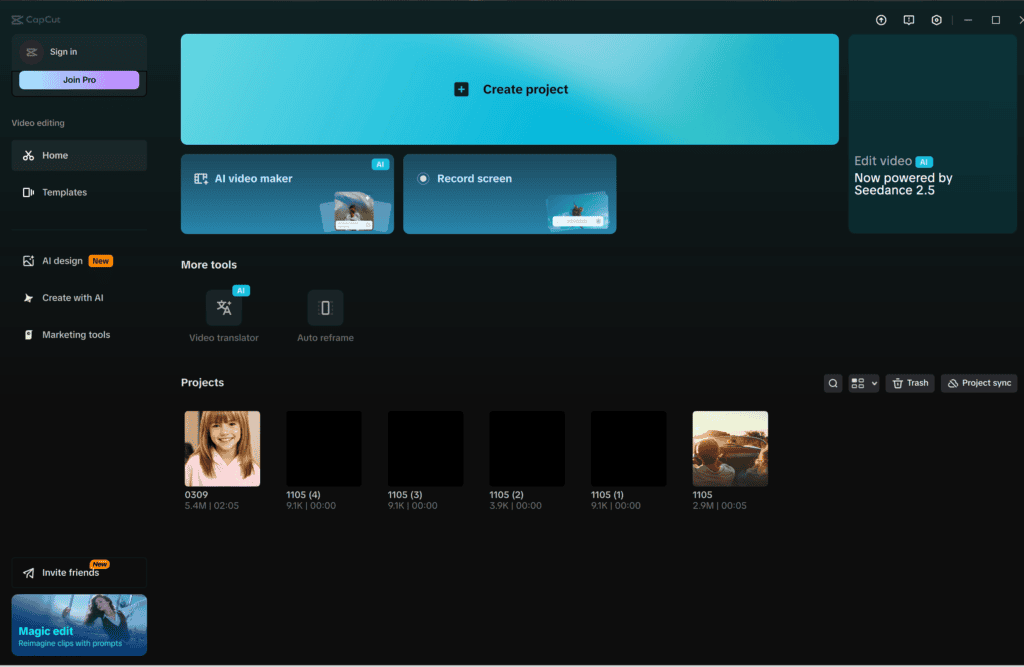
Method 1: Use CapCut AI Expand
AI Expand is one of CapCut’s most impressive features.
Instead of cropping your video, it creates additional background around the original footage using artificial intelligence.
Step 1
Open CapCut Desktop or Mobile.
Step 2
Create a new project.
Step 3
Import your landscape video.
Step 4
Change the aspect ratio to 9:16.
Step 5
Select your video.
Step 6
Choose AI Expand.
Step 7
Allow CapCut to generate the missing background.
Within seconds, your landscape video becomes a full-screen vertical Reel.
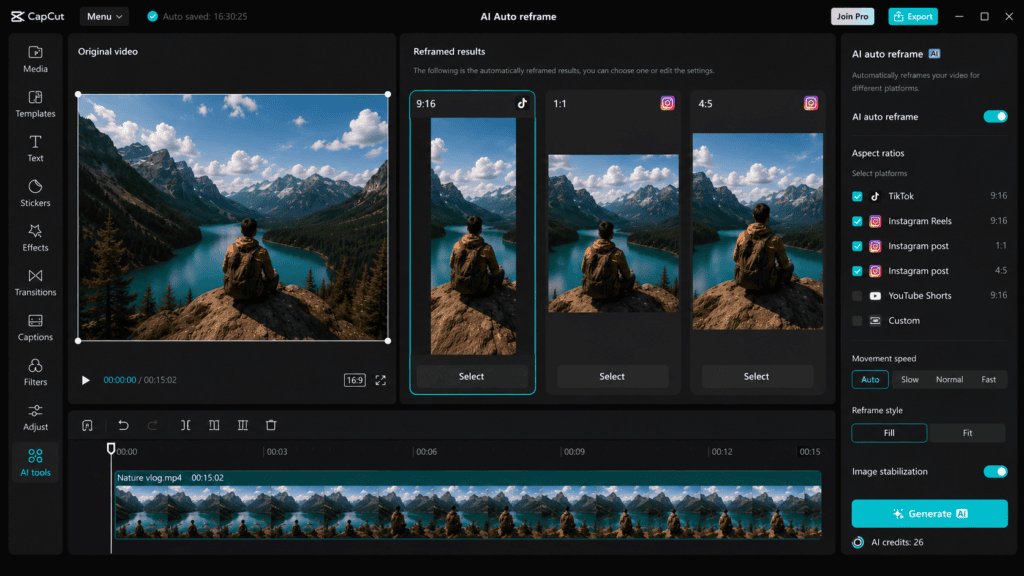
Method 2: Use Auto Reframe
Another excellent option is Auto Reframe.
This feature tracks your subject automatically.
It keeps people centered even while moving.
How to use it
- Import your video.
- Select Auto Reframe.
- Choose 9:16.
- Let AI process the video.
- Export.
This works especially well for:
- Talking-head videos
- Interviews
- Podcasts
- Tutorials
- Product reviews
Best Export Settings for Instagram Reels
For the highest quality, use these settings:
- Resolution: 1080 × 1920
- Aspect Ratio: 9:16
- Frame Rate: 30 FPS
- Codec: H.264
- Format: MP4
- Bitrate: High
These settings ensure crisp and smooth videos.
Tips for Better AI Results
Tips to Create Professional-Looking Instagram Reels with CapCut AI
Although CapCut AI can automatically convert landscape videos into vertical format, following a few best practices will help you achieve even better results. By combining high-quality footage with CapCut AI’s intelligent editing features, you can create visually appealing Instagram Reels that capture attention and increase engagement. Therefore, keep the following tips in mind before exporting your final video.
1. Use High-Resolution Footage
First of all, always start with the highest-quality video available. Recording in 1080p (Full HD) or 4K resolution provides CapCut AI with more visual information to analyze and process. As a result, the AI can generate cleaner background expansions, produce sharper details, and maintain excellent video quality after resizing. On the other hand, low-resolution footage may appear blurry or pixelated once converted into a vertical format.
2. Record in Good Lighting
Next, make sure your videos are recorded in bright, well-lit environments. Proper lighting helps CapCut AI accurately recognize faces, objects, and background details. In addition, good lighting reduces image noise and improves color accuracy, resulting in a cleaner and more professional-looking final video. Whenever possible, use natural daylight or high-quality studio lighting for the best results.
3. Leave Extra Space Around Your Subject
Similarly, avoid placing your subject too close to the edges of the frame while recording. Instead, leave a small amount of empty space around the person or object. This gives CapCut AI more flexibility when resizing the video or generating additional background with AI Expand. Consequently, your final Instagram Reel will look more natural and balanced without cutting off important elements.
4. Avoid Shaky Camera Movement
Furthermore, try to keep your camera as stable as possible during recording. Excessive shaking can make it more difficult for the AI to accurately track your subject throughout the video. To improve stability, consider using a tripod, smartphone gimbal, or your device’s built-in image stabilization feature. As a result, your videos will appear smoother, and Auto Reframe will deliver more accurate results.
5. Keep Important Subjects Away from the Frame Edges
In addition, avoid positioning faces, products, text, or other important elements too close to the left or right edges of your landscape video. Since the video will be converted into a vertical format, content near the edges may become difficult for the AI to preserve perfectly. Instead, keep your main subject closer to the center of the frame. This simple adjustment allows CapCut AI to maintain the composition more effectively and reduces the chances of important details being cropped or distorted.
6. Review AI-Generated Backgrounds Before Exporting
Finally, always preview your edited video before exporting it. While CapCut AI generally produces impressive results, AI-generated background expansions may occasionally include small visual imperfections or unnatural textures. Therefore, take a few moments to carefully review each scene and make any necessary adjustments. Doing so ensures that your Instagram Reel looks polished, professional, and ready to share with your audience.
Final Tip
Ultimately, the quality of your final Instagram Reel depends on both your original footage and the way you use CapCut AI. By following these best practices, you can maximize the performance of AI Expand and Auto Reframe, create visually stunning vertical videos, and deliver a better viewing experience across Instagram Reels, TikTok, Facebook Reels, and YouTube Shorts.
Why CapCut AI Is Better Than Manual Cropping
| Manual Cropping | CapCut AI |
| Time-consuming | Fast |
| Crops important content | Preserves content |
| Requires editing skills | Beginner-friendly |
| Can reduce quality | Maintains quality |
| Less professional | Professional results |
Common Mistakes to Avoid
Many beginners make these mistakes:
- Exporting in landscape
- Using low resolution
- Ignoring safe zones
- Adding text near the edges
- Skipping AI Expand
Avoiding these issues helps create better-performing Instagram Reels.
Frequently Asked Questions
Is CapCut AI Expand free?
Some AI features are available for free, while others require CapCut Pro depending on your region and subscription.
Does AI Expand reduce video quality?
No. When exported correctly, your video maintains excellent quality.
Can I use this method for TikTok?
Yes. The same workflow works perfectly for TikTok.
Does it work for YouTube Shorts?
Absolutely. Shorts also use a 9:16 aspect ratio.
Can I convert old YouTube videos into Reels?
Yes. AI Expand and Auto Reframe make it easy to repurpose existing landscape videos.
Overall, if you want to make landscape videos fit Instagram Reels without cropping, CapCut AI is one of the easiest, fastest, and most effective video editing solutions available in 2026. Unlike traditional editing methods that often require manual cropping or complicated adjustments, CapCut AI uses advanced artificial intelligence to automatically resize and optimize your videos for a 9:16 vertical aspect ratio. As a result, you can preserve important elements such as faces, text, products, and backgrounds without losing valuable content. Moreover, powerful features like AI Expand intelligently generate additional background where needed, while Auto Reframe automatically detects and keeps your main subject centered throughout the video. Consequently, you can create professional-quality Instagram Reels in just a few minutes, even if you have little or no video editing experience.
Whether you’re a content creator, social media manager, digital marketer, business owner, educator, or influencer, CapCut AI can significantly improve your content creation workflow. Instead of recording separate vertical videos for every platform, you can easily repurpose your existing landscape videos for Instagram Reels, TikTok, Facebook Reels, and YouTube Shorts without sacrificing quality. In addition, this approach saves valuable time, reduces editing effort, and allows you to maintain a consistent visual style across multiple social media platforms. Most importantly, repurposing your content helps you reach a wider audience, increase engagement, and maximize the value of every video you create. Therefore, if you’re looking for a smart and efficient way to transform horizontal videos into high-quality vertical content, CapCut AI is an excellent tool to include in your video editing workflow.