
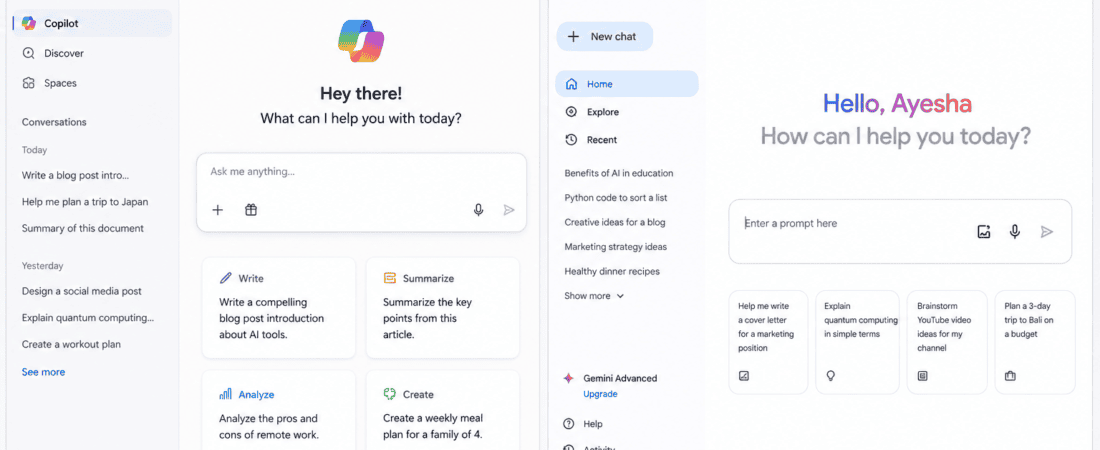
Microsoft Copilot vs Google Gemini: Writing a professional email sounds simple until you actually have to write one.
You may know exactly what you want to say, but finding the right words can take surprisingly long. Should the email sound formal or friendly? Is the request too direct? Does the introduction sound professional enough? Did you explain the situation clearly? And, perhaps most importantly, does the email actually sound like something a real person would send?
This is where AI writing assistants have become extremely useful.
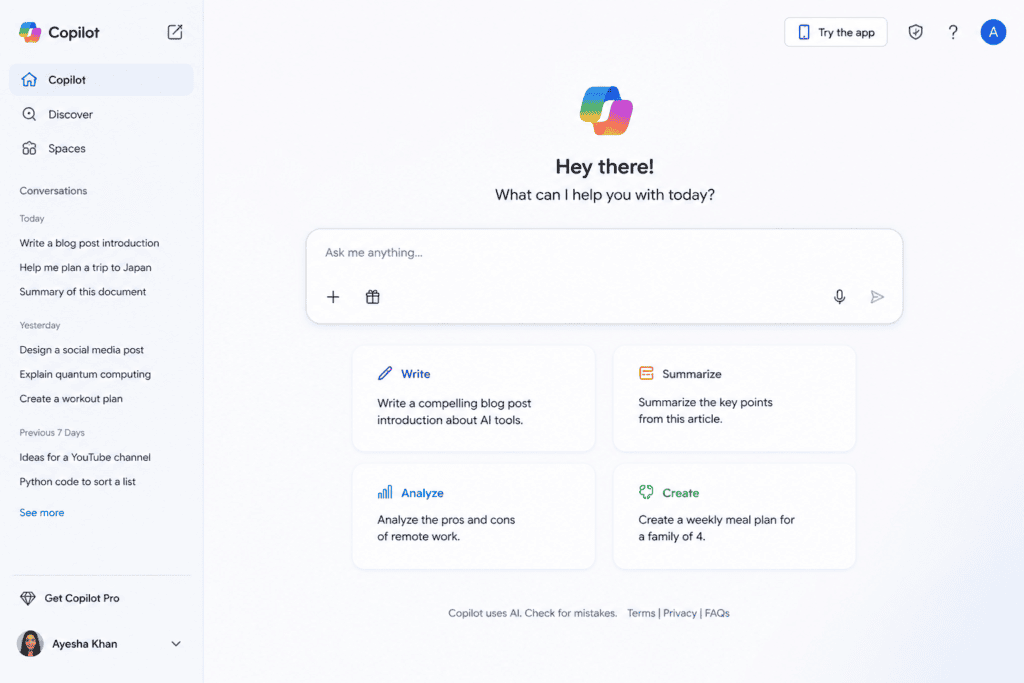
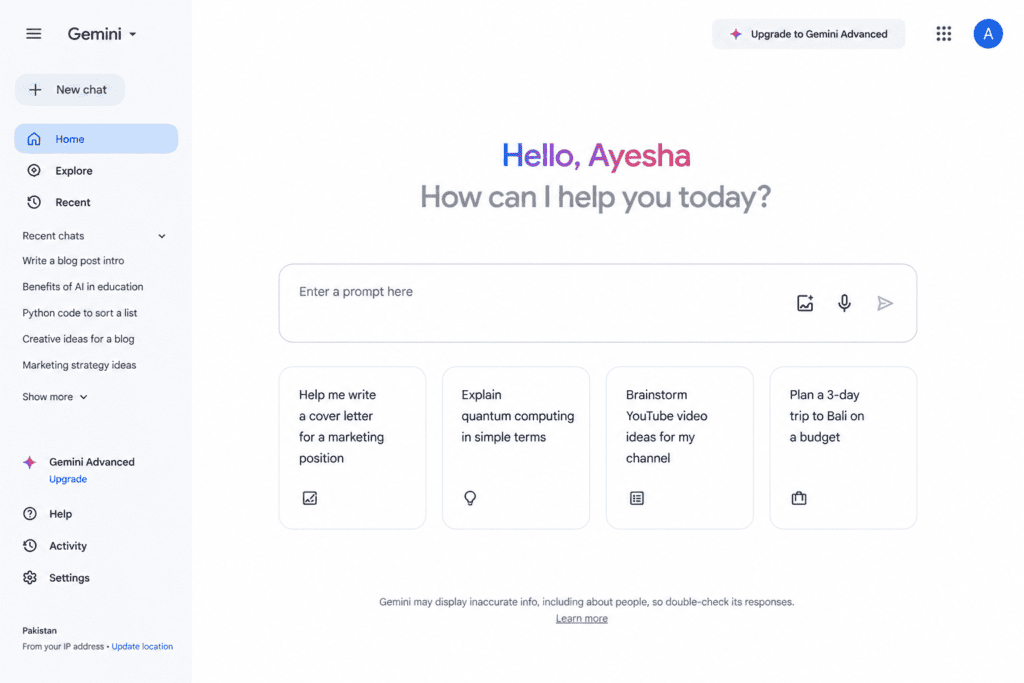
Two of the biggest options available today are Microsoft Copilot and Google Gemini. Both can help write, rewrite, summarize, proofread, and improve emails, but they approach the task from slightly different ecosystems.
Microsoft Copilot is deeply connected with Microsoft’s productivity environment, particularly Outlook and Microsoft 365. Google Gemini, meanwhile, is closely integrated with Gmail and Google Workspace.
Microsoft’s current Copilot experience in Outlook can help draft and refine emails, while Copilot’s email coaching can review tone, clarity, and reader sentiment before an email is sent.
Gemini’s Gmail tools can draft new emails, refine existing text, proofread drafts, summarize conversations, and use relevant information from emails and Google Drive when supported by the user’s account and plan.
So which one is better?
For people who primarily use Outlook and Microsoft 365, Copilot is usually the more natural choice. For Gmail and Google Workspace users, Gemini has the smoother workflow.
But the differences become much more interesting when you compare tone, personalization, rewriting, research, long email threads, free access, and everyday usability.
Let’s take a closer look.
Microsoft Copilot vs Google Gemini at a Glance
| Feature | Microsoft Copilot | Google Gemini |
|---|---|---|
| Email platform | Outlook | Gmail |
| Email drafting | Yes | Yes |
| Rewrite emails | Yes | Yes |
| Tone improvement | Yes | Yes |
| Proofreading | Yes | Yes |
| Email summarization | Yes | Yes |
| Thread assistance | Yes | Yes |
| Calendar integration | Strong | Strong |
| Microsoft 365 integration | Excellent | Limited |
| Google Workspace integration | Limited | Excellent |
| Professional email writing | Excellent | Excellent |
| Email coaching | Yes | Proofreading/tone suggestions |
| Best ecosystem | Microsoft 365 | Google Workspace |
| Free standalone AI access | Yes | Yes |
| Integrated email AI | Depends on eligible plan/account | Depends on eligible plan/account |
| Best for Outlook users | Excellent | — |
| Best for Gmail users | — | Excellent |
One important point before comparing them: the free standalone versions of Copilot and Gemini are not necessarily the same thing as AI features integrated directly into Outlook or Gmail. Microsoft and Google both restrict some integrated features based on account type, subscription, administrator settings, geography, and rollout status.
What Is Microsoft Copilot?
Microsoft Copilot is Microsoft’s AI assistant designed to help users with writing, research, brainstorming, summarization, and other productivity tasks.
There is a free version of Microsoft Copilot available through the web and apps, while Microsoft 365 Copilot provides deeper integration with Microsoft applications and work data. Microsoft explains that the free version can help with writing, brainstorming, summarization, web-based tasks, and more.
For professional email writing, however, the more interesting experience is Copilot inside Outlook.
Instead of opening a completely separate AI chatbot, Outlook users with eligible access can use Copilot directly while working on an email.
Microsoft’s current Outlook documentation shows that Copilot can draft messages and assist with refining them.
That makes a difference.
When I’m writing an important email, I don’t particularly want to copy the message into another website, explain the context, generate a response, copy it back, and then format everything.
Having AI directly inside the email application makes the process much smoother.
My Experience Using Microsoft Copilot for Professional Emails
What I like most about Copilot is how naturally it fits into the Outlook workflow.
If I’m already working inside Outlook, I can stay there.
For example, instead of staring at a blank email and thinking:
How do I politely ask this client for an update?
I can give Copilot a simple instruction such as:
Write a polite follow-up email asking the client for an update on the proposal. Keep it professional and concise.
The resulting draft gives me a starting point.
I don’t necessarily send it exactly as generated.
That’s not how I recommend using AI for professional communication.
I usually read the draft, remove unnecessary phrases, add specific details, and make it sound more like me.
That’s actually where Copilot becomes useful.
It doesn’t have to write the perfect email.
It simply needs to get me from a blank page to a good first draft faster.
Copilot’s Email Coaching Is Particularly Useful
One feature I find especially interesting for professional communication is Email Coaching.
Microsoft says Copilot can review an email and provide suggestions related to tone, clarity, and reader sentiment. It can also allow users to apply suggestions.
This is useful because professional emails aren’t only about grammar.
An email can be grammatically perfect and still sound:
- Too aggressive
- Too passive
- Too vague
- Too demanding
- Too casual
- Too long
- Emotionally charged
For example, imagine writing:
I already sent these documents last week. Please check your email before asking me again.
Technically, the sentence isn’t necessarily grammatically wrong.
But it could sound irritated.
An AI writing coach can help transform the message into something like:
I believe I sent these documents last week. Could you please check your inbox and let me know if you’re unable to locate them? I’d be happy to resend them.
The second version is much safer professionally.
What Is Google Gemini?
Google Gemini is Google’s family of AI models and assistant experiences.
For email writing, the most relevant integration is Gemini in Gmail.
Gmail’s “Help me write” feature can generate new email drafts and refine existing text based on prompts. Google also provides proofreading capabilities that can suggest improvements to grammar, tone, and style.
Gemini can also work with email context and, where supported, information from Google Drive and Calendar.
This makes Gemini particularly attractive to people who already live inside Google Workspace.
My Experience Using Gemini for Professional Emails
The biggest advantage I notice with Gemini is its connection to the Google ecosystem.
If my work already happens inside:
- Gmail
- Google Docs
- Google Drive
- Google Calendar
then Gemini doesn’t feel like an additional application.
It feels like another layer inside the tools I’m already using.
For example, suppose I have an email thread discussing a project.
Instead of manually reading every message and then writing a response, Gemini can help summarize the thread and generate a draft based on the conversation where the relevant feature and account access are available.
Google specifically documents Gemini’s ability to summarize email threads, suggest responses, draft emails, and find information from previous emails and Google Drive.
That’s a major advantage for people who receive long professional email chains.
Microsoft Copilot vs Gemini for Writing From Scratch
Let’s start with the most basic task.
You open a blank email.
You know the purpose.
You just don’t know how to phrase it.
For example:
Write a formal email requesting a two-day extension for the project deadline because several required materials were delivered late.
Both tools can handle this.
The quality of the result will depend heavily on your prompt.
A vague prompt might produce a generic email.
A detailed prompt produces something much more useful.
Instead of:
Write an email asking for an extension.
Try:
Write a professional but friendly email to a client requesting a two-day extension for the website project. The delay happened because the product images and final copy arrived late. Take responsibility without sounding overly apologetic. Keep the email under 150 words.
Now the AI has:
- Recipient
- Purpose
- Reason
- Tone
- Length
- Communication strategy
That’s enough information to create a much better draft.
Winner: Tie
Both Copilot and Gemini are strong for basic professional email generation.
Copilot vs Gemini for Formal Emails
Formal emails require careful wording.
You don’t want an email to sound robotic, but you also don’t want it to sound like a casual text message.
This is especially important for:
- Job applications
- Business proposals
- Client communication
- Complaint responses
- Partnership requests
- Meeting requests
- Official notices
- Financial communication
I find Copilot particularly natural for workplace communication when working inside Outlook.
Its positioning around Microsoft 365 makes it a strong fit for traditional corporate environments.
Winner: Copilot
Copilot vs Gemini for Friendly Professional Emails
Not every professional email should sound extremely formal.
Sometimes you want:
Professional + warm
rather than:
Professional + robotic
For example:
Hi Sarah,
Thanks for sending this over. I’ve reviewed the proposal and everything looks good from my side. I just have one small question before we move forward…
This sounds much more human than:
Dear Ms. Sarah,
I hereby acknowledge receipt of the aforementioned proposal…
AI can easily drift into overly formal language if you don’t specify the tone.
Gemini’s rewriting and tone controls make it useful for this kind of adjustment.
Winner: Gemini by a small margin
Copilot vs Gemini for Rewriting Existing Emails
This is arguably more important than generating emails from scratch.
Most professionals don’t actually need AI to invent an email.
They already know what they want to say.
They just want to say it better.
For example:
Hi, I wanted to ask if you have checked the files. I sent them a few days ago and I need confirmation because we need to finish the work.
You could ask:
Rewrite this to sound professional, confident, and concise.
Both tools can transform it.
A polished version might become:
Hi, I wanted to follow up and confirm whether you’ve had a chance to review the files I sent earlier. Please let me know once you’ve had a chance to check them, as we need confirmation to proceed with the next stage of the project.
This is one of the easiest ways to use AI without making your emails sound artificially generated.
Winner: Tie
Copilot vs Gemini for Email Tone
Tone is one of the hardest parts of email writing.
A good email has to communicate the right message while also considering how the recipient might interpret it.
Copilot has an explicit email coaching feature designed to review tone, clarity, and reader sentiment.
Gemini’s Gmail writing tools also provide tone and style refinement, and its proofreading feature offers suggestions beyond basic spelling and grammar.
Winner: Copilot for dedicated email coaching
Winner: Gemini for general rewriting and refinement
Copilot vs Gemini for Long Email Threads
This is where both tools become more useful than ordinary writing assistants.
Imagine a 25-message client conversation.
Reading the entire thread can take several minutes.
You need to figure out:
- What has already been decided?
- What is still pending?
- Who is responsible for what?
- What does the client need?
- What should I reply?
Gemini can summarize email threads and help identify important information in Gmail. Google’s current documentation specifically lists email-thread summaries and suggested responses among Gemini’s Gmail capabilities.
Copilot also works with Outlook email data and can help with inbox management, summaries, drafting, and other email tasks depending on the available Outlook experience.
Winner: Tie
The better option is usually whichever platform contains your email history.
Copilot vs Gemini for Personalized Emails
Generic AI-generated emails can be a problem.
You don’t want:
I hope this email finds you well.
in every message.
You want the AI to understand the actual context.
Gemini has a particularly interesting advantage here because Google’s Gmail documentation explains that “Help me write” can use relevant information from other emails and Drive files to personalize drafts when the feature has access to that context.
Microsoft’s Microsoft 365 Copilot similarly uses Microsoft Graph data to personalize responses based on information the user has permission to access. Microsoft says Copilot can use work emails, chats, and documents within that permission model.
So both ecosystems are moving toward context-aware email writing.
Winner: Tie
Copilot vs Gemini for Follow-Up Emails
Follow-up emails are one of my favorite AI use cases.
They’re repetitive.
You already know what you need.
For example:
Hi Ahmed, just following up on the proposal I sent last week. Let me know if you’ve had a chance to review it.
You could ask AI to make it:
- More confident
- More persuasive
- More friendly
- Less pushy
- Shorter
A good prompt is:
Rewrite this follow-up so it sounds confident and professional without sounding pushy. Keep it under 80 words.
Both tools perform well here.
Winner: Tie
Copilot vs Gemini for Cold Emails
Cold emails require more than grammar.
You need:
- A strong opening
- Relevance
- Personalization
- Clear value
- A simple call to action
For example, if you’re contacting a potential client:
Hi John, I noticed your company recently launched a new e-commerce website. I work with small businesses on improving their social media content and thought there may be an opportunity to help…
An AI can help generate variations.
But I strongly recommend giving it real information about the recipient.
Don’t ask:
Write a cold email to a business.
Instead:
Write a short cold email to a restaurant owner. Mention that their Instagram has strong food photography but inconsistent posting. Offer a monthly social media management service. Avoid aggressive sales language.
The more specific the information, the more believable the email becomes.
Winner: Tie
Copilot vs Gemini for Job Application Emails
Job seekers can use both tools to write:
- Application emails
- Recruiter responses
- Follow-ups
- Interview thank-you emails
- Salary negotiation messages
- Availability confirmations
For example:
Write a concise email thanking the recruiter for today’s interview. Mention that I enjoyed discussing the social media manager role and am particularly interested in the company’s content strategy.
Both tools can generate a solid starting point.
The important thing is to add something specific from the actual conversation.
That prevents the email from sounding copied and generic.
Winner: Tie
Copilot vs Gemini for Client Communication
For freelancers and agencies, professional email writing can become a daily task.
You might need to communicate about:
- Deadlines
- Revisions
- Payments
- Scope changes
- Project delays
- Feedback
- Approvals
- Meetings
This is where Microsoft Copilot’s Outlook integration can be especially convenient for users already working in Microsoft 365.
Winner: Copilot
Copilot vs Gemini for Gmail Users
If your entire business runs through Gmail, Google Docs, Google Drive and Google Calendar, Gemini is the obvious ecosystem choice.
You don’t have to constantly move information between platforms.
Google’s current Workspace documentation describes Gemini features that can summarize emails, draft messages, proofread content, and work with relevant Workspace information.
Winner: Gemini
Copilot vs Gemini for Outlook Users
The same logic works in reverse.
If your work happens inside Outlook, Word, Excel, Teams and Microsoft 365, Copilot is the more natural choice.
Microsoft describes Microsoft 365 Copilot as being integrated across applications such as Word, Excel, PowerPoint, Outlook and Teams, with personalization through Microsoft Graph data that the user is permitted to access.
Winner: Copilot
Can You Use Microsoft Copilot for Free?
Yes.
Microsoft offers a free standalone Copilot experience through its website and apps. Microsoft describes the free version as suitable for general questions, writing, brainstorming, summarization and web-based tasks.
However, don’t confuse this with having every Copilot feature inside Outlook.
Microsoft 365 integration depends on the subscription and account environment.
For someone who simply wants AI to help draft an email, the free standalone Copilot can still be useful.
You can write your request there, generate the email, edit it, and paste it into your email client.
Can You Use Google Gemini for Free?
Google offers free Gemini access, but Gmail-integrated AI features have separate eligibility requirements.
Google’s current Gmail documentation states that “Help me write” availability depends on the account type and eligible Google AI or Google Workspace plan; personal Gmail availability is also subject to geographic restrictions.
So again, there is a difference between:
Gemini as a standalone chatbot
and
Gemini features directly inside Gmail.
This distinction is important when reading AI tool comparisons.
Which Is Better for Non-Native English Writers?
This is an area where both tools can be extremely helpful.
If English isn’t your first language, you can write the email naturally in your own words and then ask AI to:
Correct grammar and make this sound professional without changing the meaning.
That’s much better than asking AI to completely invent the email.
For example:
I am sorry but I cannot attend meeting tomorrow because I have another important work.
AI can transform it into:
Unfortunately, I won’t be able to attend tomorrow’s meeting due to a prior commitment. I apologize for any inconvenience and would be happy to reschedule.
The important part is that your original meaning remains intact.
Winner: Tie
Which AI Sounds More Human?
This is difficult to answer universally.
Both can produce excellent writing.
Both can also produce robotic writing.
The difference often comes down to the prompt.
If you ask:
Write a professional email.
you may receive something generic.
If you ask:
Rewrite this email naturally. Keep my meaning and personality. Avoid corporate jargon, unnecessary greetings, and exaggerated politeness. Make it sound like a real professional wrote it.
the result is usually much better.
In my experience, the prompt often matters more than the platform.
The Best Prompt Formula for Professional Emails
One of the simplest formulas I use is:
Role + Recipient + Purpose + Context + Tone + Length + Action
For example:
Act as a professional account manager. Write an email to a client asking for approval on the final design. The client has already reviewed two previous versions. Keep the tone friendly and confident, avoid sounding pushy, and keep the email under 120 words. End with a clear request for approval.
That’s significantly better than:
Write an email asking for approval.
10 Useful Copilot and Gemini Email Prompts
1. Formal Email
Write a professional email about [topic]. Keep it formal, concise, and respectful. Include a clear next step.
2. Friendly Email
Rewrite this email so it sounds warm and professional without being overly formal.
3. Follow-Up
Rewrite this follow-up so it sounds confident but not pushy. Keep it under 100 words.
4. Apology
Write a sincere professional apology for [situation]. Take responsibility without overexplaining.
5. Complaint
Rewrite this complaint so the issue is clear and firm but still professional.
6. Client Update
Turn these notes into a concise client update with completed tasks, pending tasks, and next steps.
7. Meeting Request
Write a short email requesting a 30-minute meeting about [topic]. Offer two possible time options.
8. Job Application
Write a professional job application email for [role]. Highlight my experience with [skills] and keep it concise.
9. Payment Reminder
Write a polite but firm payment reminder for an overdue invoice. Avoid sounding aggressive.
10. Email Rewrite
Rewrite this email to improve clarity and professionalism without changing the meaning or adding information.
How to Make AI-Generated Emails Sound Human
This is probably the most important section of the entire article.
AI-generated emails can become repetitive because people often accept the first draft.
Don’t do that.
Use AI as your writing assistant rather than your replacement.
After generating an email, look for phrases like:
- I hope this email finds you well
- I wanted to reach out
- I am writing to inform you
- Please do not hesitate to contact me
- I sincerely appreciate your consideration
- I look forward to hearing from you at your earliest convenience
None of these phrases are automatically bad.
The problem is using them in every email.
Real people vary their language.
Sometimes:
Just following up on this.
is better than:
I hope this email finds you well. I am writing to follow up regarding…
Human writing is often simpler.
Don’t Let AI Change Your Meaning
This is especially important with sensitive emails.
If you’re discussing:
- Money
- Contracts
- Deadlines
- Employment
- Legal matters
- Complaints
- Performance
- Personal conflicts
don’t blindly accept an AI rewrite.
AI may make a sentence sound better while accidentally changing what you’re actually saying.
Always compare the final email with your original intention.
Privacy Matters Too
Before pasting sensitive information into any AI system, understand what data the tool may process and what your organization’s policies allow.
This matters especially for:
- Client information
- Employee records
- Financial details
- Confidential contracts
- Passwords
- Private customer information
- Internal company documents
Enterprise AI systems can have specific security and data-handling controls, but you should still follow your organization’s policies.
Microsoft explains that Microsoft 365 Copilot uses Microsoft Graph information according to the user’s existing permissions.
The practical lesson is simple:
Don’t paste confidential information into an AI tool simply because it can process it.
A Better Workflow: AI Draft + Human Edit
Here’s the workflow I recommend.
Step 1: Write the main idea
Don’t worry about grammar.
Write:
Need to tell client project will be delayed two days because product images arrived late.
Step 2: Give AI the context
Tell it who the recipient is and what relationship you have.
Step 3: Specify the tone
For example:
Professional, friendly and confident.
Step 4: Generate the draft
Use Copilot or Gemini.
Step 5: Remove generic phrases
Delete anything that doesn’t sound like you.
Step 6: Add personal details
Mention something specific from the actual conversation.
Step 7: Verify every fact
Especially dates, prices, names and commitments.
Step 8: Read it once as the recipient
Ask yourself:
How would I feel receiving this?
Step 9: Send
The AI should save time—not remove your judgment.
Microsoft Copilot vs Google Gemini: Pros and Cons
Microsoft Copilot Pros
- Excellent Outlook integration
- Strong Microsoft 365 ecosystem
- Useful email drafting
- Email coaching
- Helpful tone and clarity feedback
- Strong workplace context
- Good for corporate communication
- Useful for Outlook-based workflows
Microsoft Copilot Cons
- Some integrated features require eligible Microsoft 365 plans
- Free standalone Copilot isn’t the same as full Microsoft 365 Copilot
- Features can vary by account and Outlook version
- Some advanced experiences are still rolling out
Google Gemini Pros
- Excellent Gmail integration
- Strong Google Workspace connection
- Useful “Help me write” feature
- Email summarization
- Email rewriting
- Proofreading
- Can use relevant Google Workspace context when supported
- Useful for Gmail-heavy workflows
Google Gemini Cons
- Gmail AI availability varies by account and plan
- Some personal-account features have geographic restrictions
- Not every Gemini feature is available to every Gmail user
- Google frequently changes and expands its AI features
Microsoft Copilot vs Google Gemini: Final Verdict
So, which is better for writing professional emails?
There isn’t one answer for everyone.
If you use Outlook, Microsoft 365, Word and Teams every day, Microsoft Copilot is the better choice.
It feels natural inside the Microsoft ecosystem, and its Outlook capabilities go beyond simple email generation. Features such as drafting, refinement, email coaching and inbox assistance make it useful for professional communication.
If you use Gmail, Google Docs, Drive and Calendar, Gemini is the better choice.
Its Gmail integration makes drafting, rewriting, proofreading and summarizing conversations convenient, while its ability to work with relevant Google Workspace context can make responses more personalized.
My overall ranking
Best for Outlook users: Microsoft Copilot
Best for Gmail users: Google Gemini
Best for corporate Microsoft environments: Microsoft Copilot
Best for Google Workspace: Gemini
Best for email coaching: Microsoft Copilot
Best for Gmail-based research and context: Gemini
Best for rewriting: Tie
Best for professional email drafting: Tie
Best for beginners: Tie
Best free standalone writing assistant: Both are strong choices
The Real Winner Is the Tool Already Connected to Your Work
If you use Gmail every day, there’s little reason to move your workflow to Microsoft just because someone says Copilot writes better emails.
And if your company runs on Outlook and Microsoft 365, Gemini may simply create unnecessary friction.
The best AI email assistant is usually the one that already has access to the environment where your work happens—within the permissions and account setup your organization allows.
That’s why this isn’t really a battle between two AI models.
It’s a battle between two ecosystems.
Microsoft Copilot wins for Microsoft users.
Google Gemini wins for Google users.
And for someone who wants the highest-quality professional emails, the best approach isn’t to let either tool write everything automatically.
Give the AI your rough thoughts.
Let it organize the message.
Ask it to improve the tone.
Then add your own judgment, personality and specific details.
That’s when AI-generated email stops sounding like AI—and starts sounding like a polished version of you.
Frequently Asked Questions
Is Microsoft Copilot better than Google Gemini for emails?
Copilot is generally better for people working in Outlook and Microsoft 365, while Gemini is generally better for Gmail and Google Workspace users. Both can generate, rewrite and improve professional emails.
Can Gemini write professional emails?
Yes. Gmail’s “Help me write” can generate new email drafts and refine existing text for tone and clarity.
Can Microsoft Copilot write emails?
Yes. Copilot in Outlook can draft email messages and assist users in refining them.
Can Copilot improve email tone?
Yes. Microsoft provides Email Coaching in Outlook that can suggest improvements to tone, clarity and reader sentiment.
Can Gemini proofread emails?
Yes. Gemini in Gmail can provide advanced grammar, tone and style suggestions through its proofreading feature for eligible users.
Is Microsoft Copilot free?
Microsoft provides a free standalone Copilot experience, but some integrated Microsoft 365 and Outlook capabilities require an eligible subscription or account.
Is Gemini free?
Google provides free Gemini access, but specific AI features integrated into Gmail depend on account type, plan, language and availability.
Which is better for Gmail?
Gemini is the obvious choice for Gmail users because it is integrated directly into Google’s email ecosystem.
Which is better for Outlook?
Microsoft Copilot is the stronger choice for Outlook because its AI features are integrated directly into Microsoft’s email and productivity environment.
Can AI make my emails sound more human?
Yes, but you need to give it specific instructions. Ask AI to preserve your meaning and personality, avoid unnecessary corporate language, and keep sentences natural.
Should I send an AI-generated email without editing it?
I wouldn’t recommend it. Always review the email for factual accuracy, tone, names, dates, commitments and anything sensitive before sending. Microsoft itself advises reviewing and verifying AI-generated cont
Check out here if you want to know about ElevenLabs Free Tier vs CapCut Text to Speech: Which AI Voice Tool Is Better?