
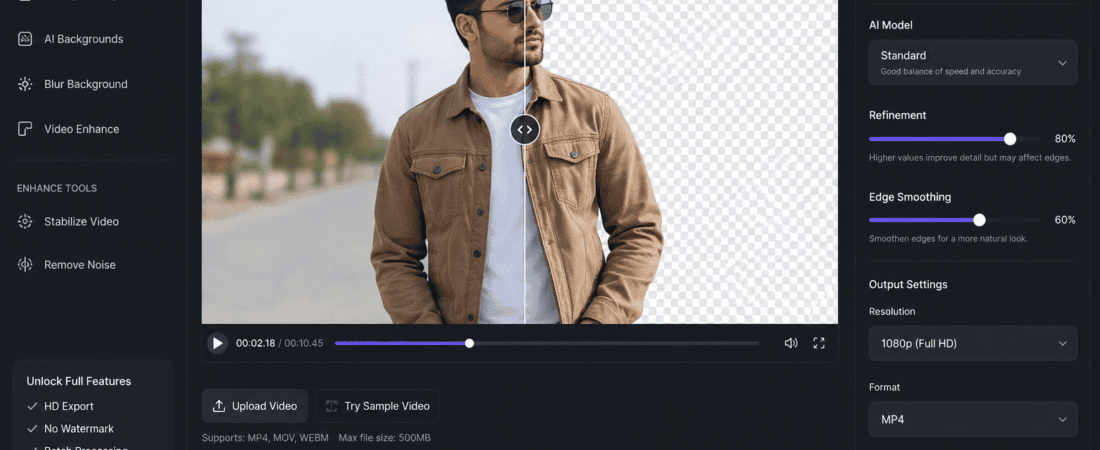
Best Free AI Tools for Removing Video Background Without Green Screen
Removing a video background once required a professional green screen, expensive lighting, and advanced editing software. Today, Artificial Intelligence has completely transformed this process. With modern free AI background remover tools, you can erase or replace a video’s background automatically—without using a green screen.
Whether you’re a YouTuber, content creator, social media manager, online teacher, freelancer, marketer, or business owner, AI-powered background removal tools can help you create professional-looking videos in just a few clicks.
These tools use advanced computer vision and machine learning to detect people or objects in a video and separate them from the background with impressive accuracy. Many platforms also let you replace the background with images, videos, gradients, or transparent layers.
In this comprehensive guide, you’ll learn:
- What AI video background removal is
- How AI removes video backgrounds
- Benefits of AI background remover tools
- The best free AI tools available
- Step-by-step editing workflow
- Tips for professional results
- Common mistakes to avoid
- Frequently asked questions
Let’s explore the best free AI tools for removing video backgrounds without a green screen.
What Is AI Video Background Removal?
AI video background removal is the process of automatically separating the main subject from the background using Artificial Intelligence.
Unlike traditional chroma key editing, which requires a green screen, AI identifies:
- Human bodies
- Faces
- Hair
- Clothing
- Objects
- Edges
- Motion
The software then removes or replaces the background automatically.
Modern AI models continue to improve, producing cleaner edges and more natural-looking results, even in many non-studio environments.
Why Use AI Instead of a Green Screen?
Green screens work well but require:
- Extra equipment
- Proper lighting
- Large filming space
- More editing time
AI removes these barriers.
No Special Equipment
Record almost anywhere without carrying a green backdrop.
Faster Editing
Background removal takes minutes instead of hours.
Lower Costs
Many AI tools provide useful free plans, reducing the need for expensive software.
Beginner-Friendly
Most AI editors work with drag-and-drop interfaces and require little editing experience.
Professional Appearance
A clean virtual background can make videos look more polished and consistent.
How AI Video Background Removal Works
AI-powered background removal generally follows these steps.
Step 1: Upload Your Video
Most platforms support formats such as:
- MP4
- MOV
- AVI
- WebM
Step 2: AI Detects the Subject
The AI identifies the foreground by analyzing:
- Body shape
- Facial features
- Motion
- Depth
- Contrast
Step 3: Separate Foreground and Background
The subject is isolated from the background frame by frame.
Step 4: Replace or Remove the Background
You can:
- Make the background transparent
- Add a solid color
- Insert a custom image
- Add another video
- Use a virtual office or studio background
Step 5: Export the Video
Download your edited video in the highest quality available.
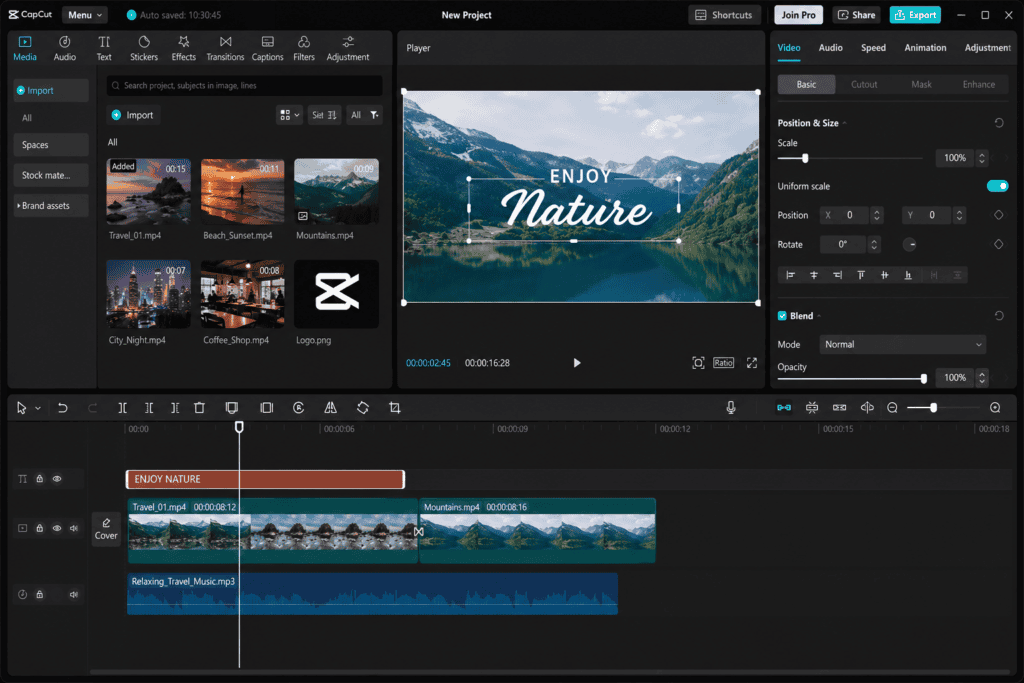
Best Free AI Tools for Removing Video Background
1. CapCut AI
CapCut is one of the most popular AI video editors for creators.
Features
- One-click background removal
- AI cutout
- Auto captions
- AI effects
- Mobile and desktop support
Best For
- YouTube Shorts
- Instagram Reels
- TikTok videos
- Product videos
2. Canva AI
Canva includes AI-powered background removal and video editing features.
Features
- Drag-and-drop editing
- AI background replacement
- Templates
- Brand customization
Best For
- Business presentations
- Social media
- Marketing videos
3. Adobe Express
Adobe Express offers an easy-to-use AI background removal workflow.
Features
- AI cutout
- Professional templates
- Motion graphics
- Cloud editing
Best For
- Promotional videos
- Educational content
- Corporate videos
4. Unscreen
Unscreen specializes in automatic video background removal.
Features
- No green screen required
- Automatic processing
- Transparent background support
- Fast results
Best For
- Talking-head videos
- Animations
- GIF creation
5. VEED.io
VEED combines AI editing with background removal.
Features
- AI editing
- Subtitle generation
- Video trimming
- Background replacement
Best For
- Tutorials
- Marketing
- Social media
6. Clipchamp
Clipchamp includes AI-powered editing tools with Microsoft integration.
Features
- Video editing
- Templates
- AI captions
- Background effects
Best For
- Beginners
- Business content
- Educational videos
7. Wondershare Filmora AI
Filmora includes AI Smart Cutout technology.
Features
- AI masking
- Motion tracking
- Object removal
- Professional editing tools
Best For
- Long-form YouTube videos
- Commercial projects
- Creative editing
8. Runway
Runway offers advanced AI-powered video editing features.
Features
- AI green screen
- Object removal
- Motion editing
- AI effects
Best For
- Filmmakers
- Creative professionals
- Advanced content creators

Step-by-Step Guide to Removing Video Backgrounds
Step 1: Record a High-Quality Video
Although AI works without a green screen, recording quality matters.
For best results:
- Use good lighting.
- Keep the camera steady.
- Avoid heavy shadows.
- Ensure the subject contrasts with the background.
Step 2: Upload the Video
Open your preferred AI editor and upload the video.
Most platforms process files automatically.
Step 3: Activate AI Background Removal
Click the AI background remover or cutout option.
The software analyzes the video and separates the subject.
Step 4: Choose a New Background
Options include:
- Office
- Classroom
- Nature
- Solid color
- Transparent
- Custom image
- Motion background
Choose a background that matches your content.
Step 5: Adjust the Edges
Review the cutout carefully.
If necessary:
- Smooth edges
- Refine hair
- Remove artifacts
- Improve masking
Step 6: Add Extra Effects
Enhance your video with:
- Text
- Captions
- Animations
- Logos
- Transitions
- Background music
Step 7: Export
Save the project in HD or higher quality whenever available.
Best Uses for AI Background Removal
YouTube Videos
Create clean, distraction-free talking-head videos.
Online Courses
Present lessons with professional virtual backgrounds.
Product Demonstrations
Highlight products without distracting surroundings.
Business Presentations
Use branded backgrounds for a more polished appearance.
Social Media Reels
Create visually engaging vertical videos.
Video Podcasts
Replace cluttered rooms with professional studio backgrounds.
Marketing Videos
Maintain consistent branding across campaigns.
Benefits of AI Video Background Removal
Faster Editing
AI automates a task that once required frame-by-frame masking.
Better Flexibility
Change backgrounds without re-recording the video.
Improved Visual Quality
A clean background keeps viewers focused on your message.
Lower Equipment Costs
You don’t need a dedicated studio or green screen setup.
Greater Creative Freedom
Experiment with different styles and settings for each project.
Tips for Better AI Background Removal
Use Even Lighting
Consistent lighting helps AI distinguish the subject from the background.
Wear Contrasting Clothing
Avoid wearing colors that closely match your surroundings.
Keep Backgrounds Simple
Although AI can handle complex scenes, cleaner backgrounds often produce better results.
Avoid Fast Movements
Rapid motion can make accurate edge detection more difficult.
Review Before Exporting
Check for:
- Hair edges
- Hands
- Glasses
- Fine details
- Motion artifacts
Make adjustments if needed.
AI Background Removal vs Green Screen
| Feature | AI Background Removal | Green Screen |
|---|---|---|
| Extra Equipment | No | Yes |
| Setup Time | Very Low | Higher |
| Beginner Friendly | Yes | Moderate |
| Portability | Excellent | Limited |
| Editing Speed | Fast | Moderate |
| Cost | Low or Free | Additional equipment required |
| Flexibility | High | High |
For many creators, AI background removal is now a practical alternative to traditional green screen workflows.
Common Mistakes to Avoid
Poor Lighting
Dark or uneven lighting can reduce background separation quality.
Busy Backgrounds
Highly detailed backgrounds may create less accurate cutouts.
Ignoring Edge Refinement
Take a few moments to review and improve edges before exporting.
Low-Resolution Recording
Higher-resolution footage generally provides better AI results.
Overusing Virtual Backgrounds
Choose realistic backgrounds that complement your content instead of distracting from it.
Best Practices for Professional Results
To maximize quality:
- Record in a well-lit environment.
- Use a high-resolution camera when possible.
- Leave enough space around the subject.
- Keep the camera stable.
- Match the lighting between the subject and replacement background.
- Add subtle shadows when supported to create a more natural look.
- Export at the highest practical resolution.
These small improvements can make AI-generated edits appear significantly more professional.
Future of AI Background Removal
AI video editing continues to advance quickly. Future developments may include:
- More accurate hair detection
- Real-time background replacement during recording
- Better handling of transparent objects
- Improved motion tracking
- Automatic lighting adjustment
- AI-generated matching backgrounds
- Faster cloud rendering
These innovations will continue reducing editing time while improving output quality.
Frequently Asked Questions (FAQs)
Can AI remove video backgrounds without a green screen?
Yes. Modern AI tools can detect the subject and remove or replace the background automatically without requiring a green screen.
Which free AI tool is best for background removal?
Popular options include CapCut, Canva, Adobe Express, Unscreen, VEED, Clipchamp, Filmora, and Runway. The best choice depends on your editing needs and preferred workflow.
Is AI background removal accurate?
In many cases, yes. Results are typically best with clear lighting, a visible subject, and a background that contrasts with the person.
Can I replace the background with my own image?
Yes. Most AI editors let you upload custom images or videos for use as replacement backgrounds.
Is AI background removal suitable for YouTube?
Absolutely. Many YouTubers use AI background removal to create cleaner, more professional-looking videos.
Do I need video editing experience?
No. Most AI background removal tools are designed for beginners and provide automated workflows.
Final Thoughts
AI-powered video background removal has made professional video editing more accessible than ever. Instead of investing in green screens, studio lighting, and complex editing software, creators can now remove or replace video backgrounds with just a few clicks.
Whether you’re producing YouTube videos, online courses, business presentations, product demonstrations, or social media content, free AI background removal tools can help you save time, reduce costs, and improve production quality. By recording in good lighting, reviewing AI-generated cutouts, and selecting backgrounds that support your message, you can create polished videos that capture viewers’ attention.
As AI technology continues to improve, background removal will become even faster, more accurate, and easier to integrate into everyday content creation workflows.
Check Out Here if you want to know about How to Create YouTube Thumbnails Using Free Canva AI Templates
Check Out Here if you want to know about Free AI Video Generators for Faceless Automated YouTube Channels