Your YouTube thumbnail is the first thing viewers notice before deciding whether to watch your video. Even if you’ve created an amazing video, a poor thumbnail can lead to low click-through rates (CTR) and fewer views. On the other hand, an attractive, professional thumbnail can dramatically improve your video’s performance.
Fortunately, you don’t need advanced graphic design skills or expensive software to create stunning thumbnails. With Canva AI and its extensive collection of free AI templates, anyone can design high-quality YouTube thumbnails in just a few minutes.
Canva combines artificial intelligence, drag-and-drop editing, smart design suggestions, and thousands of customizable templates, making it one of the most popular design platforms for content creators.
In this comprehensive guide, you’ll learn:
- What Canva AI is
- Why thumbnails matter for YouTube
- Best Canva AI features
- Step-by-step thumbnail creation process
- Thumbnail design tips
- SEO best practices
- Common mistakes to avoid
- Frequently asked questions
Let’s get started.
Why Are YouTube Thumbnails So Important?
A thumbnail acts as the cover image of your video.
Before viewers read your title or description, they notice the thumbnail.
An attractive thumbnail can:
- Increase click-through rate (CTR)
- Improve watch time
- Grow subscribers
- Boost impressions
- Increase YouTube recommendations
Even the best videos struggle if the thumbnail fails to grab attention.
What Is Canva AI?
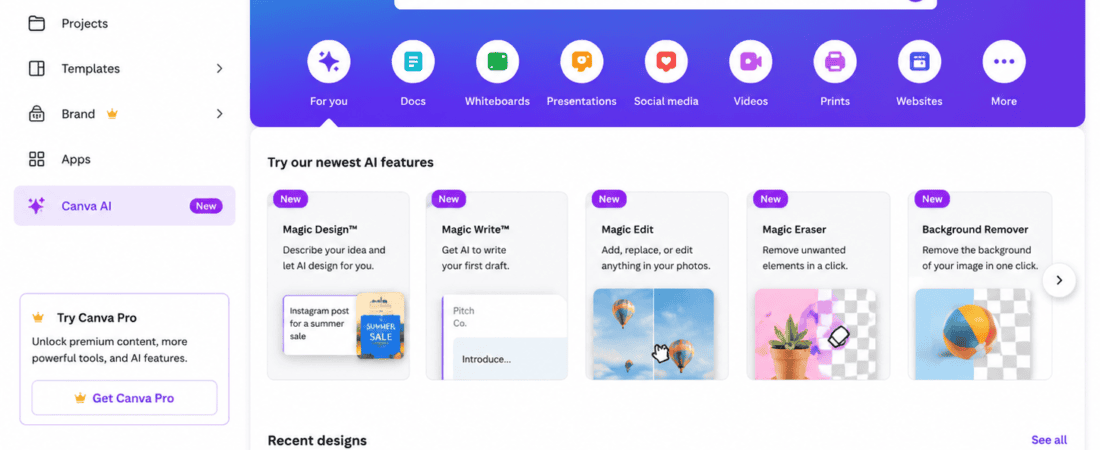
Canva AI is a collection of Artificial Intelligence features built into Canva that helps users create professional designs faster.
Instead of designing everything manually, AI assists with:
- Template suggestions
- Image generation
- Background removal
- Magic Design
- Magic Resize
- AI writing
- Photo editing
- Text effects
These features help beginners create polished YouTube thumbnails without professional design experience.
Why Use Canva AI for YouTube Thumbnails?
Free to Use
Canva offers thousands of free thumbnail templates suitable for almost every niche.
Beginner-Friendly
No Photoshop skills are required.
Everything works through a simple drag-and-drop editor.
AI Design Assistance
AI recommends layouts, colors, fonts, and elements that improve the overall design.
Huge Template Library
Choose from templates for:
- Gaming
- Technology
- Education
- Finance
- Food
- Travel
- Business
- Beauty
- AI tools
- Fitness
- Tutorials
Cloud-Based
Your designs are saved online, allowing you to edit them from any device.
Best Canva AI Features for Thumbnail Design
Magic Design
Magic Design generates professional layouts based on your content and selected style.
Magic Media
Generate custom AI images from text prompts to create unique thumbnail visuals.
Background Remover
Remove distracting backgrounds from photos with a single click (availability depends on your Canva plan).
AI Text Suggestions
Canva AI can help generate compelling thumbnail text and headlines.
Magic Resize
Quickly adapt your design for different social media platforms.
Brand Kit
Maintain consistent colors, fonts, and logos across all your thumbnails.
Step-by-Step Guide to Creating YouTube Thumbnails Using Canva AI
Step 1: Sign Up for Canva
Create a free Canva account if you don’t already have one.
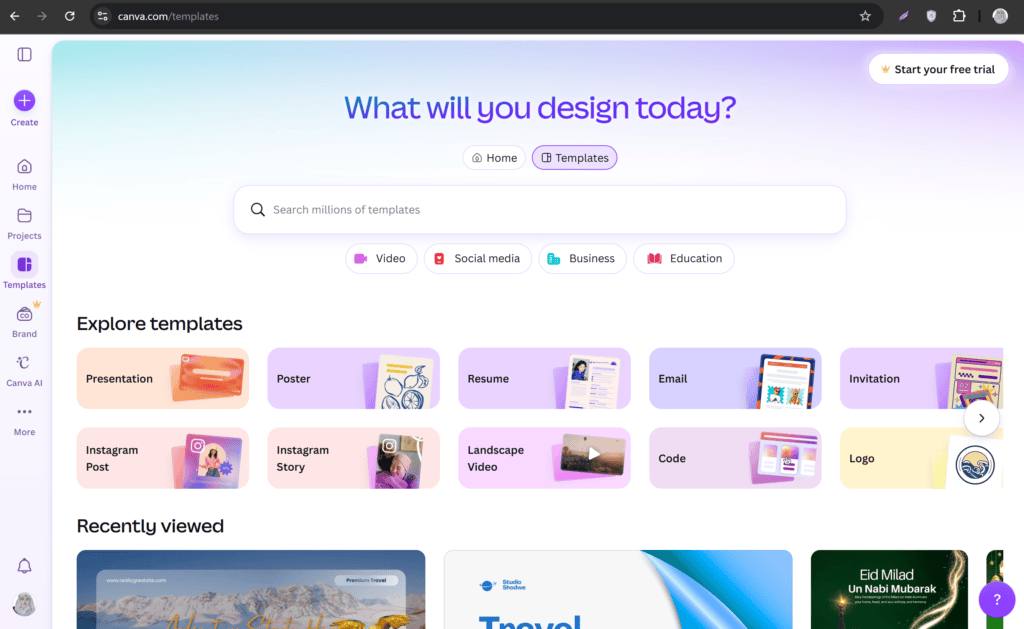
Search for YouTube Thumbnail in the template library.
Step 2: Choose an AI Template
Browse hundreds of professionally designed templates.
Select one that matches your video’s topic.
Examples include:
- Tech reviews
- AI tutorials
- Travel vlogs
- Finance videos
- Educational content
- Product reviews
Step 3: Customize the Layout
Replace placeholder elements with your own:
- Title
- Images
- Icons
- Colors
- Shapes
Keep the design clean and focused.
Step 4: Add High-Quality Images
Use:
- Your own photos
- Free Canva images
- AI-generated visuals
- Product screenshots
Ensure the images are sharp and relevant.
Step 5: Write Short Thumbnail Text
Use only a few words.
Examples:
- Best AI Tools
- Earn Faster
- Free Canva AI
- You Need This
- Don’t Miss This
Large, bold text is easier to read on mobile devices.
Step 6: Use Contrasting Colors
Good color combinations improve visibility.
Examples:
- Yellow + Black
- White + Red
- Blue + White
- Green + Black
High contrast helps your thumbnail stand out.
Step 7: Add Icons and Shapes
Simple arrows, circles, or highlights can draw attention to important elements.
Avoid adding too many graphics.
Step 8: Export the Thumbnail
Download your design as a high-quality PNG.
Recommended thumbnail size:
1280 × 720 pixels
Maintain a 16:9 aspect ratio for the best display on YouTube.
Best Canva AI Thumbnail Templates
Popular template categories include:
Technology
Perfect for:
- AI tools
- Software reviews
- Gadgets
- Coding tutorials
Gaming
Ideal for:
- Gameplay
- Walkthroughs
- Esports
- Live streams
Business
Suitable for:
- Marketing
- Entrepreneurship
- Freelancing
- Investing
Education
Great for:
- Online courses
- Tutorials
- Exam preparation
- Skill development
Lifestyle
Useful for:
- Travel
- Fitness
- Fashion
- Daily vlogs
Thumbnail Design Principles
Keep It Simple
Avoid clutter.
Focus on one clear message.
Use Large Fonts
Small text becomes unreadable on mobile devices.
Stick to short headlines with bold typography.
Create Visual Hierarchy
Guide the viewer’s eye using:
- Size
- Color
- Position
- Contrast
Highlight the Main Subject
Your main image should dominate the design.
Reduce unnecessary distractions.
Use Emotion
People respond to emotion.
Expressions such as surprise, excitement, or curiosity often increase clicks.
For faceless channels, use expressive graphics, icons, or compelling visuals.
Best Fonts for YouTube Thumbnails
Easy-to-read fonts include:
- Anton
- League Spartan
- Bebas Neue
- Poppins Extra Bold
- Montserrat Bold
Avoid decorative fonts that reduce readability.
Best Colors for Higher CTR
High-performing combinations often include:
- Red + White
- Black + Yellow
- Blue + White
- Orange + Black
- Green + White
Maintain consistency with your brand colors where possible.
Canva AI Tips for Better Thumbnails
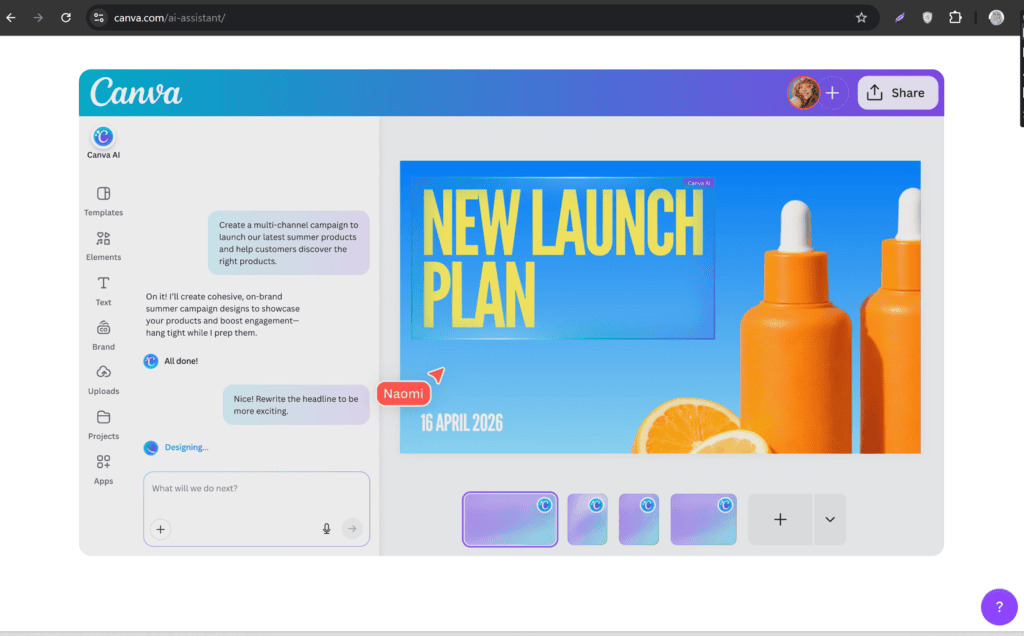
Use AI Image Generation
Generate custom visuals that match your video’s theme instead of relying solely on stock photos.
Experiment with Layouts
Test multiple template variations to discover what attracts your audience.
Maintain Brand Consistency
Use the same colors, fonts, and style across your thumbnails to build recognition.
Leave White Space
Spacing improves readability and creates a cleaner, more professional appearance.
Preview Before Publishing
Zoom out or view the thumbnail at a small size to ensure all important elements remain visible.
YouTube Thumbnail SEO Best Practices
Although thumbnails themselves don’t directly affect search rankings, they influence metrics that support SEO.
Match the Thumbnail to the Title
Avoid misleading designs.
Your thumbnail should accurately represent the video’s content.
Encourage Curiosity
Create interest without exaggerating or making false promises.
Use High-Resolution Images
Blurry thumbnails can reduce trust and click-through rates.
Keep Branding Consistent
A recognizable style helps returning viewers identify your content quickly.
Optimize the Video Around the Thumbnail
Combine a compelling thumbnail with:
- Keyword-rich title
- Detailed description
- Relevant tags
- Chapters
- Accurate captions
Common Thumbnail Mistakes
Too Much Text
Keep text concise.
Three to six words are often enough.
Low-Quality Images
Avoid pixelated or stretched graphics.
Weak Color Contrast
Low contrast makes important elements difficult to read.
Cluttered Designs
Too many icons, images, and fonts create confusion.
Misleading Clickbait
Avoid thumbnails that promise something the video doesn’t deliver.
Misleading thumbnails may reduce audience trust and retention.
Free vs Canva Pro
| Feature | Free Canva | Canva Pro |
|---|---|---|
| Thumbnail templates | ✅ | ✅ |
| Drag-and-drop editor | ✅ | ✅ |
| AI design assistance | Limited | Advanced |
| Stock images | Thousands | Millions |
| Background remover | Limited availability | Full access |
| Brand Kit | Basic | Advanced |
| Magic Resize | Limited | Yes |
| Premium fonts | Limited | Extensive |
For most beginners, the free version offers enough tools to create professional YouTube thumbnails.
Best Thumbnail Ideas by Niche
AI Tools
Use futuristic graphics, software screenshots, and bold typography.
Finance
Highlight charts, money-related visuals, and clean layouts.
Gaming
Feature gameplay screenshots, vibrant colors, and dynamic effects.
Education
Use icons, diagrams, and readable text.
Travel
Show scenic locations with bright, inviting colors.
Food
Focus on high-quality close-up images and minimal text.
Future of AI Thumbnail Design
AI design technology continues to improve rapidly.
Future features may include:
- Automatic thumbnail optimization
- AI-powered CTR predictions
- Personalized design suggestions
- Intelligent color recommendations
- Smart object placement
- Audience-based template recommendations
- Real-time thumbnail performance analysis
These innovations will make creating high-performing thumbnails even easier.
Frequently Asked Questions (FAQs)
Is Canva free for YouTube thumbnails?
Yes. Canva provides thousands of free templates and editing tools suitable for creating YouTube thumbnails.
Can Canva AI generate thumbnail images?
Yes. Canva’s AI features can generate custom images from text prompts, depending on feature availability in your account.
What is the best thumbnail size?
The recommended YouTube thumbnail size is 1280 × 720 pixels with a 16:9 aspect ratio.
Should I add text to thumbnails?
Yes, but keep it short and easy to read. Use bold fonts and high-contrast colors.
Can I use Canva thumbnails for monetized YouTube videos?
Yes, provided your design complies with Canva’s content licensing terms and uses assets that are permitted for your intended use.
How many thumbnails should I test?
Creating two or three thumbnail variations and comparing performance over time can help improve your click-through rate.
Final Thoughts
Creating professional YouTube thumbnails no longer requires expensive software or advanced graphic design skills. With free Canva AI templates, content creators can design eye-catching, high-quality thumbnails that attract more clicks and strengthen their channel’s visual identity.
By combining Canva’s AI-powered features with strong design principles—such as bold typography, clean layouts, high-contrast colors, and relevant visuals—you can create thumbnails that encourage viewers to click while accurately representing your content. Pair your thumbnails with optimized titles, descriptions, and valuable videos to maximize long-term YouTube growth.
Whether you’re running a faceless AI channel, educational channel, gaming channel, or business channel, Canva AI provides an efficient and beginner-friendly way to produce thumbnails that stand out in a competitive feed.
Check Out Here If You want to know About Best Free AI Music Generators for Copyright-Free Background Music
Check Out Here If You want to know About Free AI Video Generators for Faceless Automated YouTube Channels