How to Use Free AI to Expand Image Borders Online
Expand Image Borders: Sometimes you capture the perfect photo, but the framing isn’t ideal. Perhaps you need extra space for social media, a YouTube thumbnail, a presentation, or a website banner. Instead of stretching or cropping the image, AI can intelligently generate new content around the edges to expand the background naturally.
This technology, known as AI Outpainting or AI Image Expansion, uses artificial intelligence to analyze your existing image and create realistic extensions that blend seamlessly with the original.
The best part is that many AI tools now offer free image border expansion online, making it easy for anyone to create professional-looking results without advanced editing skills.
In this complete guide, you’ll learn how AI image expansion works, discover the best free tools available in 2026, and follow step-by-step instructions to expand image borders in minutes.
What Is AI Image Border Expansion?
AI image border expansion is an editing technique where artificial intelligence extends the edges of an existing image by generating new pixels that match the original content.
Instead of copying or stretching the background, AI predicts what should naturally appear beyond the image boundaries.
For example, AI can generate:
- More sky
- Larger landscapes
- Extended walls
- Additional grass
- Ocean waves
- Mountains
- Buildings
- Trees
- Clouds
- Interior backgrounds
The result looks natural and professionally edited.
What Is AI Outpainting?
AI Outpainting is the process of expanding an image beyond its original dimensions while preserving the style, lighting, textures, and perspective.
Unlike traditional editing, AI creates entirely new visual content rather than duplicating existing pixels.
This makes it ideal for:
- Social media graphics
- Website banners
- YouTube thumbnails
- Product photography
- Posters
- Presentations
- Marketing materials
- Print designs
- Wallpapers
Benefits of AI Image Expansion
Using AI to extend image borders offers several advantages:
- No Photoshop skills required
- Fast results in minutes
- Natural-looking background extensions
- Improved image composition
- Better aspect ratio conversion
- Saves time compared to manual editing
- Works directly in your browser
- Suitable for beginners and professionals
Best Free AI Tools to Expand Image Borders Online
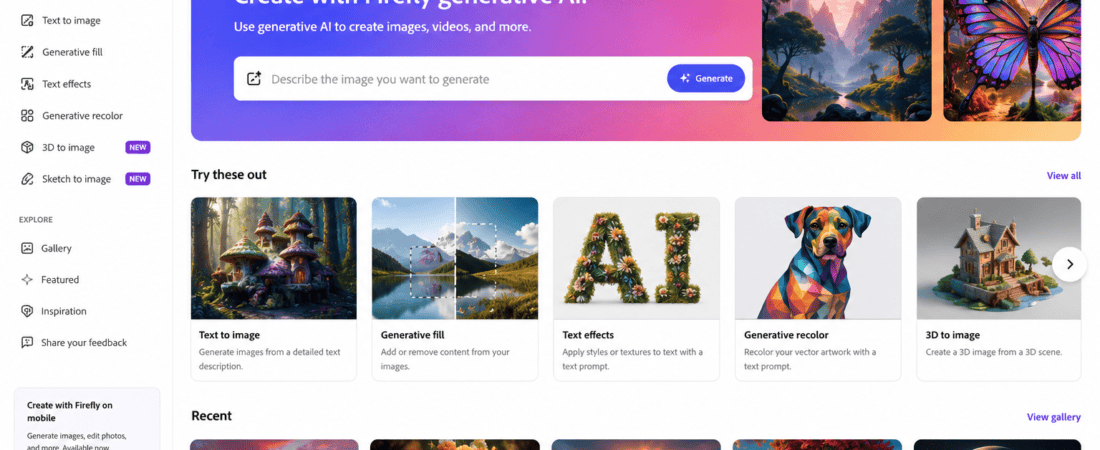
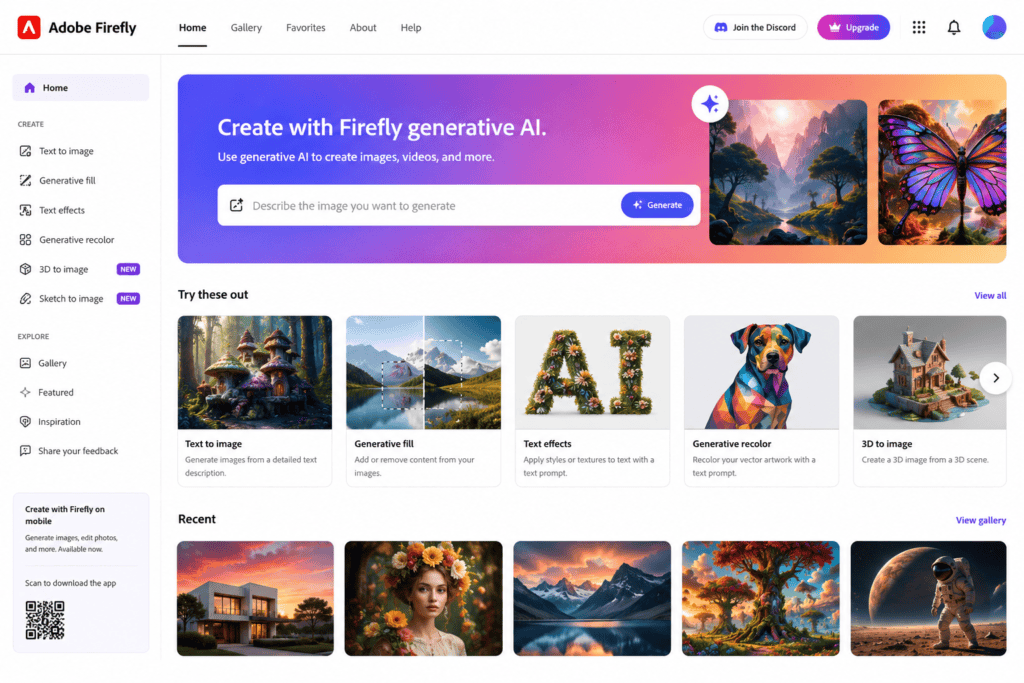
1. Adobe Firefly
Adobe Firefly includes powerful Generative Expand features that intelligently extend photos while maintaining realistic textures and lighting.
Best For
- Professional editing
- Landscape photos
- Product images
- Marketing graphics
Pros
- Excellent image quality
- Natural background generation
- Easy-to-use interface
Cons
- Free generations may be limited
2. Canva AI
Canva’s Magic Expand helps users resize images for different platforms by generating new background content.
Features
- AI image expansion
- Drag-and-drop editing
- Social media templates
- One-click resizing
- Beginner-friendly interface
Perfect for content creators and marketers.
3. Clipdrop
Clipdrop offers one of the easiest AI outpainting tools available online.
Features include:
- Expand images
- Remove backgrounds
- Replace objects
- Upscale images
- Relight photos
Its AI produces smooth, realistic border extensions.
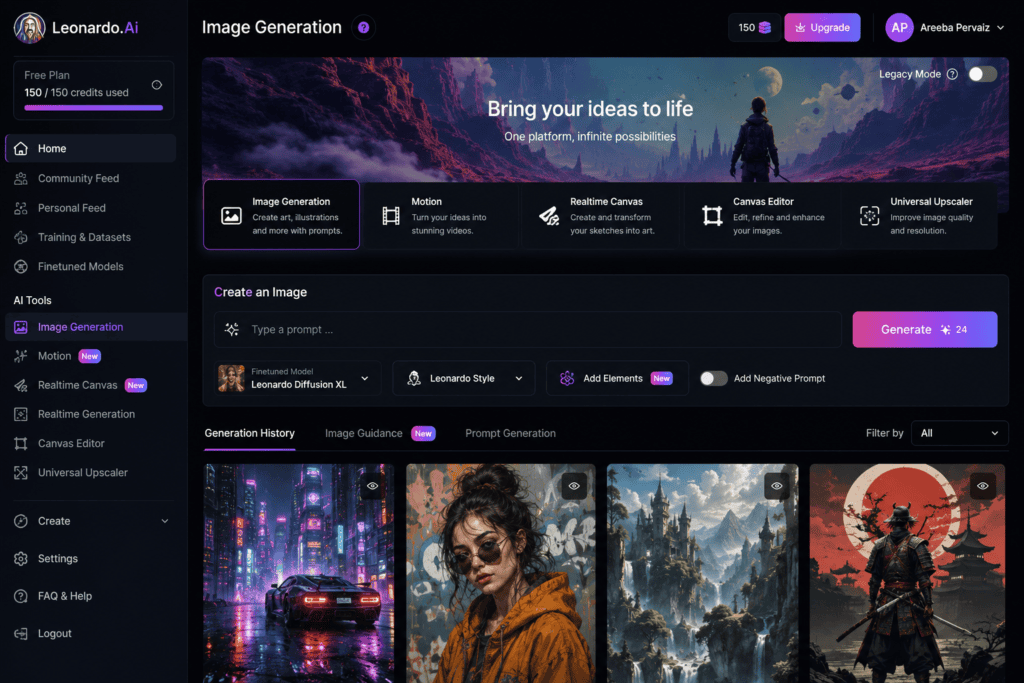
4. Leonardo AI
Leonardo AI includes canvas expansion and AI image editing tools.
Users can:
- Expand artwork
- Extend fantasy scenes
- Create wider landscapes
- Generate consistent backgrounds
Ideal for digital artists.
5. Microsoft Designer
Microsoft Designer allows users to resize and enhance visuals using AI-assisted editing features.
Highlights include:
- Smart image editing
- AI-generated backgrounds
- Professional templates
- Social media optimization
Suitable for beginners.
6. Pixlr AI
Pixlr provides AI-powered image editing with an intuitive online editor.
Features:
- AI expand
- Background generation
- Object removal
- Image enhancement
- Layer editing
Great for quick edits.
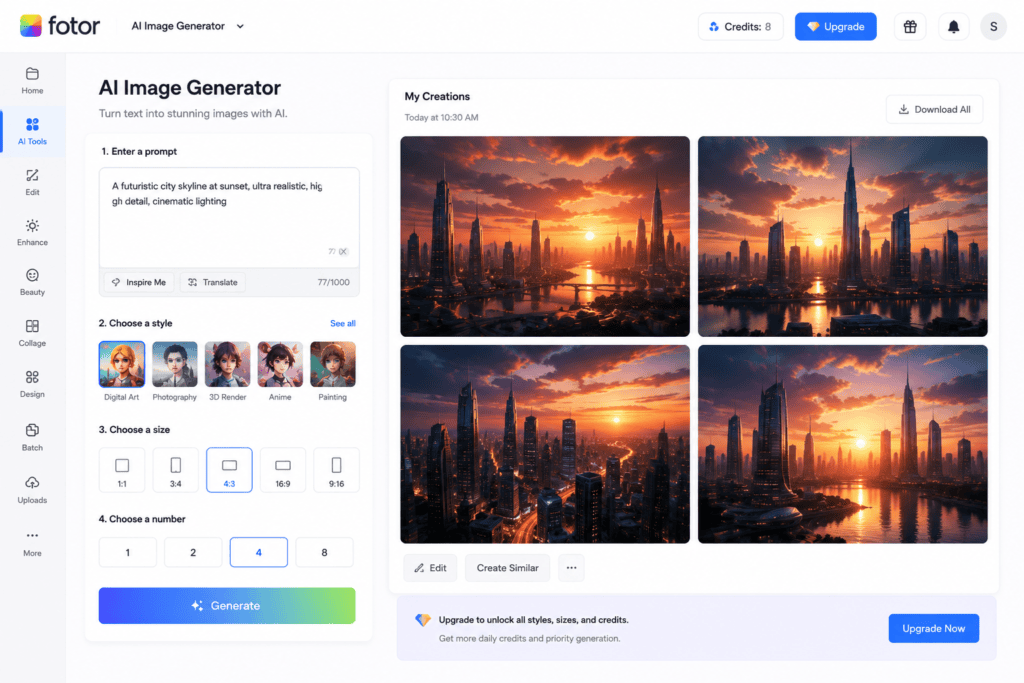
7. Fotor AI
Fotor offers AI image expansion tools designed for portraits, landscapes, and product photos.
Advantages:
- One-click editing
- High-quality output
- Simple interface
- Free daily credits
8. Phot.AI
Phot.AI includes AI outpainting features that automatically extend image borders while preserving visual consistency.
Perfect for:
- E-commerce
- Marketing
- Social media
- Advertising
9. Getimg.ai
Getimg.ai combines image generation with editing capabilities.
Features:
- AI outpainting
- Inpainting
- Background editing
- Image generation
- Canvas expansion
Excellent for creative professionals.
10. Playground AI
Playground AI enables users to expand images using AI while maintaining consistent colors, lighting, and composition.
Useful for:
- Digital art
- Posters
- Book covers
- Creative projects
Why AI Outpainting Is Better Than Stretching Images
Traditional stretching often results in:
- Distorted objects
- Blurry backgrounds
- Pixelation
- Unnatural proportions
AI outpainting generates entirely new content, producing a cleaner and more realistic result that matches the original scene.
Common Uses for AI Image Border Expansion
AI outpainting is widely used for:
- Converting portrait photos into landscape banners
- Creating YouTube thumbnails
- Designing Facebook and LinkedIn cover images
- Preparing images for Instagram posts and stories
- Expanding product photography backgrounds
- Creating wallpapers
- Designing presentation slides
- Making print-ready posters
- Improving blog featured images
- Enhancing digital artwork
How AI Understands Image Context
Modern AI models analyze multiple elements before expanding an image, including:
- Lighting direction
- Color palette
- Texture patterns
- Perspective
- Object shapes
- Shadows
- Reflections
- Depth of field
This allows the generated borders to blend naturally with the original photo.
Comparison of the Best Free AI Image Border Expansion Tools
| AI Tool | Free Plan | AI Outpainting | Ease of Use | Image Quality | Best For |
|---|---|---|---|---|---|
| Adobe Firefly | Yes | ⭐⭐⭐⭐⭐ | ⭐⭐⭐⭐ | ⭐⭐⭐⭐⭐ | Professional Editing |
| Canva AI | Yes | ⭐⭐⭐⭐ | ⭐⭐⭐⭐⭐ | ⭐⭐⭐⭐ | Social Media |
| Clipdrop | Yes | ⭐⭐⭐⭐⭐ | ⭐⭐⭐⭐⭐ | ⭐⭐⭐⭐⭐ | Fast Image Expansion |
| Leonardo AI | Yes | ⭐⭐⭐⭐⭐ | ⭐⭐⭐⭐ | ⭐⭐⭐⭐⭐ | Digital Art |
| Microsoft Designer | Yes | ⭐⭐⭐⭐ | ⭐⭐⭐⭐⭐ | ⭐⭐⭐⭐ | Beginners |
| Pixlr AI | Yes | ⭐⭐⭐⭐ | ⭐⭐⭐⭐ | ⭐⭐⭐⭐ | Quick Editing |
| Fotor AI | Yes | ⭐⭐⭐⭐ | ⭐⭐⭐⭐⭐ | ⭐⭐⭐⭐ | Portraits |
| Phot.AI | Yes | ⭐⭐⭐⭐ | ⭐⭐⭐⭐ | ⭐⭐⭐⭐ | Marketing |
| Getimg.ai | Yes | ⭐⭐⭐⭐⭐ | ⭐⭐⭐⭐ | ⭐⭐⭐⭐⭐ | Creative Projects |
| Playground AI | Yes | ⭐⭐⭐⭐⭐ | ⭐⭐⭐⭐ | ⭐⭐⭐⭐⭐ | Illustrations |
Step-by-Step Guide: Expand Image Borders Using AI
Creating a larger version of your image is surprisingly simple.
Step 1: Choose an AI Outpainting Tool
Pick one of the free platforms listed above based on your needs.
For beginners:
- Canva AI
- Microsoft Designer
- Fotor AI
For professionals:
- Adobe Firefly
- Clipdrop
- Leonardo AI
- Getimg.ai
Step 2: Upload Your Image
Upload the original photo you want to expand.
Supported formats usually include:
- JPG
- JPEG
- PNG
- WEBP
Higher-resolution images generally produce better results.
Step 3: Resize the Canvas
Increase the canvas size based on your target dimensions.
Examples:
- Square to landscape
- Landscape to widescreen
- Portrait to vertical story
- Instagram post to YouTube thumbnail
- Photo to desktop wallpaper
Leave transparent space where you want AI to generate new content.
Step 4: Use AI Expand or Outpaint
Select the Expand, Generative Expand, or Outpaint feature.
The AI will analyze:
- Colors
- Textures
- Lighting
- Perspective
- Objects
- Depth
It then creates realistic content around the original image.
Step 5: Review the Generated Result
Most tools generate several variations.
Compare them and choose the version that best matches the original image.
If needed, regenerate until you’re satisfied.
Step 6: Refine the Image
Use built-in editing tools to:
- Adjust brightness
- Improve contrast
- Enhance colors
- Remove unwanted artifacts
- Add filters
- Sharpen details
These finishing touches create a more polished image.
Step 7: Export the Final Image
Download the completed image in your preferred format.
Common export options include:
- PNG
- JPG
- WEBP
- PDF (for design projects)
For printing, choose the highest available resolution.
Best AI Prompts for Image Expansion
Some tools allow you to guide the AI with text prompts.
Landscape
Extend the mountain range with realistic trees, blue sky, soft clouds, and natural lighting.
Beach
Expand the sandy beach with gentle waves, seashells, palm trees, and a bright summer sky.
City
Extend the modern city skyline with additional skyscrapers, streets, and realistic lighting.
Office
Expand the office background with desks, plants, windows, and soft natural light.
Product Photography
Extend the clean white studio background with subtle shadows and reflections for a seamless product photo.
Forest
Continue the forest with tall trees, green plants, sunlight filtering through the leaves, and realistic depth.
Interior
Expand the modern living room with matching furniture, wall decor, wooden flooring, and ambient lighting.
Fantasy
Extend the magical castle surroundings with glowing trees, waterfalls, floating islands, and cinematic lighting.
Best Image Types for AI Outpainting
AI performs especially well on:
- Nature photography
- Landscapes
- Cityscapes
- Architecture
- Product photos
- Portrait backgrounds
- Food photography
- Travel images
- Digital paintings
- Concept art
These images often have predictable patterns that AI can extend convincingly.
Best Aspect Ratios for Social Media
AI image expansion is useful when adapting one image to multiple platforms.
Instagram Feed
1080 × 1350
Instagram Story
1080 × 1920
Facebook Cover
851 × 315
LinkedIn Banner
1584 × 396
YouTube Thumbnail
1280 × 720
Pinterest Pin
1000 × 1500
Desktop Wallpaper
1920 × 1080
Mobile Wallpaper
1080 × 1920
Expanding borders instead of cropping helps preserve the main subject while fitting each platform’s dimensions.
Tips for Better AI Image Expansion
Improve your results with these best practices:
- Start with the highest-quality source image.
- Expand the canvas gradually instead of making extreme changes.
- Use descriptive prompts when supported.
- Match the original lighting and perspective.
- Avoid expanding images with complex patterns in one step.
- Generate multiple versions and compare them.
- Fine-tune the output using basic editing tools.
- Save your project before experimenting with different variations.
Common Mistakes to Avoid
Many users encounter issues because they:
- Upload low-resolution images.
- Stretch images instead of using AI outpainting.
- Expand too much at once.
- Ignore perspective and lighting.
- Accept the first generated result without reviewing alternatives.
- Forget to check for visual artifacts or inconsistencies.
Careful review and small adjustments often lead to much more realistic outcomes.
Free vs Paid AI Outpainting Tools
Free Plans
Advantages:
- No cost
- Easy to access
- Suitable for casual projects
- Great for learning
- Basic AI expansion features
Limitations:
- Daily credit limits
- Lower export resolution on some platforms
- Fewer editing options
- Occasional watermarks
Paid Plans
Advantages:
- More AI generations
- Faster processing
- Higher-quality exports
- Advanced editing features
- Commercial usage options
- Priority access to new AI models
For most beginners and hobbyists, the free versions provide enough functionality to create impressive image expansions.
1. Landscape
Expand this mountain landscape with snow-covered peaks, pine forests, realistic clouds, warm sunlight, and natural depth while maintaining the original style.
2. Beach
Extend the beach with turquoise water, palm trees, white sand, seashells, and a bright blue sky that blends seamlessly with the original image.
3. Sunset
Continue the sunset sky with soft orange clouds, glowing horizon, birds flying, and realistic lighting.
4. City Skyline
Expand the modern city skyline with additional skyscrapers, roads, street lights, reflections, and evening lighting.
5. Office
Extend the office interior with matching desks, chairs, plants, windows, and soft natural daylight.
6. Living Room
Continue the modern living room with elegant furniture, wooden flooring, decorative plants, and realistic shadows.
7. Forest
Expand the dense forest with tall trees, green plants, sunlight rays, moss-covered rocks, and a natural atmosphere.
8. Product Photography
Extend the clean white studio background with realistic shadows, reflections, and smooth lighting for a premium product presentation.
9. Restaurant
Expand the luxury restaurant background with elegant tables, warm lighting, decorative walls, and sophisticated interior details.
10. Wedding
Continue the wedding venue with floral decorations, soft lighting, elegant seating, and a romantic atmosphere.
11. Garden
Extend the garden with colorful flowers, green grass, fountains, trees, and a bright sunny sky.
12. Space
Expand the galaxy scene with stars, colorful nebulas, distant planets, and cinematic lighting.
13. Castle
Continue the medieval castle surroundings with mountains, waterfalls, forests, and dramatic clouds.
14. Desert
Expand the desert landscape with rolling sand dunes, distant mountains, and a vibrant sunset.
15. Snow
Extend the snowy landscape with pine trees, frozen lakes, mountains, and realistic winter lighting.
16. Waterfall
Continue the waterfall scene with lush vegetation, rocks, flowing water, and mist.
17. Coffee Shop
Expand the café interior with wooden furniture, bookshelves, warm ambient lighting, and decorative plants.
18. Library
Extend the library with additional bookshelves, reading tables, classic architecture, and soft lighting.
19. Fantasy
Expand the magical world with floating islands, glowing trees, castles, waterfalls, and cinematic fantasy lighting.
20. Cyberpunk
Continue the futuristic cyberpunk city with neon signs, flying vehicles, holograms, rain reflections, and vibrant lighting.
Common Problems and Solutions
Even advanced AI tools can produce imperfect results. Here’s how to fix common issues.
Problem: Blurry Expanded Area
Solution:
- Upload a higher-resolution image.
- Use AI upscaling after expansion.
- Avoid enlarging the canvas too much in one step.
Problem: Lighting Doesn’t Match
Solution:
- Include lighting details in your prompt.
- Generate multiple variations.
- Adjust brightness and contrast after generation.
Problem: Repeated Objects
Solution:
- Reduce the expansion area.
- Use a more specific prompt.
- Regenerate only the affected section if the tool supports it.
Problem: Distorted Perspective
Solution:
- Expand the canvas gradually.
- Mention perspective in the prompt.
- Use reference images when available.
Problem: Visible Seams
Solution:
- Blend edges with built-in editing tools.
- Regenerate the border.
- Slightly feather transitions if the editor provides that option.
Best Practices for Professional Results
To achieve high-quality AI image expansions:
- Start with a sharp, high-resolution image.
- Expand the canvas in small increments.
- Keep prompts descriptive and consistent.
- Match the original image’s lighting, color, and perspective.
- Review several AI-generated versions before choosing one.
- Make final adjustments using basic editing tools.
- Save both the original and edited versions for comparison.
Can You Make Money with AI Image Expansion?
Yes. AI-powered image editing skills are valuable for freelancers, marketers, and businesses.
Popular income opportunities include:
- Editing product photos for e-commerce stores.
- Creating YouTube thumbnails.
- Designing social media banners.
- Producing website hero images.
- Enhancing real estate photography.
- Restoring old photos.
- Creating print-ready posters.
- Selling AI-enhanced stock images (where platform licenses allow).
- Offering image editing services on freelance marketplaces.
A strong portfolio showcasing before-and-after examples can help attract clients.
Future of AI Image Expansion
AI outpainting technology is improving rapidly. Future developments are expected to include:
- More realistic background generation.
- Faster processing times.
- Better object recognition.
- Improved perspective matching.
- Automatic lighting correction.
- AI-generated reflections and shadows.
- Multi-image scene expansion.
- Real-time editing directly in web browsers.
- Enhanced support for ultra-high-resolution images.
These advancements will make professional-quality image editing even more accessible.
Frequently Asked Questions (FAQs)
What is AI image border expansion?
AI image border expansion, also called AI outpainting, uses artificial intelligence to generate new visual content around the edges of an existing image, extending the scene naturally.
Are AI outpainting tools free?
Many AI image editing platforms offer free plans with limited daily credits or basic editing features. Premium plans usually provide higher-quality exports and additional AI generations.
Which AI tool is best for expanding image borders?
Adobe Firefly, Clipdrop, Canva AI, Leonardo AI, Getimg.ai, and Playground AI are among the most popular options for AI-powered image expansion.
Can AI expand portrait photos?
Yes. AI can extend backgrounds behind people, making portrait photos suitable for banners, presentations, wallpapers, and social media formats.
Does AI reduce image quality?
Most modern AI tools maintain high image quality. For the best results, start with a high-resolution source image and export at the highest available resolution.
Can I use AI-expanded images commercially?
In many cases, yes. However, always review the licensing terms of the AI platform and any generated assets before using them in commercial projects.
Is AI image expansion better than stretching an image?
Yes. Unlike stretching, AI outpainting generates new content that blends naturally with the original scene, preserving image quality and composition.
Final Thoughts
AI image border expansion has revolutionized photo editing by allowing anyone to transform ordinary images into professional-quality visuals without advanced design skills. Whether you’re creating content for social media, websites, marketing campaigns, presentations, or print materials, AI outpainting tools save time while producing natural-looking results.
Free platforms such as Adobe Firefly, Canva AI, Clipdrop, Leonardo AI, Microsoft Designer, Pixlr AI, Fotor AI, Phot.AI, Getimg.ai, and Playground AI provide powerful capabilities for expanding backgrounds, improving compositions, and adapting images to different aspect ratios.
The secret to achieving outstanding results lies in using high-quality source images, writing detailed prompts, maintaining consistent lighting and perspective, and refining the generated output with basic editing tools. While AI automates much of the creative process, thoughtful planning and attention to detail remain essential for producing polished visuals.
As AI technology continues to advance, image expansion tools will become even more accurate, faster, and easier to use. Learning these techniques today will help you create eye-catching content more efficiently and stay ahead in the rapidly evolving world of AI-powered design.
Check out here if you want to know about Free AI Tools to Design Professional Infographics in Minutes